Payments, renewals and refunds
This page follows a purchase from the payment to the license, then covers what happens after it: renewals, refunds, disputes, and when the integration breaks.
Payments
The customer pays
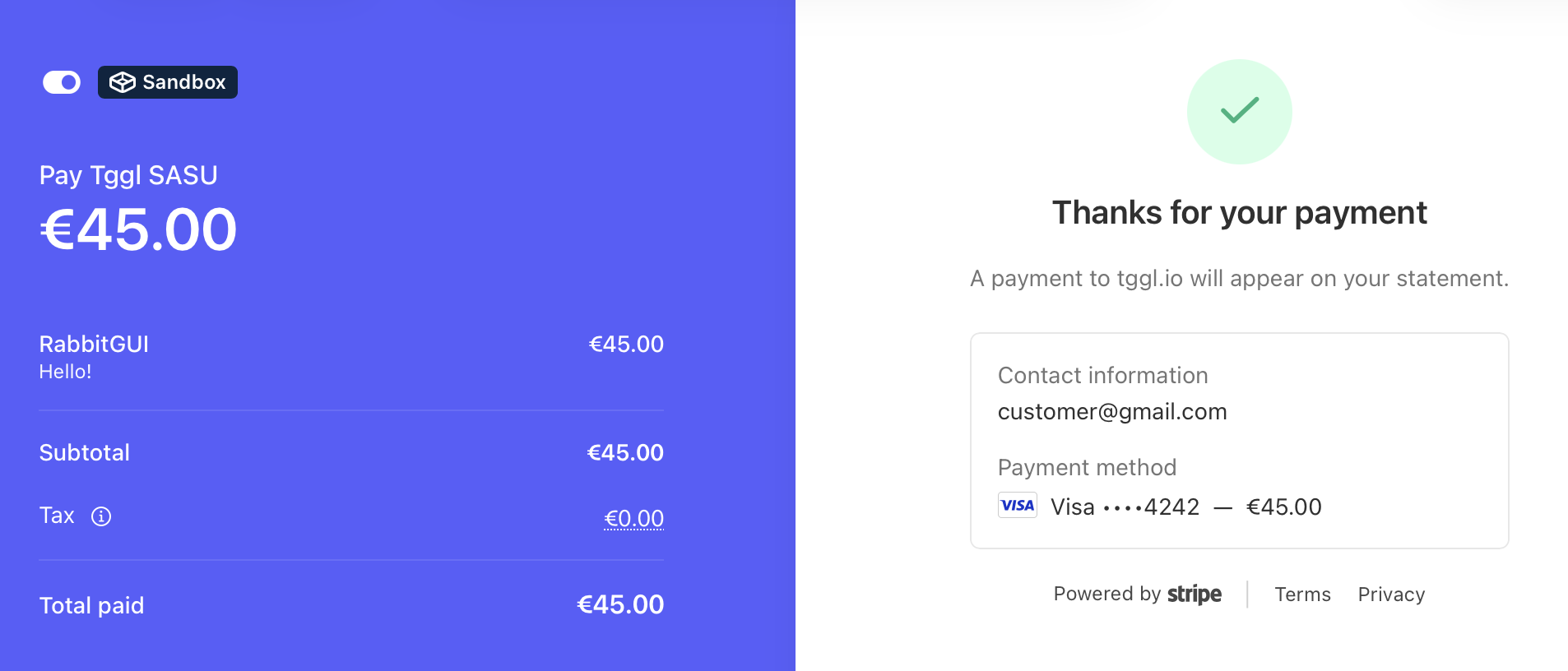
The customer pays with a Stripe Checkout page, created by your website or by a Payment Link. Stripe collects their email, payment details and taxes, and sends them a receipt if you enabled it.
Stripe notifies LicenseManager
Stripe sends a checkout.session.completed event to the webhook. LicenseManager checks its signature, so nobody else can create licenses, stores it, and answers Stripe right away. The event is processed in the background, within seconds.
The Last event of the Stripe card is updated.
LicenseManager checks the checkout
The checkout is ignored, creating nothing, when:
- It isn’t a one-time payment, like a subscription or a setup checkout.
- It isn’t paid yet, which happens with delayed payment methods.
- None of its prices is mapped.
- It already created licenses.
The licenses are created
For each line item of a mapped price, LicenseManager creates as many licenses as the quantity, with the mapping’s policy, for the customer of the checkout’s email. See what a mapping creates.
The customer receives their keys
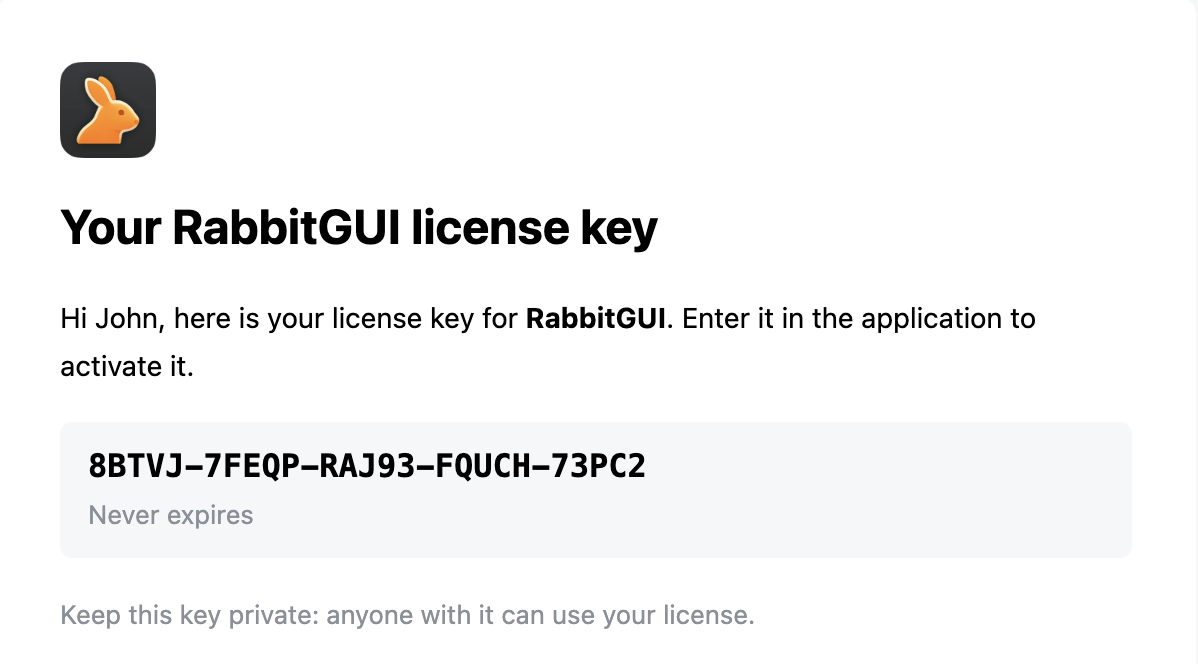
The customer receives one email with all their license keys, and their expiration dates. When sending fails, it’s retried, without creating the licenses again. You can send the keys again from the license page with Send key.
In a test product, the keys are only emailed when the checkout’s email is a member’s of your organization: see emails in test mode.
The customer
The customer is found by the checkout’s email, for the product: buying again with the same email adds licenses to the same customer, and an email you already know, like from a license you created manually, gets the new licenses too. The email is case-insensitive.
- Their name is set from the checkout’s, when they had none. A name you set is kept.
- Their Stripe customer is set when the checkout created or used one, linking to it in the Stripe dashboard. With a guest checkout, Stripe creates no customer, and it stays empty.
See how customers are created.
What’s recorded
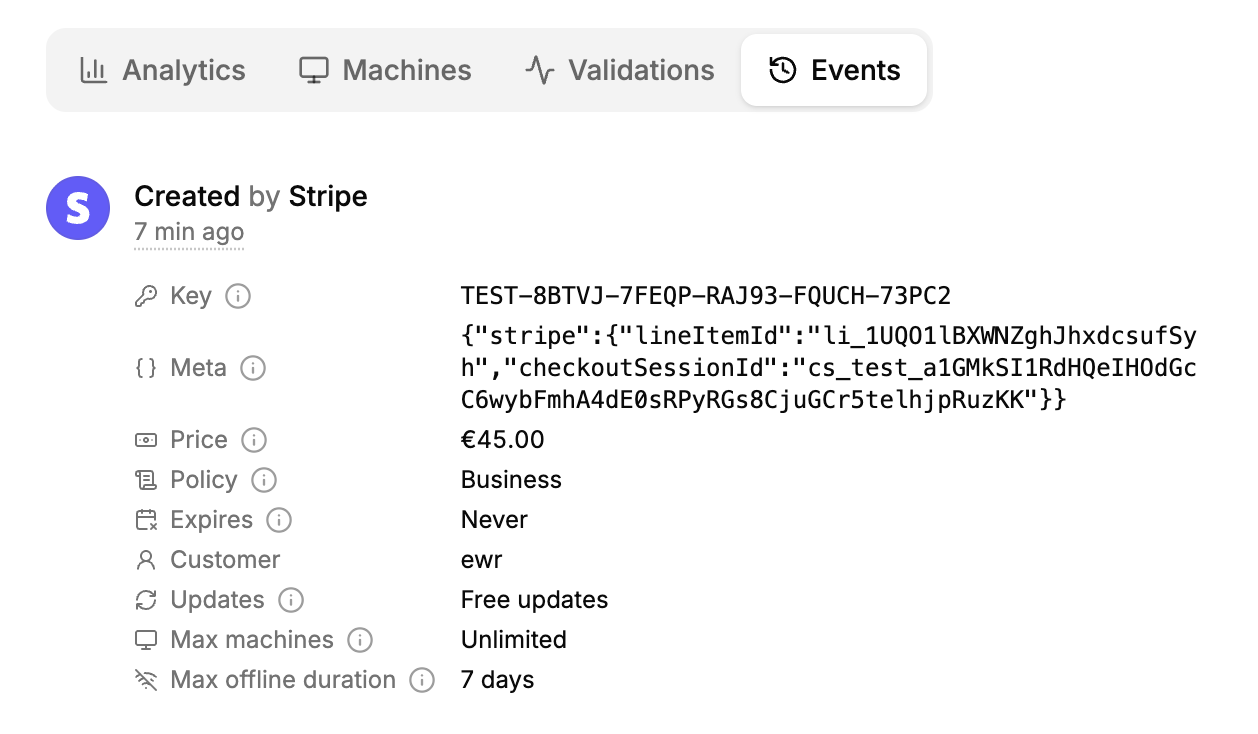
Each license created by Stripe shows:
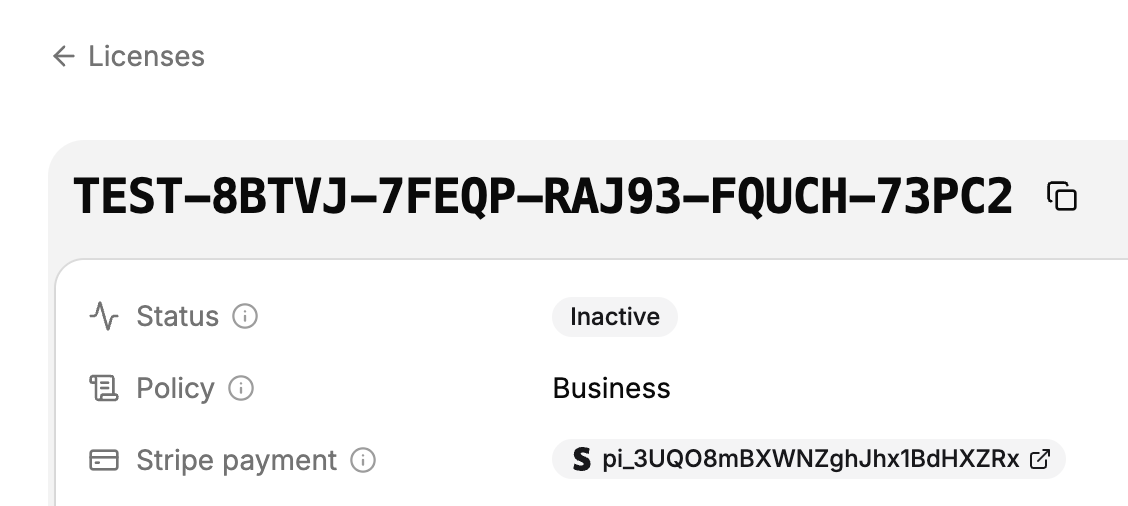
- Stripe payment: the payment it was bought with, linking to it in the Stripe dashboard.
- Price: what was paid for this license, after discounts and before taxes, in the checkout’s currency.
- Meta:
stripe.checkoutSessionIdandstripe.lineItemId, the checkout and line item it comes from. You can add your own fields next to them.
The events of these licenses show Stripe as who created them.
Delayed payment methods
Some payment methods, like bank transfers, SEPA Direct Debit or ACH, take days to confirm. Stripe completes the checkout before the payment succeeds, so:
- On
checkout.session.completed, the checkout is unpaid: nothing is created. - On
checkout.session.async_payment_succeeded, days later, the licenses are created and emailed. - If the payment fails instead, nothing is ever created. Stripe tells the customer.
Free checkouts
A checkout with nothing to pay, for example with a 100% off coupon, creates licenses like a paid one, with a price of 0.
Duplicated events
Stripe can send the same event more than once, and sends two events for a delayed payment. A checkout creates its licenses only once, whatever the number of events.
When a payment creates nothing
The payment is marked as failed and the integration shows Error with the reason when:
- The checkout has no email. Stripe Checkout and Payment Links always collect one, so this only happens with unusual setups.
- The policy of the mapping was deleted while the payment was processed.
Create the licenses manually for this customer, then click Check now on the Stripe card to clear the error.
Renewals
Subscriptions aren’t supported: only one-time prices can be mapped, and there are no automatic renewals.
To sell licenses that expire, like a one-year license, map a one-time price to a policy with a duration. When it nears its end:
- The customer buys again, with the same email: they get a new license, with a new key, starting from the purchase date. The expired license isn’t extended, so they enter the new key in your app.
- Or you extend it manually: once they paid you, edit their license and push back its Expires date. Their key stays the same.
Refunds
Refunds aren’t supported yet: refunding a payment in Stripe doesn’t change its licenses. They stay valid until you act.
When you refund a payment, fully or partially, LicenseManager isn’t notified, and its licenses keep working. It’s up to you to decide what the customer keeps:
- In Stripe, open the payment and copy its id (
pi_…), or find the licenses from the customer’s page in LicenseManager. - Open each license of the payment. Its Stripe payment shows the payment it was bought with.
- Then either:
- Expire it: click Edit and set its Expires date to today. The key stops validating, and the license stays in your history with its machines and events. This is what we recommend.
- Delete it: removes the license and its history. A license used on active machines can’t be deleted: deactivate them, or expire it instead.
For a partial refund, like refunding 2 seats of 5, expire as many licenses as you refunded.
An expired license stops working once your app validates it again. With offline validation, the app keeps working until its license token expires, up to the policy’s maximum offline duration.
The license’s price isn’t changed by a refund: it’s what was paid, not what you kept. Your revenue stats count it until you delete the license.
Disputes
Disputes aren’t supported yet: a dispute or chargeback doesn’t change the licenses of the payment, whatever its outcome.
When a customer disputes a payment, Stripe emails you and shows it in the dashboard, but LicenseManager isn’t notified. Depending on the case:
- While the dispute is open, you can keep the licenses working, or expire them as for a refund and push back their expiration date if you win.
- If you lose the dispute, the money is returned to the customer: expire or delete the licenses as for a refund.
- If you win, there’s nothing to do, unless you expired them meanwhile.
When the integration breaks
When the API key is revoked, loses a permission, or the webhook is deleted, the integration is in Error or Disconnected and the owners and admins are emailed after the next daily check.
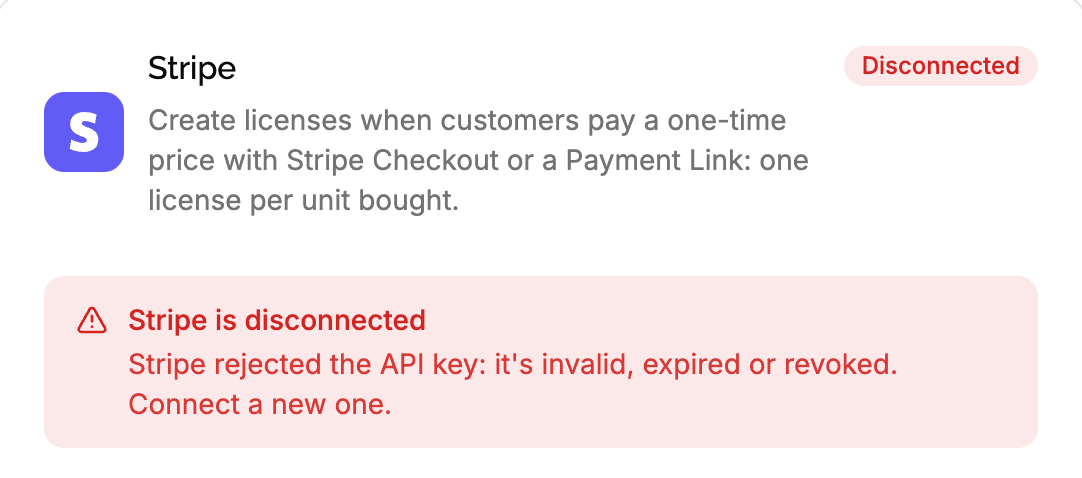
Meanwhile, customers can still pay in Stripe: Stripe doesn’t know about LicenseManager. They are charged, but may not get a license, and these licenses aren’t created once you fix the integration.
To recover:
- Fix the integration: replace the API key or give back the missing permission, then click Check now.
- In the Stripe dashboard, list the payments made since the integration broke, filtering on the date. The email tells you when the check failed, and the Last event of the card when Stripe last reached LicenseManager.
- For each payment without a license, create the licenses manually for the customer’s email, with the policy of the mapping, and send them their keys.
When LicenseManager itself is briefly unreachable, nothing is lost: Stripe retries sending the events for up to three days.
Summary
| In Stripe | In LicenseManager |
|---|---|
| A mapped one-time price is paid | Licenses created, keys emailed |
| A delayed payment is pending | Nothing, until it succeeds |
| A delayed payment succeeds | Licenses created, keys emailed |
| A delayed payment fails | Nothing |
| An unmapped price is paid | Nothing |
| A subscription is paid or renewed | Nothing |
| A payment is refunded | Nothing: expire the licenses manually |
| A payment is disputed | Nothing: expire the licenses manually if you lose |
| A mapped price or product is archived or deleted | Mapping flagged |
| The API key is revoked | Integration Disconnected, admins emailed |
| The webhook is deleted | Created again by the next check |