Policies
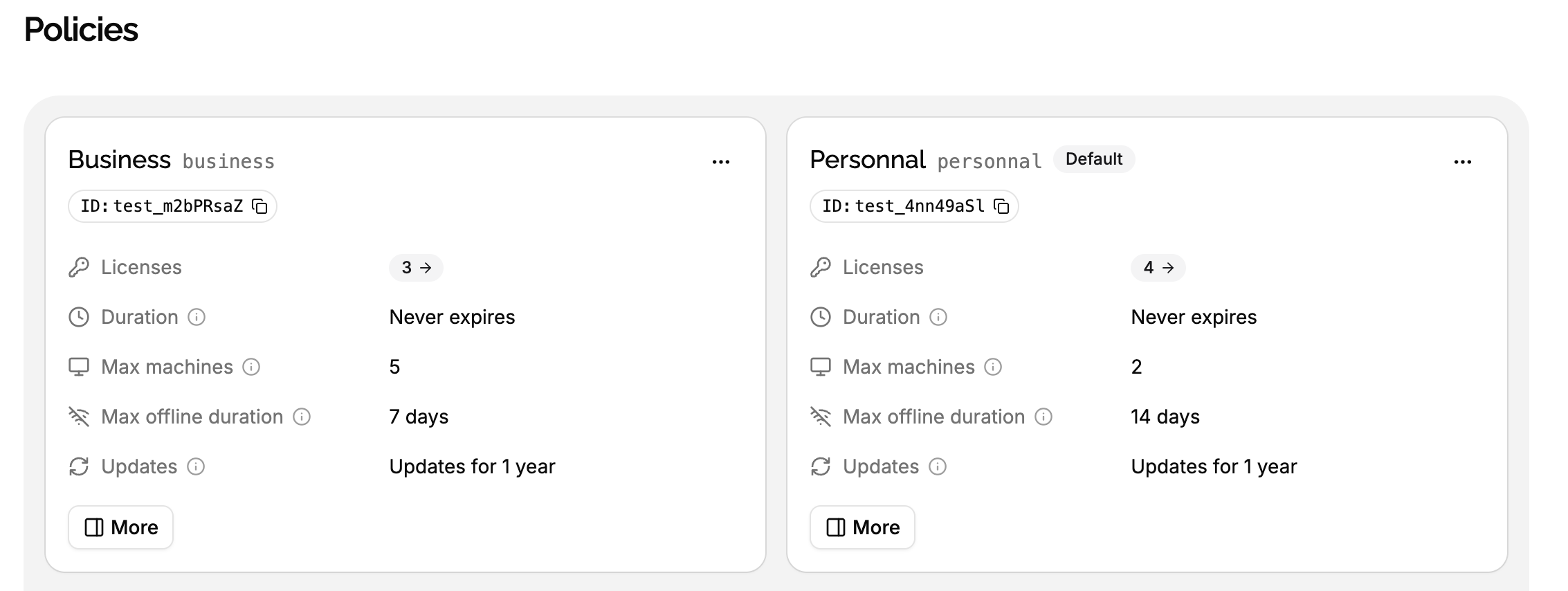
A policy is one of the offers of a product: Personal, Business, Yearly, 14-day trial. It decides what a license gets:
- How long it lasts: its duration.
- On how many devices it can be used at once: its max machines.
- How long the application can run without reaching LicenseManager: its max offline duration.
- Which versions of the product it unlocks: its updates.
For Acme Photo, the policies are the offers on the pricing page: Trial for 14 days on 1 machine, Personal for 1 year on 2 machines, Business for 1 year on 5 machines. An offer isn’t a license by itself: it’s the terms each license is sold with. When Acme Studio raises Personal to 3 machines next year, the photographers who already bought it keep their 2.
Policies and licenses
A license copies the settings of its policy when it’s created. From then on, the license and the policy are independent:
- Changing a policy only affects the licenses created afterwards. The licenses already created keep their expiration date and limits. To change them, edit each license.
- A license can’t move to another policy. It follows the policy it was created with for its whole life, which tells you what it was sold as. To give a customer another offer, create a new license with the other policy.
- You can override a policy’s settings on one license, when creating or editing it: a longer expiration for a loyal customer, one more machine for a support case. The license still follows its policy.
This is like a contract: the terms are fixed when it’s signed, and changing your standard terms doesn’t rewrite the contracts already signed.
The license page shows the policy it follows, but its own values are the ones that count. Two licenses of the same policy can have different limits.
The default policy
Each product has exactly one default policy. It’s the policy of the licenses created without choosing one, like through the API without a policyId, and the one preselected in the app and when mapping a Stripe price.
- A new product comes with a default policy named Default policy: licenses that never expire, on 1 machine, offline for 1 week, with free updates.
- To change the default, click ⋯ on another policy, then Make default. The previous default becomes a regular policy.
- The default can’t be unset: make another policy the default instead.
- Deleting the default policy makes the oldest remaining policy the default.
Create a policy
Open the Policies page
Open the product, click Policies in the sidebar, then New policy.
Fill in its settings
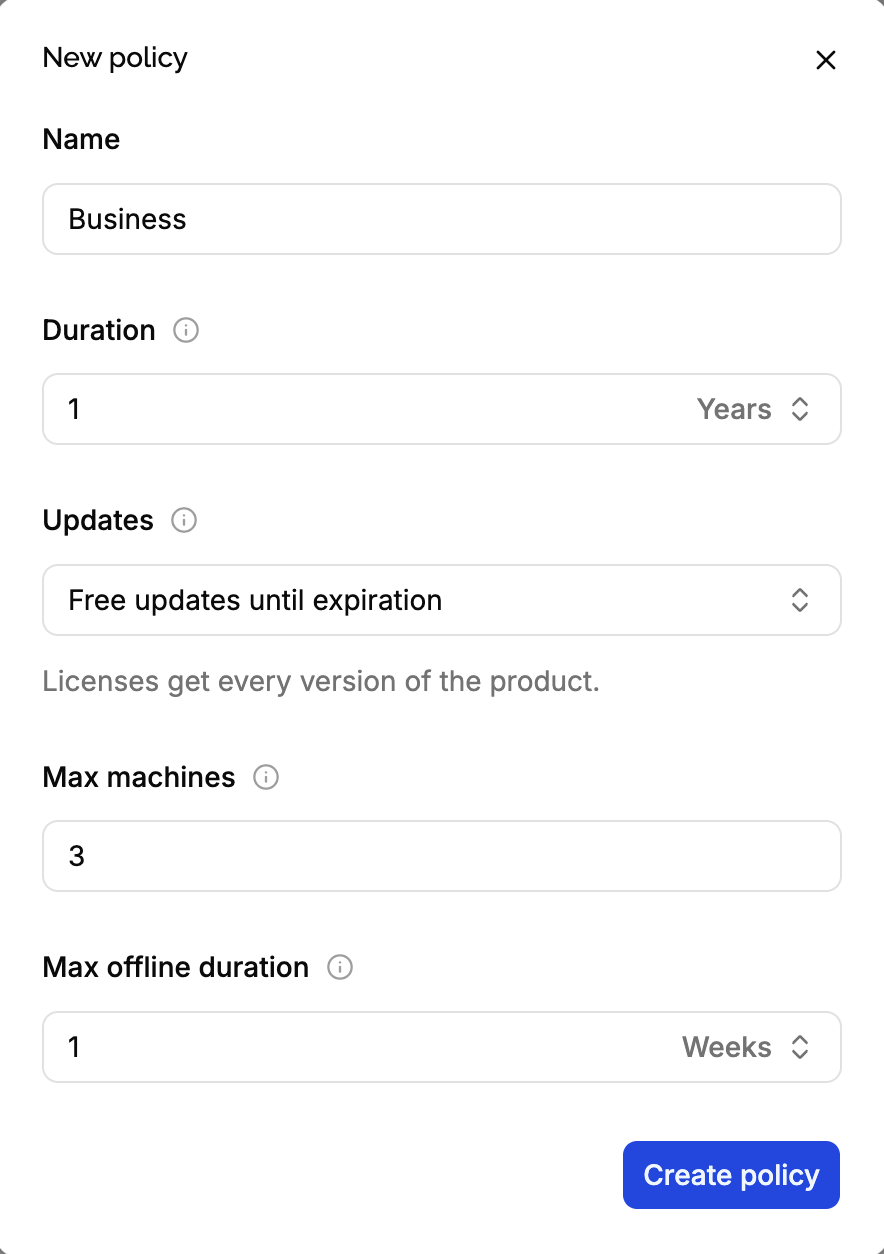
Give it a Name, then set its duration, max machines, max offline duration and updates. Every setting has a default, so a policy with only a name gives licenses that never expire, on unlimited machines, offline for 1 week, with free updates.
Create it
The policy is available right away, to create licenses and to map Stripe prices.
Settings
Name
Shown in the app, like Yearly. You can rename a policy at any time: licenses reference the policy, not its name.
Slug
An identifier for your own code, like yearly, unique within the product. Made from the name when you don’t choose one, with 3 random characters appended when it’s taken. Use it to find a policy through the API (?slug=yearly) without hard-coding its id. In test products, slugs start with test_.
Duration
How long the licenses last after their creation. Empty means they never expire.
- A license created with a 1 year duration on March 3, 2026 expires on March 3, 2027. The expiration date is computed once, when the license is created, and stored on the license: see expiration.
- Months and years are calendar months: a license created on January 31 with a 1 month duration expires on the last day of February. Years are 12 months. Hours, days and weeks are exact lengths.
- The clock starts when the license is created, not when it’s first used. A license created in January and activated in June has lost five months. To start the clock on first use, create the license when the customer is ready, or push back its expiration when they activate it.
Once a license has expired, validating its key fails with license_expired.
Max machines
How many machines can use a license at the same time. Empty means unlimited.
A machine becomes active the first time the key is validated on it, and stays active until it’s deactivated. Once a license has this many active machines, validating its key on a new machine fails with machine_limit_reached. The machines already active keep working.
| Offer | Max machines |
|---|---|
| Single-user license, one computer | 1 |
| Personal license, laptop and desktop | 2 or 3 |
| Team license sold per seat | The number of seats |
| Site license | Unlimited |
See machine limits for how machines are counted.
Max offline duration
How long your application can run without validating its key again. At least 1 hour, 1 week by default.
Each successful validation returns a signed license token, which your application stores and checks offline. The token expires after this duration, or when the license expires if that’s sooner. Before it expires, the application validates the key again to get a new one.
Think of it as how long you allow your users to use you app when they don’t have internet access (train, plane, aboard…): a short duration notices changes sooner, like a deactivated machine or a shortened expiration, but needs the application to be online more often.
| Use case | Max offline duration |
|---|---|
| Always-online app | 1 hour to 1 day |
| Desktop app, usually online | 1 to 4 weeks |
| Air-gapped machines | Months, or the license’s duration |
Updates
Which versions of the product the licenses unlock. Bug fixes are never blocked: limits only apply to major and minor versions.
| Option | What licenses get |
|---|---|
| Free updates | Every version, as long as the license is valid. Shown as Free updates forever or Free updates until expiration, depending on the duration. |
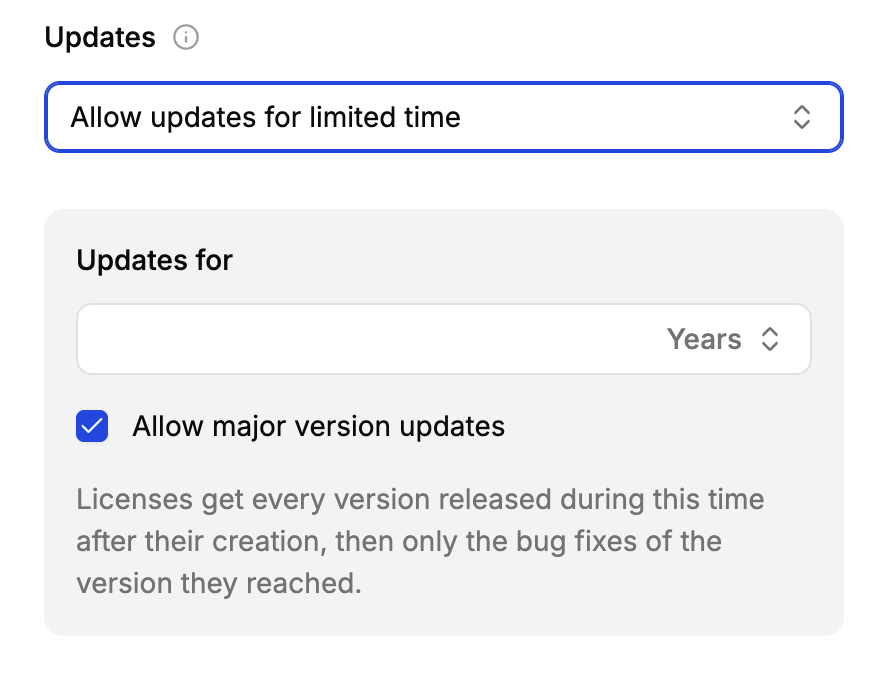
| Allow updates for limited time | Every version released during Updates for after the license is created, then only the bug fixes of the version reached by then. Uncheck Allow major version updates to only allow the minor versions of the major version they started with. |
| No updates | Only the bug fixes of the version released when the license is created. |
| Up to a fixed version | Every version up to the Version you enter: 2 allows every 2.x.x version and older, 2.3 every 2.3.x version and older. |
| Custom | Shown for combinations set through the API, like major updates for 1 month and minor updates for 1 year. |
The time-limited options rely on your releases to know which version a license reached: see version locks for how they work, step by step.
Delete a policy
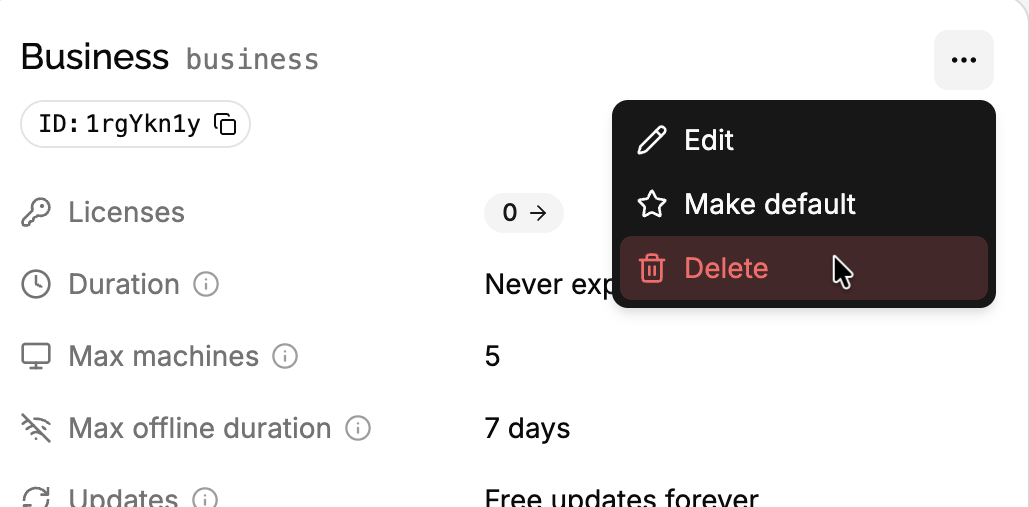
Click ⋯ on the policy, then Delete.
- A policy that licenses follow can’t be deleted. Licenses can’t move to another policy, so delete them first, or keep the policy.
- The last policy of a product can’t be deleted: a product always has one. Create another one first.
- Deleting the default policy makes the oldest remaining policy the default.
- The Stripe price mappings using the policy are deleted too: paying their prices no longer creates licenses.
- Its events can no longer be listed.
To retire an offer you no longer sell, you don’t need to delete it: delete its Stripe mappings, and stop choosing it.
Use cases
Perpetual license. Duration empty, updates Up to a fixed version or Allow updates for limited time. The customer keeps using what they bought forever.
Yearly license. Duration 1 year, free updates. The customer gets everything while they pay, and buys again or gets their expiration extended to keep going.
Perpetual fallback license, like JetBrains or Sketch. Duration empty, updates Allow updates for limited time for 1 year. The customer keeps the last version released during their year, forever.
Trial. Duration 14 days, 1 machine. License tokens never outlive their license, so the application stops when the trial ends, even offline. See trial licenses.
Editions. One policy per edition, like Personal and Business. Your application can read which edition a key is from the license’s policy, or from its meta.
Edge cases
Editing a policy right after a sale. The licenses created before the edit keep the old settings, even by a few seconds. Check the license’s own values.
Lowering a duration. Doesn’t shorten existing licenses. To shorten them, edit their expiration.
A duration of 1 month and one of 30 days aren’t the same. Calendar months last 28 to 31 days. Sorting policies by duration counts a month as its average length, about 30.4 days.
Policies of test products. A test product starts with copies of the live product’s policies, with new ids. Policies created later in the live product aren’t copied until you reset the test product.
History. Each creation and change of a policy is recorded as a policy.created or policy.updated event, with the previous and new values. Making a policy the default also records a change on the previous default.