Licenses
A license is the right of a customer to use a product. It has a key, like 7KQ2M-X9ZPA-H4TRC-WN6EY-B3JDF, that the customer enters in your application, and its own settings: when it expires, on how many machines it can be used, how long the application can run offline, and which versions it unlocks.
For Acme Photo, a license is the key a photographer receives after checkout. It has the photographer’s email, an expiration date one year later and the terms of the Personal offer it was sold with, like 2 machines. Acme Photo validates the key on each device it’s entered on, and refuses it once it has expired.
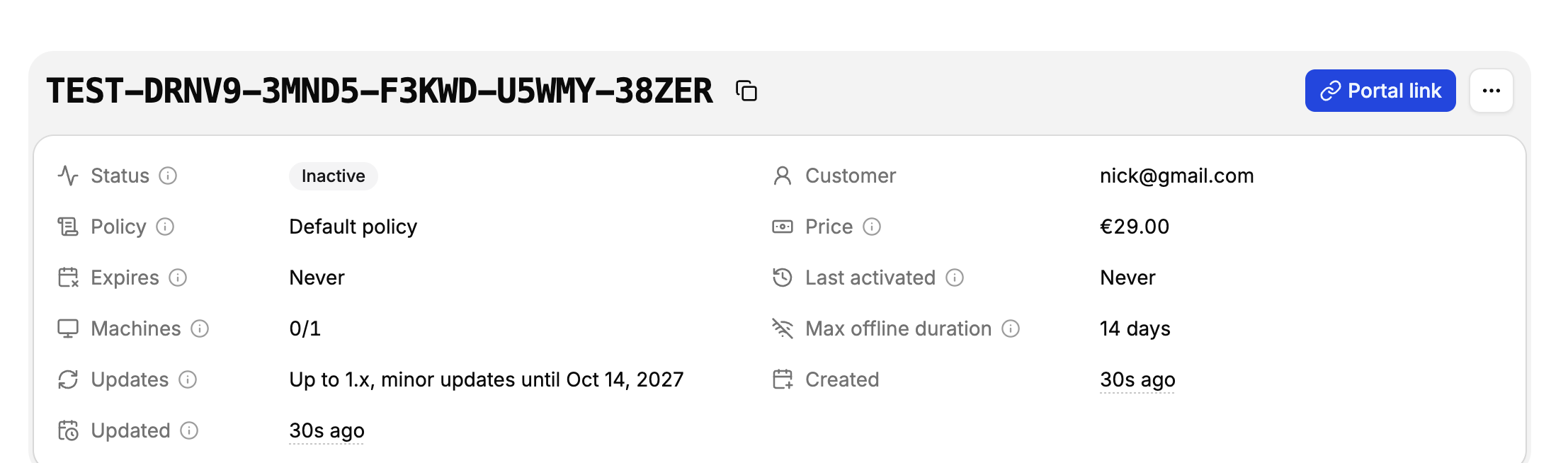
Create a license
Licenses are created three ways:
- In the app: open Licenses, then New license.
- Through the API, from your own backend, like after a sale on your website.
- By a Stripe payment, through the Stripe integration.
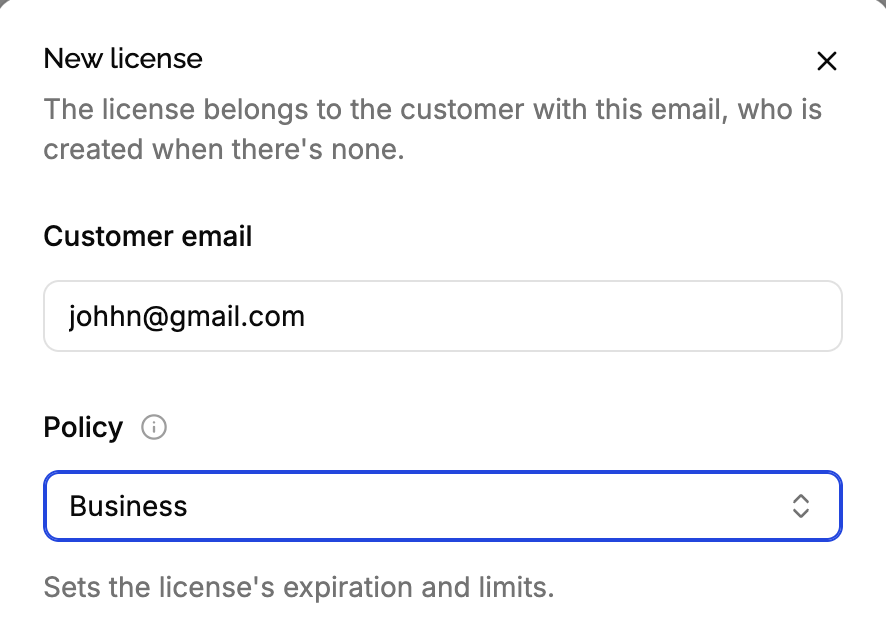
Enter the customer’s email
The license belongs to the product’s customer with this email, created when there’s none.
Choose the policy
The policy sets the license’s expiration and limits. The default policy is preselected.
Add a price and meta, optionally
The price paid for the license, for your revenue stats, and meta data for your own use.
Email the key
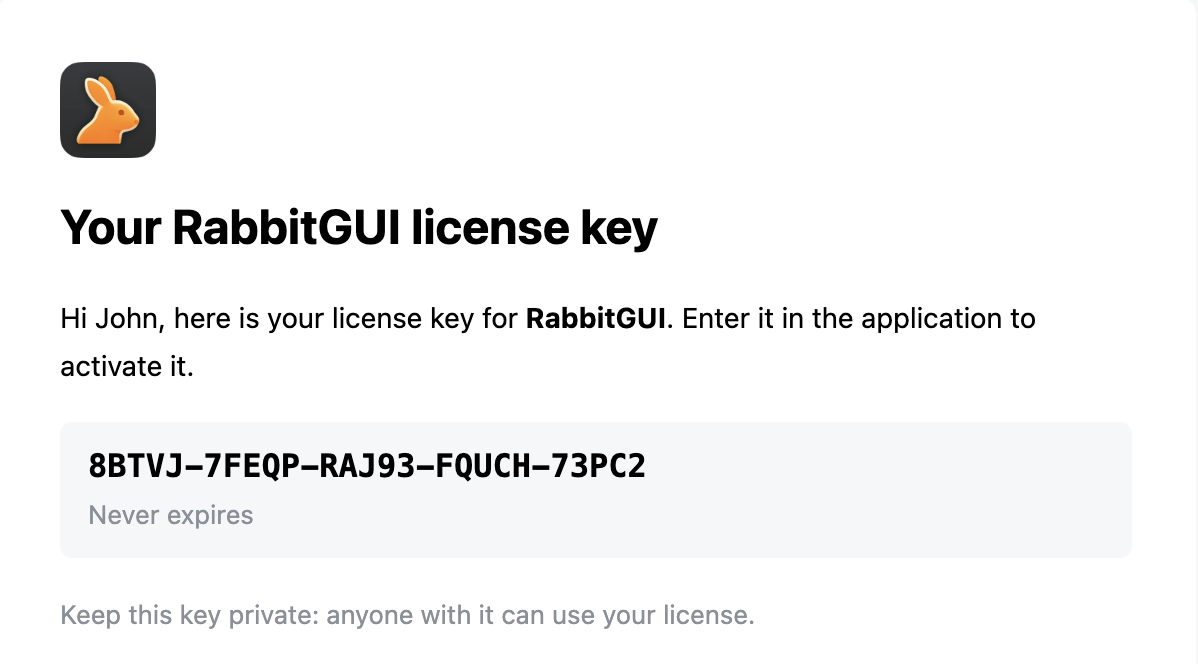
Check Email the key to the customer to send it once the license is created. You can also send it later. In a test product, it’s only sent when the email is a member’s of your organization.
When it’s created, the license copies the settings of its policy: changing the policy later doesn’t change it. See policies and licenses.
Through the API, you can also set the license’s own key, expiration, max machines, max offline duration and updates when creating it. Each one left out comes from the policy.
What a license holds
Key
What the customer enters in your application to unlock it. Generated keys are 5 groups of 5 characters, upper case letters and digits without the easily confused O, 0, I and 1. That’s 125 random bits: guessing a key is not an option.
- Keys are unique within the product and case sensitive: your application should send them exactly as entered, trimmed.
- Through the API, you can set your own key, up to 255 characters, like when migrating from another license manager.
- Keys of test products start with
TEST-. - A key can’t be changed. To give a customer a new key, like after it leaked, create a new license and expire the old one.
Customer
Who the license belongs to. It can’t be changed: to give a license to someone else, create a new one for them. To fix a typo in an email, edit the customer’s email instead.
Policy
The policy the license was created with. It can’t be changed: it tells what the license was sold as.
Expiration
The date after which validating the key fails with license_expired, shown as Expires. Empty means the license never expires.
It’s set when the license is created, from the duration of its policy, and you can change it at any time:
- Extend it, to renew a license: push back the date. The key stays the same, so the customer has nothing to do.
- Shorten it, or set it to now, to stop a license: after a refund, a chargeback, a leaked key. This is the closest thing to revoking a license, and it’s reversible: push it back to restore it.
- Clear it, to make the license perpetual.
Changes apply at the next validation of the key. The license tokens already returned stay valid until they expire, at most the max offline duration after they were issued, so an application running offline notices an expiration up to that much later.
A license token never outlives the license’s expiration as it was when the token was issued: when a license expires on March 3, the tokens issued before expire on March 3 at the latest. Extending the license only reaches the application at its next validation.
Max machines
How many machines can use the license at the same time. Empty means unlimited. Shown with the number of active machines, like 2 / 3.
Lowering it doesn’t deactivate any machine: the machines already active keep working, and new machines are refused until enough are deactivated. So a license can show 3 / 2. See machine limits.
Max offline duration
How long your application can run without validating the key again, at least 1 hour. See max offline duration and offline validation.
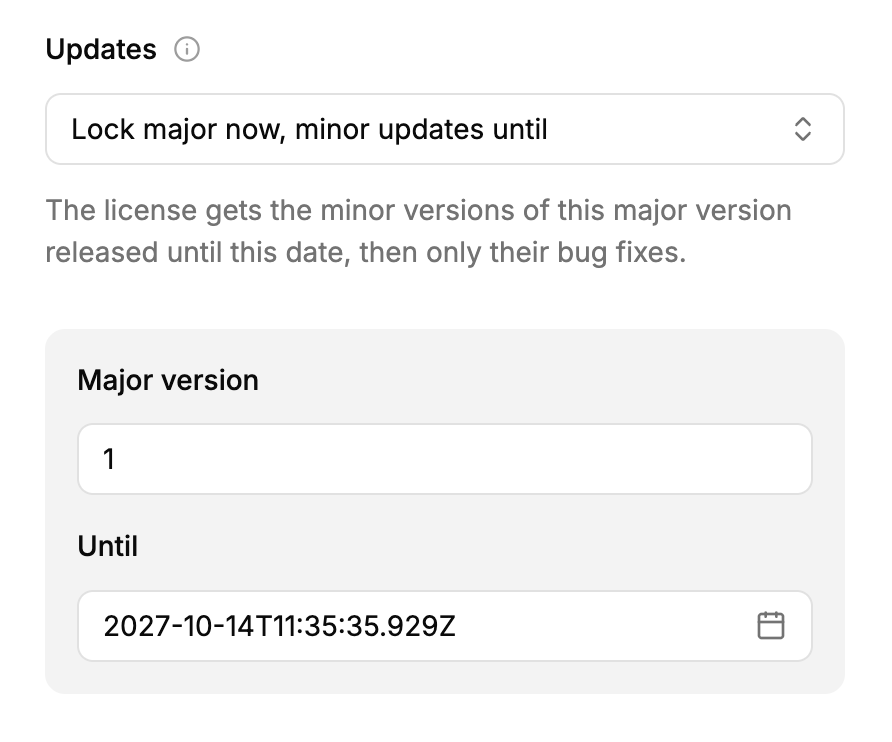
Updates
Which versions of the product the license unlocks. On a license, it’s made of:
- A hard-coded version, like
2for every 2.x.x version or2.3for every 2.3.x version. - The dates its major and minor versions lock, when the policy allows updates for a limited time. When a date is reached, the version released by then is hard-coded, within the hour.
| Option, when editing a license | What the license gets |
|---|---|
| Free updates forever | Every version, whenever it’s released. |
| All updates until | Every version released until the date, then only the bug fixes of the version it reached. |
| Lock major now, minor updates forever | Every minor version and bug fix of the major version you enter, never a newer major version. |
| Lock major now, minor updates until | The minor versions of the major version you enter released until the date, then only their bug fixes. |
| Lock version | Only the bug fixes of the version you enter, like every 2.3.x version for 2.3. |
| Custom | Shown for combinations set through the API or a policy. |
See releases and version locks for how locks are resolved.
Price
What was paid for the license, in a currency, like $49.00. It feeds the revenue stats of the product’s dashboard, per currency.
- Empty means the price is unknown: the license is left out of the revenue stats. Use it for licenses you don’t want counted, like the ones you give away to partners.
- 0 means a free license: it counts in the stats, as a license sold for nothing.
- Amounts have at most the decimals of their currency: 2 for USD, 0 for JPY.
- Licenses created by Stripe get the price paid after discounts and before taxes. See what’s recorded.
The price is what was paid, not what you kept: it’s not changed by a refund.
Meta
A free-form JSON object, for your own use: an order number, the edition, a number of seats for your own logic. LicenseManager doesn’t read it.
{ "orderId": "A-1042", "edition": "business" }Licenses created by Stripe get stripe.checkoutSessionId and stripe.lineItemId, and you can add your own fields next to them. Meta isn’t in the license token: read it through the API.
Stripe payment
The Stripe payment the license was bought with, through the Stripe integration, linking to it in the Stripe dashboard.
Last activated
The last time a machine successfully validated the key. Failed validations don’t count.
Status
Each license has a status, computed whenever you look at it:
| Status | When |
|---|---|
| Active | A machine validated the key in the last 90 days, and it hasn’t expired. |
| Inactive | No machine validated the key in the last 90 days, or ever, and it hasn’t expired. |
| Expired | Its expiration date has passed. Validating its key fails. |
The status describes usage, it doesn’t change what the license can do: an inactive license works like an active one. Active licenses count toward the active licenses limit of your plan.
Edit a license
Click ⋯ on the license, then Edit. You can change its expiration, price, max machines, max offline duration, updates and meta. Its key, customer and policy can’t be changed.
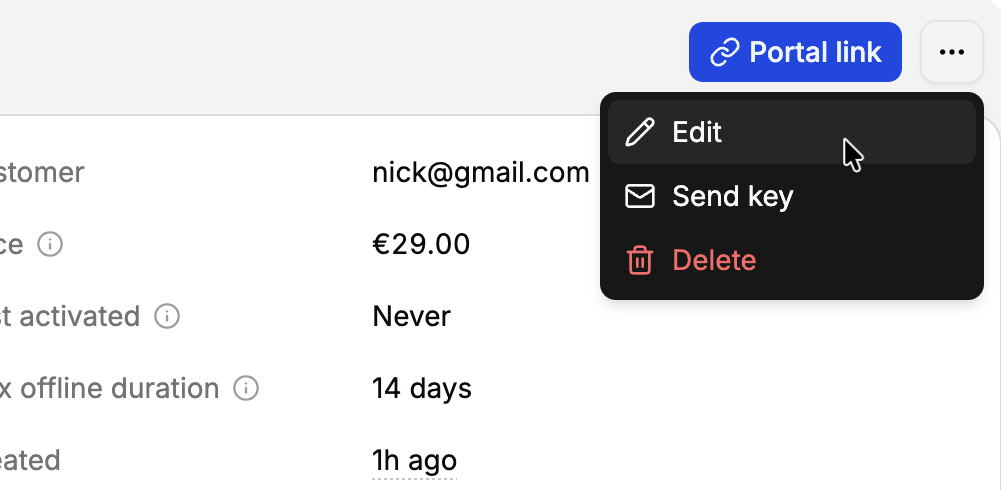
Changes apply to the next validations of the key: see the note on expiration.
Send the key
Click ⋯, then Send key, or select several licenses in the list. Each customer receives one email listing their keys among the selected licenses, with their expiration dates, under the product’s name and logo.
In a test product, keys are only sent to members of your organization: the app warns you, and sends nothing, when one of the customers isn’t a member.
The license page
The top of the page shows the license’s settings and status, above four tabs:
- Analytics: successful activations per day over the last 90 days, per machine and per version. See usage.
- Machines: the machines of the license, active and deactivated.
- Validations: every validation of the key, successful or not, with the reason of each failure.
- Events: the history of the license: its events.
Delete a license
Click ⋯, then Delete.
- A license used on active machines can’t be deleted: deactivate them first.
- Its deactivated machines are deleted with it, and its events can no longer be listed.
- Tokens scoped to the license or its machines stop working. License tokens already returned to applications stay valid until they expire.
- Its key is free again: a new license of the product can use it.
To stop a license, expire it rather than deleting it: it keeps its history, its machines and its revenue, and you can restore it.
Validation
When your application validates a key on a machine, LicenseManager checks, in this order, and answers with the first failure:
- The key exists in the product, else
not_found. - The license hasn’t expired, else
license_expired. - The license allows the application’s version, else
version_not_allowed, with the latest version it allows. See releases. - The machine is already active, or the license has room for one more, else
machine_limit_reached.
On success, the machine is created or activated, and the application receives a signed token. Every failure, except for unknown keys, is recorded on the license as a license.validation_failed event. See handling validation errors.
Use cases
Renewals. Extend the expiration of the same license: the customer keeps their key. Or create a new license, which is what a Stripe purchase does.
Upgrading an edition. Licenses can’t change policy: create a license with the new policy, then expire the old one, or keep it if the upgrade adds to it.
Seats. One license with a max machines of 10 for a team sharing a key, or 10 licenses of 1 machine each so each member has their own key.
Free licenses. For reviewers, partners or giveaways, leave the price empty to keep them out of revenue, or set it to 0 to count them as sales.
Edge cases
An expiration in the past. Allowed: the license is expired right away. Useful to create a license and send it later, after pushing back its expiration.
A license edited while offline. The application only sees the change at its next validation. Shortening the max offline duration doesn’t shorten the tokens already issued.
Two licenses with the same key. Not possible in the same product. The same key can exist in two products: validation is always for one product.
History of changes. Each change is recorded as a license.updated event with the previous and new values, including the hourly hard-coding of version locks, done by Automation.