Licensing a desktop app
This guide adds licensing to a desktop app, end to end: the customer enters their key once, the app works offline, gets the updates their license includes, and they move it to a new computer on their own. It follows Acme Photo 2, sold as a Personal license on 2 computers with one year of updates, that customers keep using forever.
You’ll:
- Set up the product, its policy and its releases.
- Add an activation screen to the app.
- Check the license on every launch, offline.
- Handle updates, errors and new computers.
Build it against a test product first: its keys start with TEST-, and its customers never receive emails, unless they’re members of your organization.
Set up the product
Create the product
In the sidebar, open the product switcher, then New product, named Acme Photo. Note its id, like x7Kp2QaZ, from its Settings.
Create the policy
In Policies, create Personal:
- Duration: empty, so the license never expires.
- Max machines: 2, a laptop and a desktop.
- Max offline duration: 4 weeks: photographers travel, and a desktop app shouldn’t need the internet every week.
- Updates: Allow updates for limited time, 1 year, with Allow major version updates checked.
Make it the default policy.
Record your releases
In Releases, create the version you ship today, like 2.3.0. From then on, record each version when you ship it, from your build pipeline with POST /v1/products/x7Kp2QaZ/releases.
LicenseManager uses releases to know which version each license keeps when its year of updates ends: a license whose updates end before any release is recorded gets every version, forever. See version locks.
Copy the public key
Open Security in the sidebar, and copy the public key. It goes in your app’s code.
The activation screen
The first time the app opens, it asks for the key:
Compute the fingerprint
An id of the computer that doesn’t change between launches, hashed with your app’s name. See machine fingerprints.
Validate the key
When the customer clicks Activate, send the key, trimmed, with the fingerprint, the app’s version, the computer’s name and platform:
POST https://api.licensemanager.dev/v1/products/x7Kp2QaZ/validate-key

{
  "key": "7KQ2M-X9ZPA-H4TRC-WN6EY-B3JDF",
  "fingerprint": "4c32758f9a1e…",
  "version": "2.3.0",
  "name": "Jane's MacBook Pro",
  "platform": "macOS"
}
The request needs no API key: never put one in your app. See validating license keys.
Store the key and the token
On success, store the key and the returned license token in the app’s data folder, or the system keychain. The app is activated.
On failure, show a message for the error’s code: see handling validation errors.
Every launch
- Verify the token: its signature with the public key,
audis your product’s id,subis the stored key,fpis this computer’s fingerprint, and it hasn’t expired. - Valid: unlock the app, without waiting for the network.
- When less than a week is left on the token, validate the key again in the background, and store the new token. Offline, try again at the next launch.
- Expired, and validation refused: lock the app and show why.
With a 4 weeks token renewed in its last week, a photographer can stay offline at least 3 weeks without noticing anything.
Never lock the app because LicenseManager couldn’t be reached, or answered 500 or 402: only on the four validation errors. See handling validation errors.
Updates
When the app finds an update, like 3.0.0, it checks the license includes it before downloading it:
- The token’s
mvclaim holds the license’s hard-coded version, like"2.3". An update whose major and minor numbers are above it isn’t included: offer to upgrade instead.nullmeans every version, as far as the token knows. - After installing, the first validation of the new version tells for sure. When it’s refused with
version_not_allowed, itslatestAllowedVersionis the version to go back to.
For Acme Photo, a license bought on March 1, 2026 gets every version until March 1, 2027. On that day, LicenseManager hard-codes the latest release, like 2.3: the license keeps every 2.3.x fix, but not 2.4 or 3.0.
A new computer
A photographer replaces their laptop. Their license allows 2 computers, both active, so the new one is refused with machine_limit_reached.
- Your app tells them to free a computer, with a link to your customer portal, like
https://app.licensemanager.dev/portal/x7Kp2QaZ?email=jane@example.com. - They sign in with the emailed link, and deactivate the old laptop.
- They activate the new one.
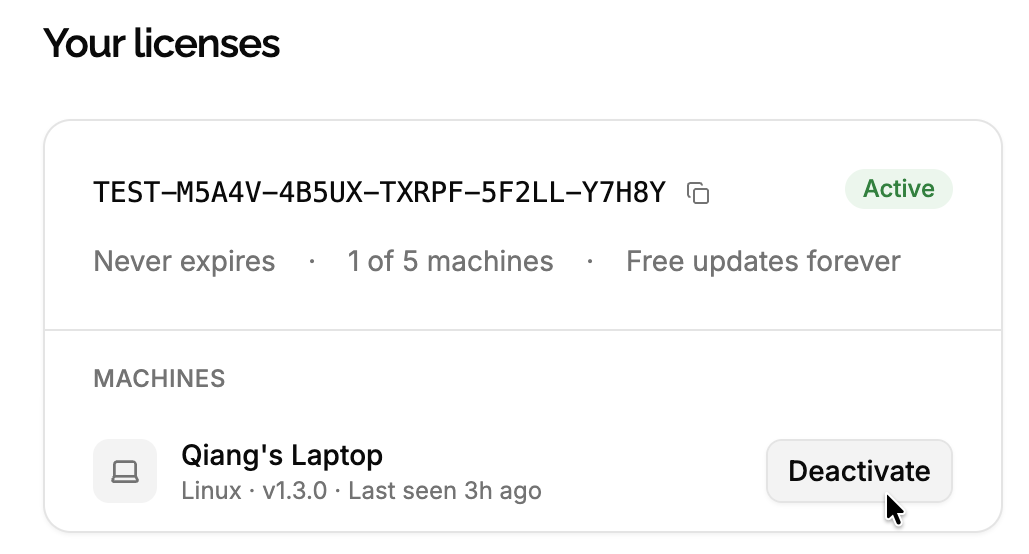
Enable the customer portal before you ship, and link to it from the app’s Help menu, with the stored key’s email when you have it.
The old laptop keeps working until its token expires, up to 4 weeks: deactivating doesn’t lock a machine out right away. See deactivating a machine.
If your app has a backend of its own, like for user accounts, it can also offer Sign out of this device: your backend finds the app’s machine, with GET /v1/products/{productId}/licenses?key=… then GET /v1/licenses/{licenseId}/machines?fingerprint=…, creates a machine token for it with machine:write, and the app deactivates itself with POST /v1/machines/{id}/deactivate, before the customer moves to a new computer. Never put an API key in the app to do it.
Before shipping
- Point the release build at the live product’s id, and the development builds at the test product’s id.
- Check
audin the token: without it, a test key would unlock the release build. - Never change how fingerprints are computed after shipping: every computer would become a new machine.
- Record the current release before selling the first license.
- Handle every error, and test them in the test product: expire a license, lower its max machines, lock its version.