Customizing the portal
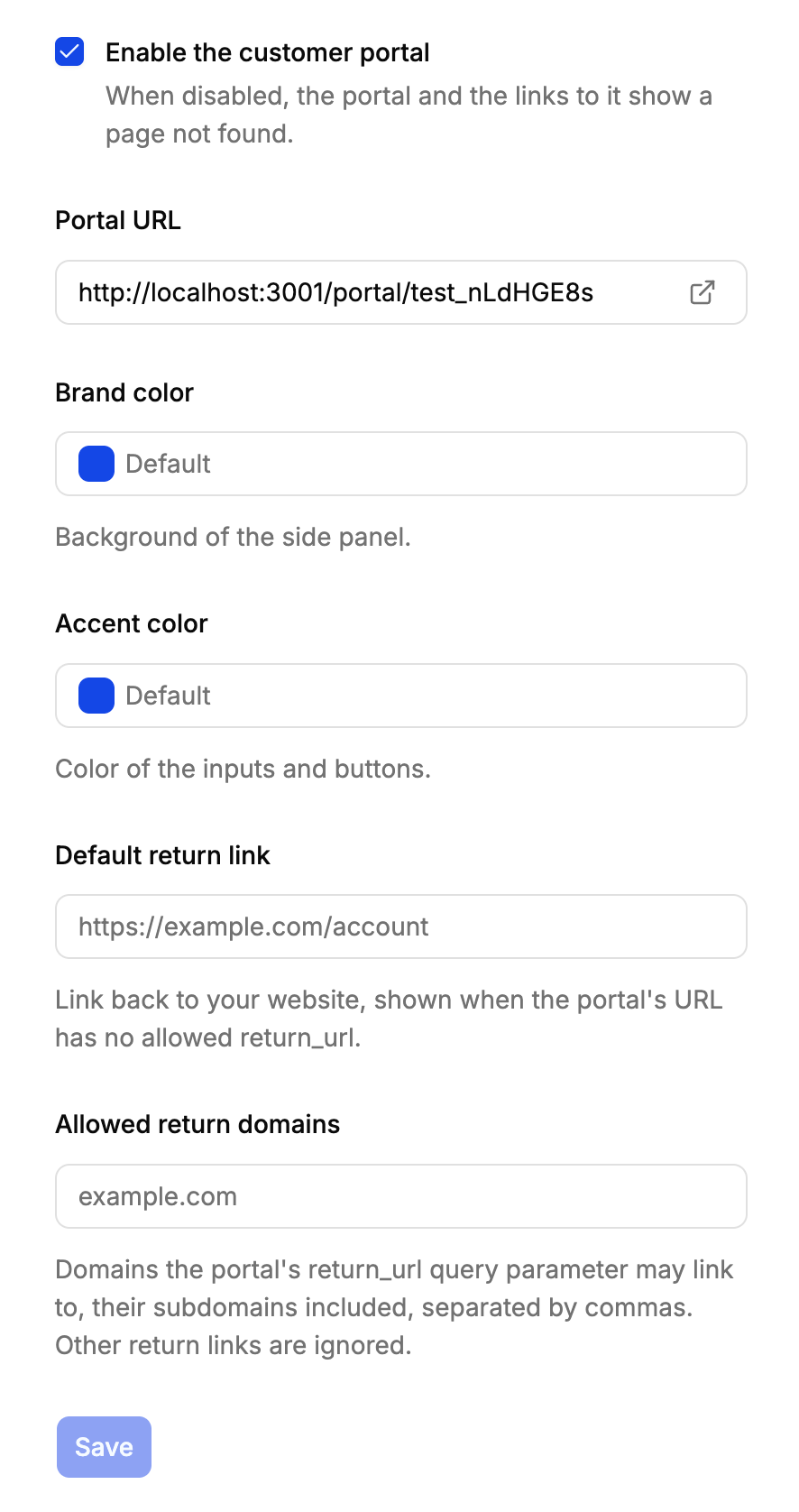
The customer portal shows your product’s name, logo and colors, so your customers recognize it as yours, and links back to your website. Its settings belong to the product: open the product, then Settings, and the Customer portal section. The settings appear once the portal is enabled.
What the portal shows
The portal has two panels: a side panel with your brand, and the main panel with the customer’s licenses.
| In the portal | Comes from |
|---|---|
| Name of the product | The product’s name. |
| Your company’s name, under the product’s name, and in the return link | Your organization’s name. |
| Logo | The product’s logo. Without one, the first letter of the product’s name. |
| Side panel’s background | The brand color. |
| Buttons, inputs and links | The accent color. |
| Return to Acme Studio link | The return link. |
A Powered by LicenseManager mention is shown at the bottom.
Brand color
The background of the side panel, as a hex color like #1e3a8a. Empty for LicenseManager’s default blue. The text on it turns black or white, whichever reads best on the color.
Accent color
The color of the buttons, inputs and focus rings of the whole portal, as a hex color like #2563eb. Empty for the default blue. The text on buttons turns black or white automatically too.
Pick a color that stands out on white: a very light accent color makes the inputs’ outline hard to see.
Return link
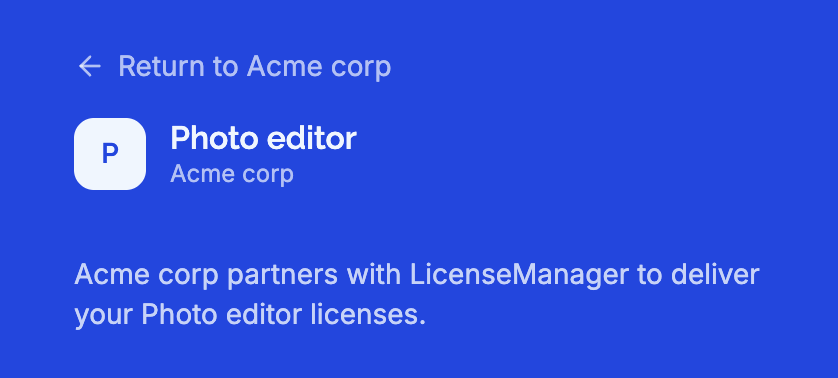
A Return to link, at the top of the side panel, takes customers back to your website. Without one, the portal shows no link.
Default return link
The link shown when nothing else is asked for, like https://acme.com/account. It must start with http:// or https://.
Allowed return domains
You can choose the return link per visit, by adding return_url to the portal’s URL:
https://app.licensemanager.dev/portal/x7Kp2QaZ?return_url=https://acme.com/account/licensesFor this to work, the link’s domain must be one of the Allowed return domains, like acme.com, which also allows its subdomains, like shop.acme.com. Separate domains with commas, up to 20.
A return_url on a domain that isn’t allowed, or that isn’t an http or https link, is ignored: the portal shows the default return link instead. This keeps anyone from sending your customers a link to your portal that returns them to another website.
The return_url is kept in the sign-in email: a customer who opens the portal from shop.acme.com, asks for a link and opens it from their inbox still gets back to shop.acme.com.
| Allowed return domains | return_url | Link shown |
|---|---|---|
acme.com | https://acme.com/account | https://acme.com/account |
acme.com | https://shop.acme.com/orders | https://shop.acme.com/orders |
acme.com | https://acme.co/account | The default return link |
acme.com | javascript:alert(1) | The default return link |
| (none) | https://acme.com/account | The default return link |
Logo
The portal uses the product’s logo: see logo. It’s shown as a square, so a square logo works best. In the emails sending license keys, SVG logos aren’t shown, as most email clients don’t display them: use PNG or WebP if your logo matters there.
Edge cases
Test products start with a copy of their live product’s portal settings and logo, and get them again when reset. Changes to a test product’s portal settings stay there.
Disabling the portal keeps its settings: enabling it again restores them.
Renaming your organization renames the portal’s return link and the name under your product’s name.