Release adoption
Release adoption tells which versions of your application your customers run: how many updated to the latest one, and how many stay on an old one. You’ll find it in three places:
- The Releases page: active machines on each release.
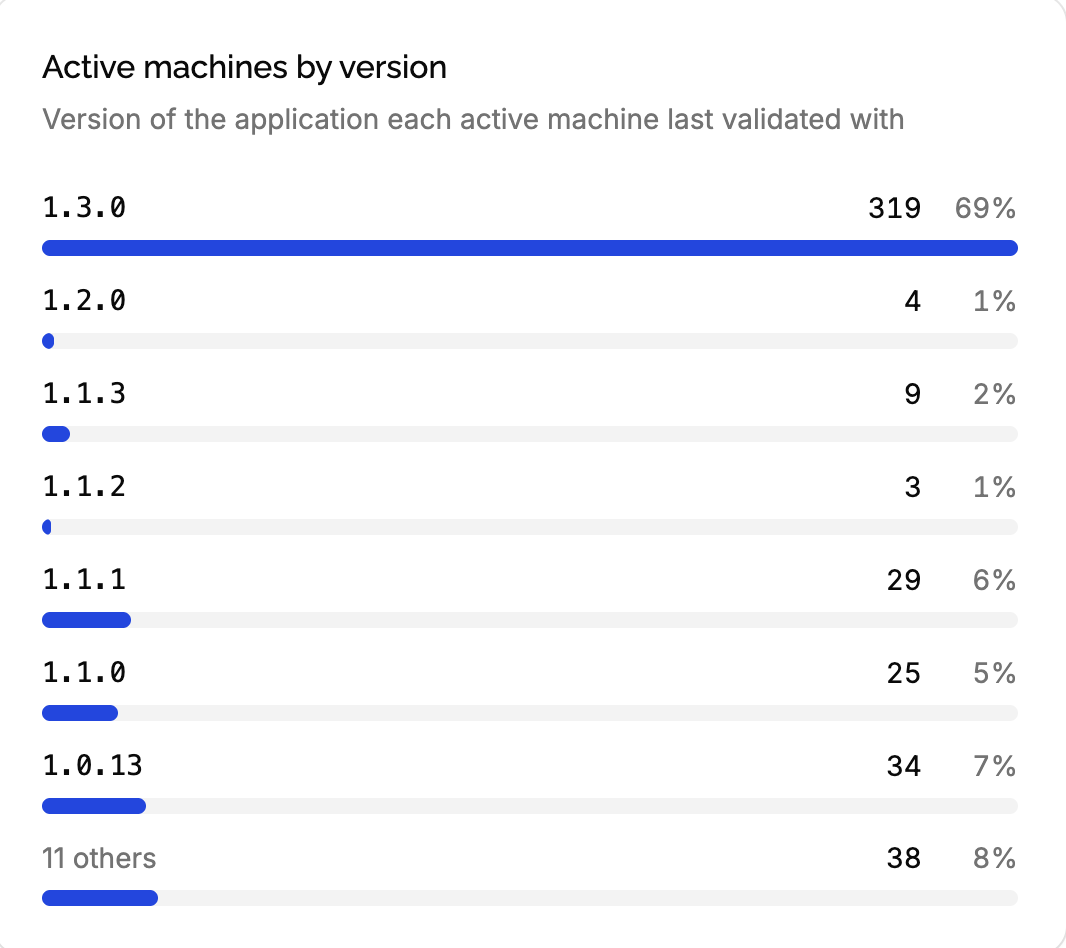
- The product’s Dashboard: active machines by version, and activations by version over the last 30 days.
- The Analytics tab of a license: its activations by version over the last 90 days.
Where versions come from
Each time your application validates a key, it sends its version, like 2.3.1: see validating keys. The machine keeps the last version it validated with, and the validation’s event records it. Every stat on this page comes from them.
Versions are compared exactly as sent: v2.3.1 and 2.3.1 are two different versions. Send them the way you record your releases, without a v.
The Releases page
Open the product, then Releases in the sidebar.
The adoption bar
The bar at the top of the page is split between the releases running on at least one active machine, each as wide as its number of active machines. The most recent release is on the left, older ones to the right, in lighter colors. Hover a part to see its version and number of machines.
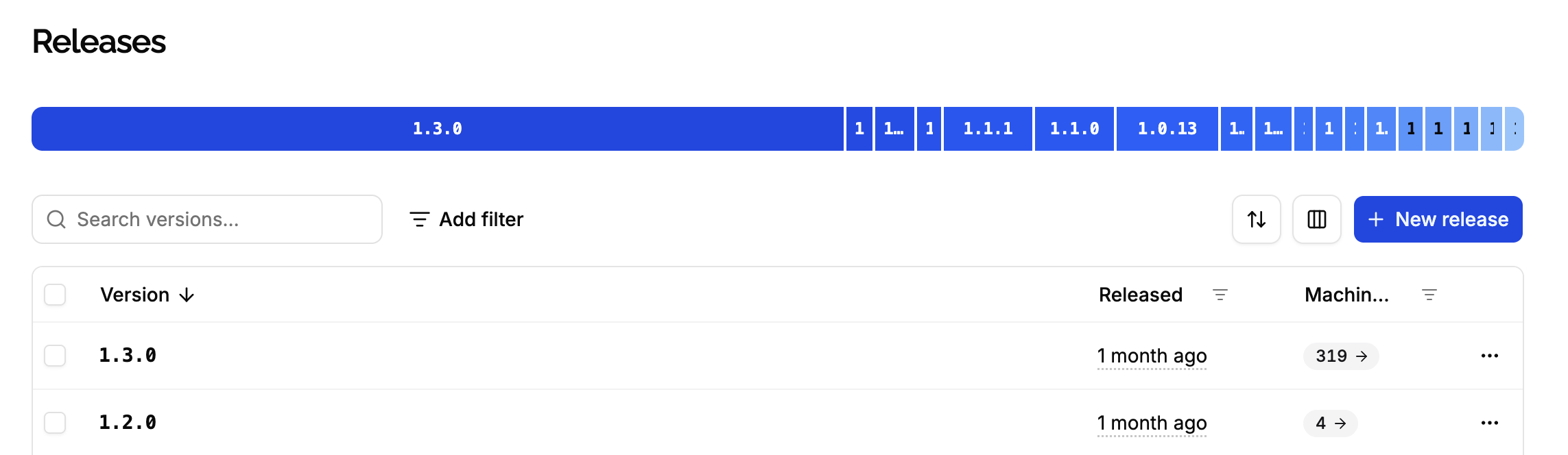
For Acme Photo, after shipping 2.4.0, a bar mostly taken by 2.3.1 tells most customers haven’t updated yet. A month later, 2.4.0 should take most of it.
The bar doesn’t follow the filters of the list below: it always shows every release with active machines. It’s hidden when no release has any.
The Active machines column
Each release shows its number of active machines: the machines, not deactivated, whose last validated version is exactly the release’s version. Sort the list by this column to find the most used releases, or filter it, like Active machines equal to 0 to find releases nobody runs anymore.
The Releases page only counts releases. Machines running a version that isn’t a release, like an internal build or a version you haven’t recorded, appear on the dashboard, not here. Create the release to see them.
The dashboard
Active machines by version
The number of active machines on each version, from the most recent one, with its share of all active machines. Unlike the Releases page, it lists every version machines run, releases or not. Machines recorded without a version, if any, are listed as Unknown.
The first 7 versions are listed, the rest grouped in one others row. Click a version to list the licenses with a machine on it: the customers to help update, for example.
Activations by version
Successful activations each day over the last 30 days, each bar split by version, the most recent version first. Where Active machines by version is a snapshot of today, this chart shows the change: the color of a new version growing day after day as customers update.
The description tells the total number of activations over the 30 days. Activations recorded without a version, if any, count as Unknown.
On a license
The Analytics tab of a license shows its successful activations each day over the last 90 days, split by version by default. It tells which versions a customer used, and when they updated.
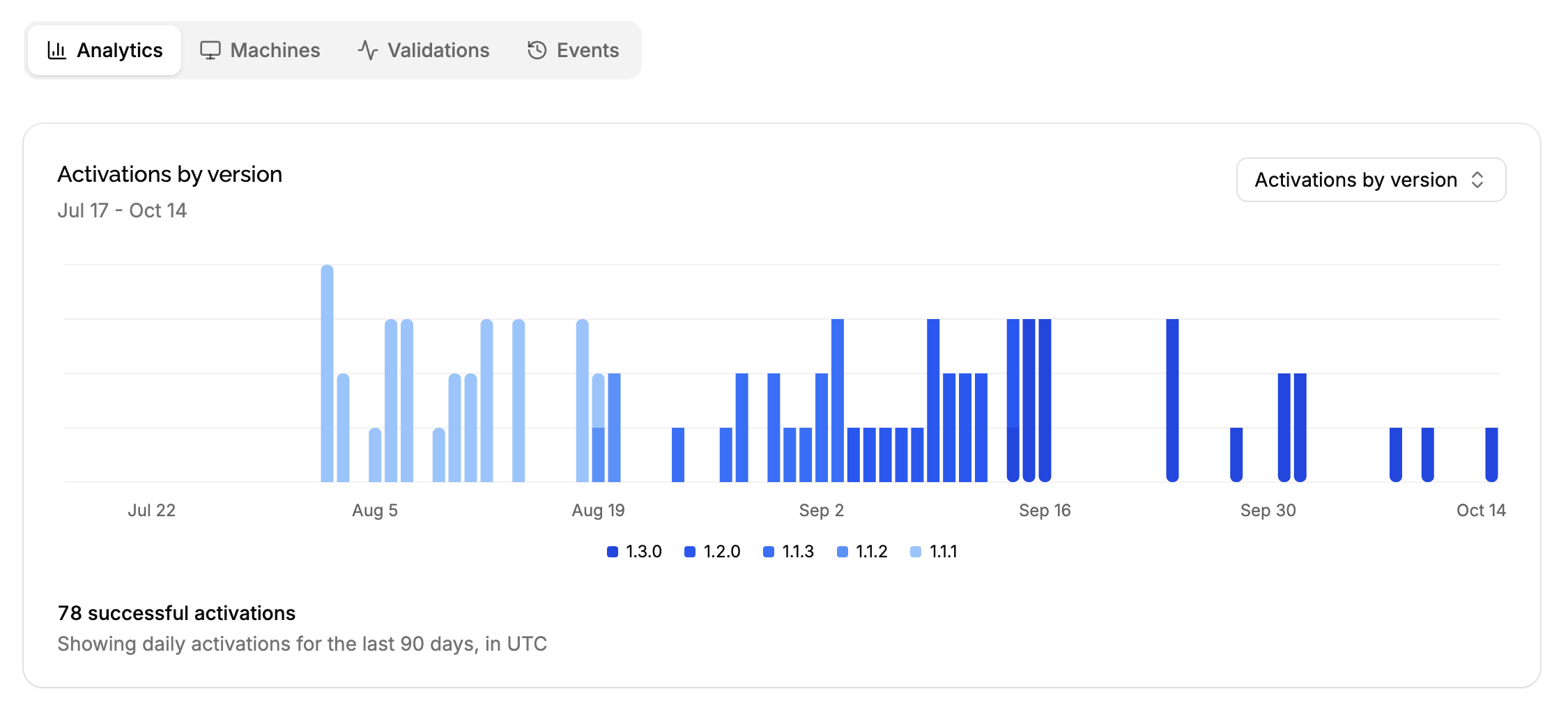
It helps when a customer reports a bug: you see the version they run without asking them. With a version lock, you also see whether they keep using the version their license is locked at. Activations without a version aren’t shown in this chart. See the Analytics tab of a license.
Edge cases
A machine that stopped being used. It keeps counting on its last version until it’s deactivated. Old versions can stay in the bar long after customers moved on: compare with Activations by version, which only counts recent use.
A release edited or deleted. Its active machines follow the release’s current version: editing 2.4 to 2.4.0 counts the machines that sent 2.4.0.
Pre-releases. A pre-release like 2.4.0-beta.1 counts like any release, so your beta testers appear in the bar.
Test products. A test product counts its own machines only: its releases show 0 machines until you validate test keys.