Test mode
A test product is a sandbox of one of your live products. It starts as a copy of its policies and releases, and has its own customers, licenses and machines, kept apart from the live ones. Use it to build your integration, try a new policy, or run your test suite, without creating licenses for real customers or skewing your stats.
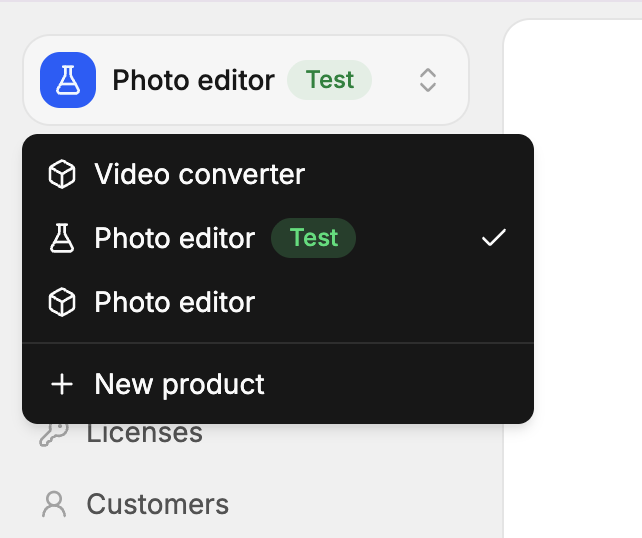
Create a test product
Open the product menu
In the sidebar, open the product switcher, then click New product.
Check Test product
Check Test product, then choose the live product it’s Based on. Give it a name, like Acme Pro (test).
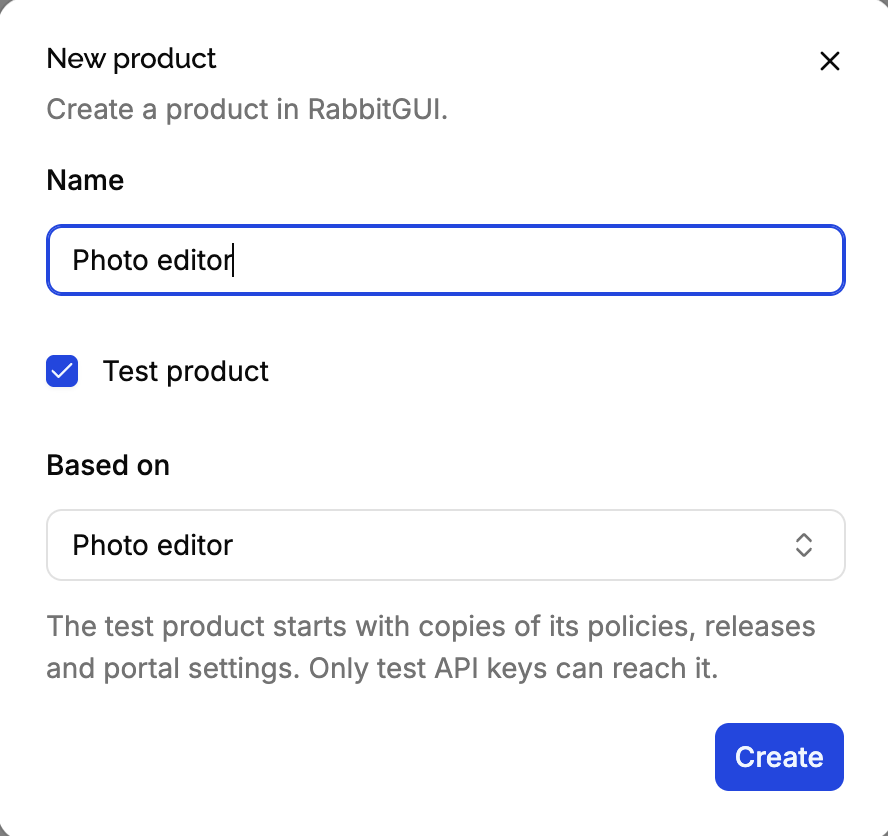
Create it
The test product starts with copies of the live product’s policies, releases, logo and portal settings. It has no customers or licenses.
A live product can have several test products, like one per developer or one for your CI. A product is live or test for its whole life: it can’t be converted.
How test resources are recognized
Everything in a test product is marked, so a test resource can’t be mistaken for a live one, in your code or in a support ticket:
| Live | Test | |
|---|---|---|
| Ids of products, policies, customers, licenses, machines and events | x7Kp2QaZ | test_x7Kp2QaZ |
| Slugs of products and policies | acme-pro | test_acme-pro |
| License keys | 7KQ2M-X9ZPA-… | TEST-7KQ2M-X9ZPA-… |
| API keys | pk_… | test_pk_… |
| In the app | A flask icon and a Test badge |
The prefixes are added for you: a key or slug you choose gets them in a test product, and loses them in a live one.
Test API keys
API keys belong to the organization, and are either live or test:
- Test keys only reach test products, and live keys only live products. A live key asking for a test resource, or the opposite, gets
not_found, as if it didn’t exist. - Test keys can only create test products, and live keys live products.
- The API keys page shows the keys of the mode of the selected product: select a test product to see and create test keys.
Members of the organization see both in the app.
So your staging environment can hold a test key, and your production a live key: a mistake in staging can’t touch a real license.
Validating test keys
Validating a key doesn’t need an API key: your application calls the validation endpoint of a product id. Point your development builds at the test product’s id, and they validate test keys only.
Test and live products sign their license tokens with the same key: your organization’s. A token issued for a test product verifies with the public key embedded in your production app. Check that the token’s aud is your live product’s id, or a test key would unlock your production app. See offline validation.
Stripe in test mode
A test product connects to Stripe with a test mode key, and only Stripe’s test payments create its licenses. Pay with Stripe’s test cards to go through a full purchase without charging anyone. Checkout with the email of a member to receive the keys: see emails in test mode. See connecting Stripe.
Emails in test mode
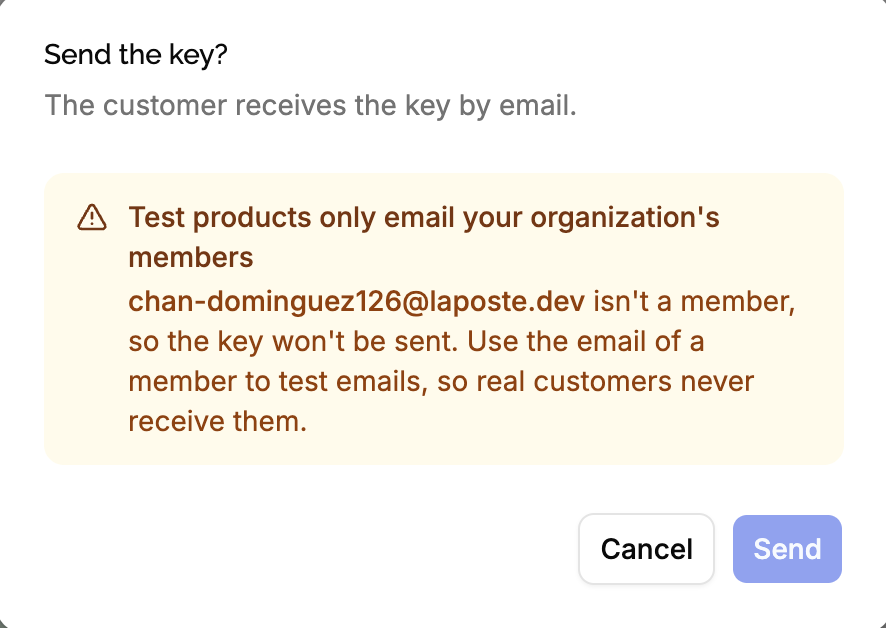
Test products only email the members of your organization, so testing never emails your real customers. A customer of a test product whose email isn’t a member’s, like jane@example.com, never receives anything:
| To a customer who isn’t a member | |
|---|---|
| Send key, from the app or the API | Refused, with nothing sent: the app warns you and disables Send, the API answers 409 with test_recipient_not_member. When you send several keys, none is sent while one of their customers isn’t a member. |
| Email the key to the customer, when creating a license | The license is created, but its key isn’t sent. The app warns you before you create it. |
| A Stripe test payment | The licenses are created, but their keys aren’t sent. |
| Send to customer, for a portal link | Refused: the app warns you and disables the button, the API answers 409 with test_recipient_not_member. You can still copy or open the link. |
| A link requested from the customer portal | Not sent. The portal answers the same as when it’s sent, like for an email that isn’t a customer. |
Emails are compared regardless of case. To test the emails your customers receive, create licenses with your own email, or the email of another member of the organization.
Reset a test product
Resetting starts the test product over, like a simulator back on the runway. In the sidebar, click Reset test product.
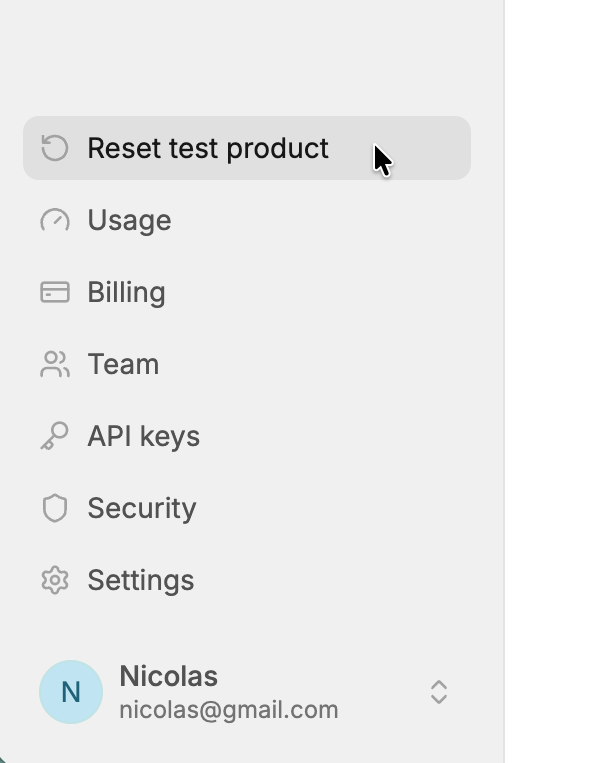
It permanently deletes its customers, licenses, machines, policies, releases and their events, then copies the policies, releases, logo and portal settings of the live product again.
- Its id, name and slug are kept: your application’s configuration still works.
- The copied policies get new ids: update the policy ids your test code uses, or find policies by slug.
- Its Stripe price mappings are deleted with its policies: map the test prices again.
- Portal links and other tokens of its customers, licenses and machines stop working.
Reset a test product after changing the live product’s policies or releases, since changes to the live product aren’t copied until then.
Delete a test product
Open its Settings, then Delete product. Unlike live products, a test product can always be deleted, with all its licenses and machines.
Deleting a live product deletes its test products too.
Edge cases
A member leaves the organization. Their email becomes like any customer’s: test products stop emailing it.
Plan limits. Test products count toward your plan’s products limit, and their active licenses and API requests count like live ones. Delete the test products you no longer use. See plans and billing.
Changes to the test product stay there. Editing a test product’s policies never changes the live product: copy the change to the live product yourself.
Reports. The dashboard of each product only counts its own licenses: test sales never appear in the live product’s revenue.