Selling licenses with Stripe
This guide sets up a store selling licenses of your app, from an empty Stripe account to a customer receiving their key. It uses a Payment Link, so you don’t write any code. You’ll:
- Create the policies in LicenseManager.
- Create the products and prices in Stripe.
- Connect Stripe and map the prices to the policies.
- Create a Payment Link and try it.
We’ll sell Acme Editor with two offers: a Personal license for $49 working on 2 machines, and a Business license for $199 per seat working on 3 machines, both with a year of updates.
Follow the guide with a test product and Stripe in test mode first: nobody is charged, and you can pay with Stripe’s test cards . Then do it again in live mode.
To know exactly what the integration does and doesn’t do, read the Stripe integration overview.
Create the policies
A policy is what the customer gets: how long the license lasts, on how many machines, for which versions. Create one per offer.
Open the policies
In LicenseManager, open your product, then Policies.
Create the Personal policy
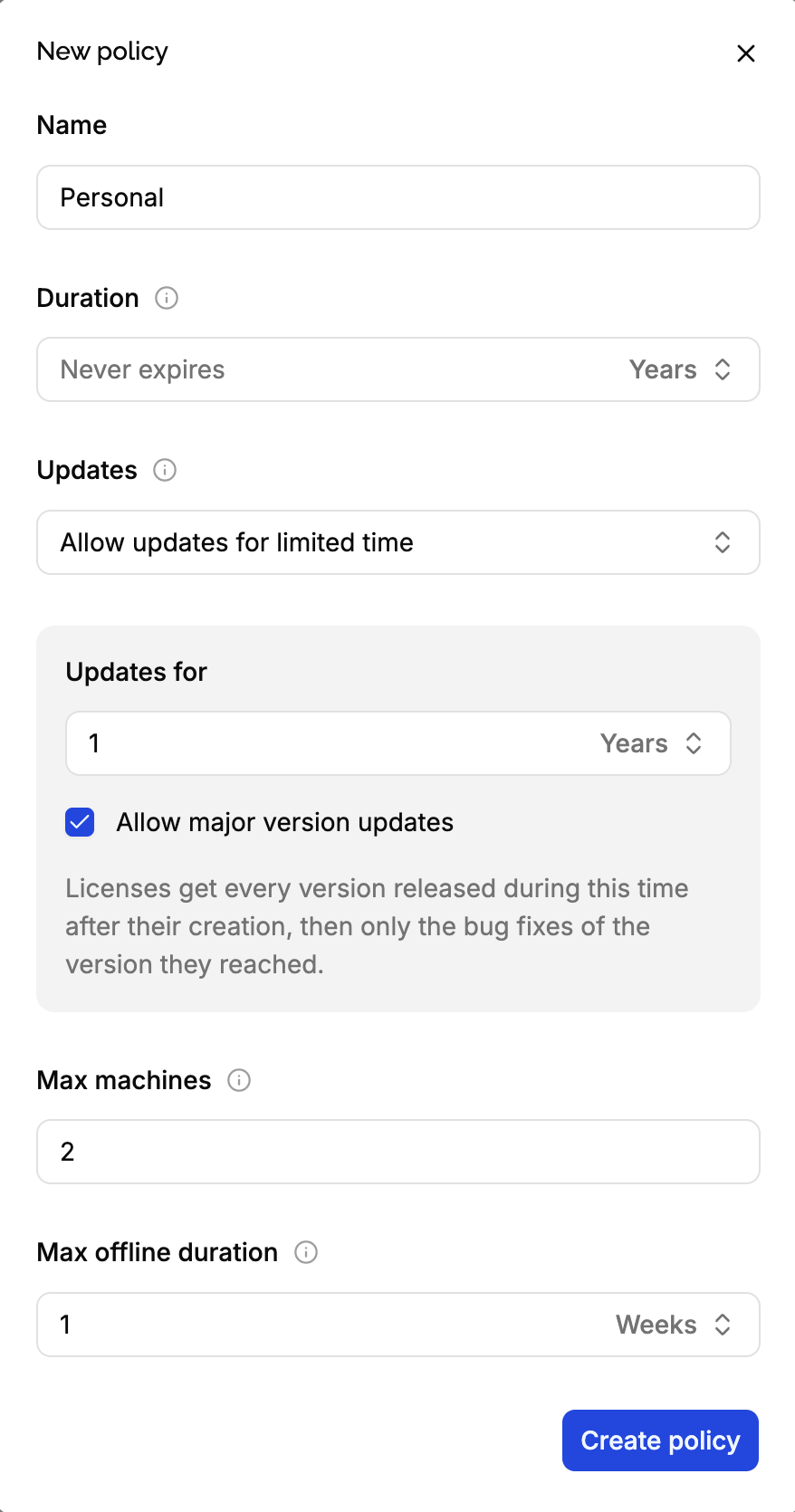
Create a policy named Personal, with Max machines set to 2, and a maximum version of one year of updates.
Create the Business policy
Create a policy named Business, with Max machines set to 3, and the same maximum version.
Create the products and prices in Stripe
In Stripe, a product is what you sell, and a price is how much and how it’s charged. A product can have several prices, for example one per currency.
Open the product catalog
In the Stripe dashboard , open Product catalog, in the mode you’re setting up, and click Create product.
Create the Personal product
- Name:
Acme Editor Personal. It’s shown on the checkout page, the receipt, and in LicenseManager. - Description and Image: optional, shown on the checkout page.
- Pricing: choose One-off, not Recurring: the integration only supports one-time prices.
- Amount:
49.00 USD.
Click Add product.
Choose One-off. A recurring price, for a subscription, won’t appear in LicenseManager and can’t create licenses. See renewals for licenses that expire.
Create the Business product
Do the same with Name Acme Editor Business and Amount 199.00 USD.
Add other prices, if you need them
To sell in several currencies, open a product and click Add another price, for example 45.00 EUR. Each price is mapped on its own, and they can map to the same policy. Stripe also lets you add other currencies to one price : it then stays one price, mapped once.
You can also let the customer choose what they pay : LicenseManager records the amount they chose on the license.
Changing a price later
Stripe doesn’t let you change the amount of a price once it’s used. To change it, create a new price on the product, archive the old one, then in LicenseManager map the new price and delete the old mapping. See mapping statuses.
Connect Stripe
In LicenseManager, open your product, then Integrations, and click Connect Stripe. Create a restricted API key with the four permissions listed, and paste it.
Connecting Stripe explains each step and each permission in detail.
Map the prices
Still on the Integrations page, in the Price mappings card, click New mapping:
- Map Acme Editor Personal · $49.00 to the Personal policy.
- Map Acme Editor Business · $199.00 to the Business policy.
Paying these prices now creates licenses. See mapping prices to policies.
Create a Payment Link
A Payment Link is a checkout page hosted by Stripe, which you share or put behind a Buy button on your website.
Create the link
In the Stripe dashboard, open Payment Links and click New. Choose Products or subscriptions, and add Acme Editor Personal.
Let customers buy several licenses
For Business, add Acme Editor Business and turn on Let customers adjust quantity: a customer buying 5 seats gets 5 licenses, each with its own key, in one email.
Check the options
- Collect customers’ names is optional: when on, the name is set on the customer in LicenseManager.
- Create customers in Stripe is optional: when on, the customer in LicenseManager links to the Stripe customer.
- Confirmation page: tell the customer their license key is on its way by email.
- Allow promotion codes: works, the license records the price after discount.
- Collect tax automatically: works, the license records the price before taxes.
Create it
Click Create link, and copy the link.
Using Stripe Checkout from your own code instead works the same way: create the Checkout Session in payment mode with your mapped prices in its line_items.
Try it
Pay
Open the Payment Link and pay. In test mode, use the card 4242 4242 4242 4242, any future expiration date, any CVC, and an email address you can read.
Check the license
Within seconds, in LicenseManager, the license appears in your product’s Licenses, with the Personal policy, a price of $49.00, and a Stripe payment linking to the payment. The Last event of the Stripe card is updated.
Check the email
The email address you paid with receives the license key.
If no license appears, open the Stripe card of the Integrations page: an error tells you what’s wrong. Check the price you paid is mapped, and that you’re in the same mode in Stripe and in LicenseManager.
Before going live
- Do it again in live mode: a live product, a live mode API key, live products and prices, and a live Payment Link. Test mode objects aren’t copied to live mode.
- Decide how you handle refunds and disputes. They don’t change licenses: you expire them manually. See refunds and disputes.
- Watch your emails. The owners and admins of the organization are emailed when the integration breaks: customers could pay without getting a license until it’s fixed. See when the integration breaks.
- Validate the keys in your app, if you haven’t yet. See validating keys.