Customer portal
The customer portal is a page, hosted by LicenseManager, where your customers sign in with their email to see their licenses and deactivate their machines. It answers the two most common support requests, “I lost my key” and “I got a new computer”, without anyone on your side.
For Acme Photo, it’s the Manage my licenses link at the bottom of the purchase email and in the app’s Help menu. A photographer who replaced their laptop opens it, signs in with their email, deactivates the old laptop, and enters their key on the new one.
Enable the portal
Each product has its own portal, disabled when the product is created.
Open the product’s settings
Open the product, then Settings in the sidebar.
Check Enable the customer portal
In the Customer portal section, check Enable the customer portal, then Save.
Copy the portal’s URL
The Portal URL appears, like https://app.licensemanager.dev/portal/x7Kp2QaZ. Link to it from your website, your emails and your application.
While the portal is disabled, it shows a Page not found to customers, and to links already sent. Members of your organization signed in to the app see that it’s disabled instead, with a link to the settings.
What customers can do
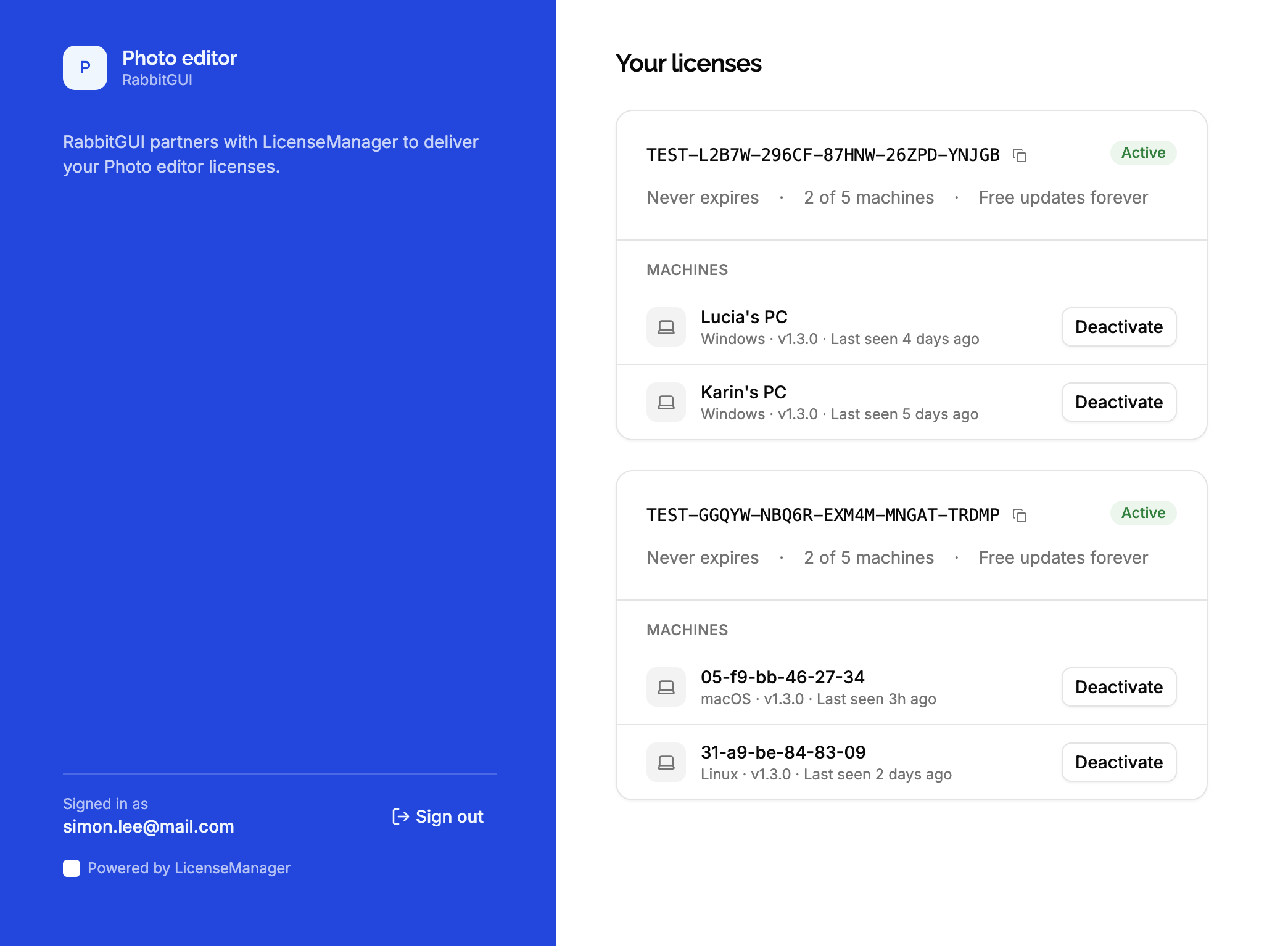
- See their licenses of the product: each key, with a button to copy it, its status, its expiration date, how many machines it’s used on out of how many, and which versions it includes.
- See the active machines of each license, with their name, platform, version, and when they were last seen.
- Deactivate a machine, to free its place for a new one. See deactivating a machine.
They can’t change a license, see deactivated machines, see the licenses of your other products, or buy anything: the portal only shows what they already have. Link to your website for the rest, with a return link.
How customers sign in
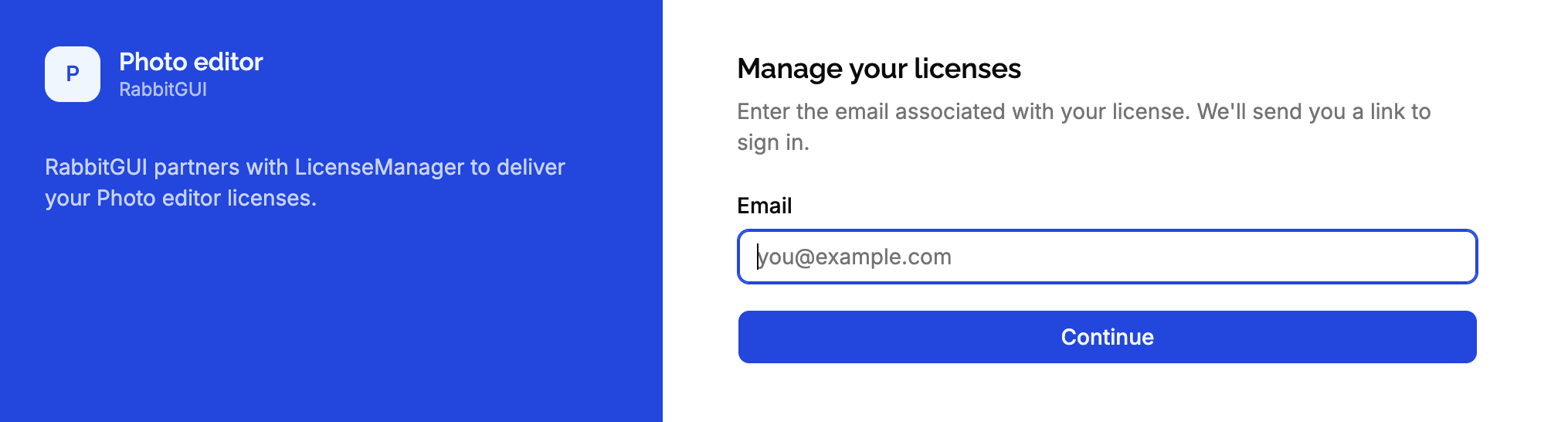
Customers have no password. They sign in with a link:
- They open the portal, enter their email, and click Continue.
- If a customer of the product has this email, LicenseManager emails them a link, which works for 1 hour.
- The link signs them in. They stay signed in in this browser tab until the link expires, or they click Sign out.
The portal answers Check your email whether the email is a customer’s or not, so nobody can use it to find out who your customers are. An email that isn’t a customer’s of the product receives nothing.
You can also sign customers in without the email step, with a portal link you create for them: from your website’s account page, or in a support reply.
Linking to the portal
| From | Link |
|---|---|
| Your website, your app, your emails | The portal URL. Add ?email=jane@example.com to fill in their email. |
| A page where the customer is already signed in, on your website | A portal link your backend creates, to skip the email. |
| A support reply | A portal link from the customer’s page in the app. |
Building your own portal
Rather have the licenses in your website’s account page, with your own design? Your backend creates a scoped token for the signed-in customer, and your page calls LicenseManager directly with it, to list licenses and deactivate machines, like the portal does.
Edge cases
A customer who bought with two emails is two customers: each email only shows its own licenses. Ask them which email they used, or edit the customer’s email.
A customer of several products signs in to each product’s portal separately: each one only shows its product’s licenses.
More than 100 licenses. The portal shows the 100 most recent licenses of the customer, and the 100 most recently updated active machines of each license.
An expired link. The portal asks for their email again, to send a new one.
Test products. A test product has its own portal, but only emails sign-in links to members of your organization: sign in with your own email to try it. Other emails get the same Check your email, and receive nothing.
What’s recorded. Machines deactivated from the portal are recorded as machine.deactivated events, by Customer token.