Connecting Stripe
LicenseManager connects to your Stripe account with a restricted API key: a key you create in Stripe, which can only do what you allow it to. It needs four permissions, all explained below, and every other one stays on None.
The connection belongs to your organization, not to a product: once connected, every product of the organization can map prices of that Stripe account. You manage it from the Integrations page of any product.
Live mode and test mode
Stripe keeps live and test mode apart, and so does LicenseManager:
- Your live products use a live mode key, starting with
rk_live_. Only real payments create licenses. - Your test products use a test mode key, starting with
rk_test_. Only test payments create licenses, which are test licenses.
They are two separate connections. Connect Stripe from a live product to sell for real, and from a test product to try the integration with Stripe’s test cards . They can even be two different Stripe accounts, or a sandbox .
We recommend connecting test mode first, mapping a test price and paying it with a test card, to see the whole flow before selling for real.
Connect your account
Open the Integrations page
In LicenseManager, open a product: a live one to connect live mode, a test one to connect test mode. Click Integrations in the sidebar, then Connect Stripe.
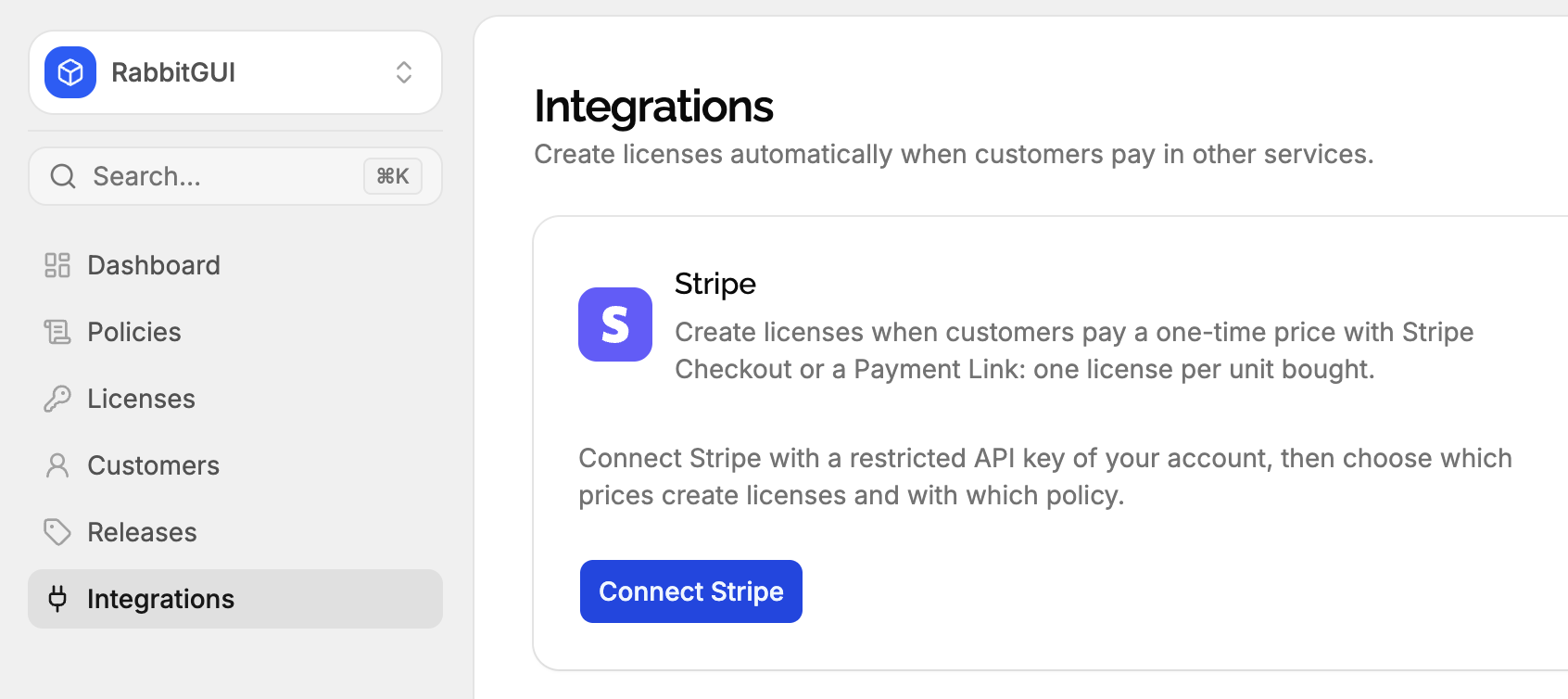
The dialog lists the permissions the key needs, with a link to the right page of your Stripe dashboard. Keep it open.
Create a restricted key in Stripe
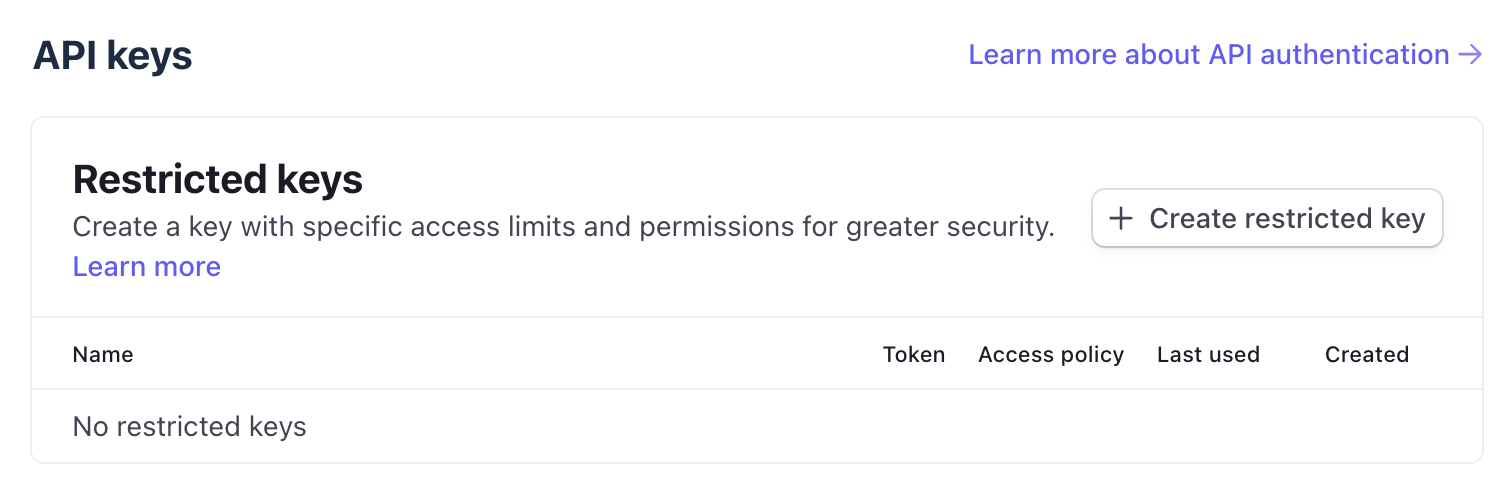
Open the API keys page of your Stripe dashboard, in the mode you are connecting: for test mode, turn on Test mode or use the test API keys page .
Click Create restricted key.
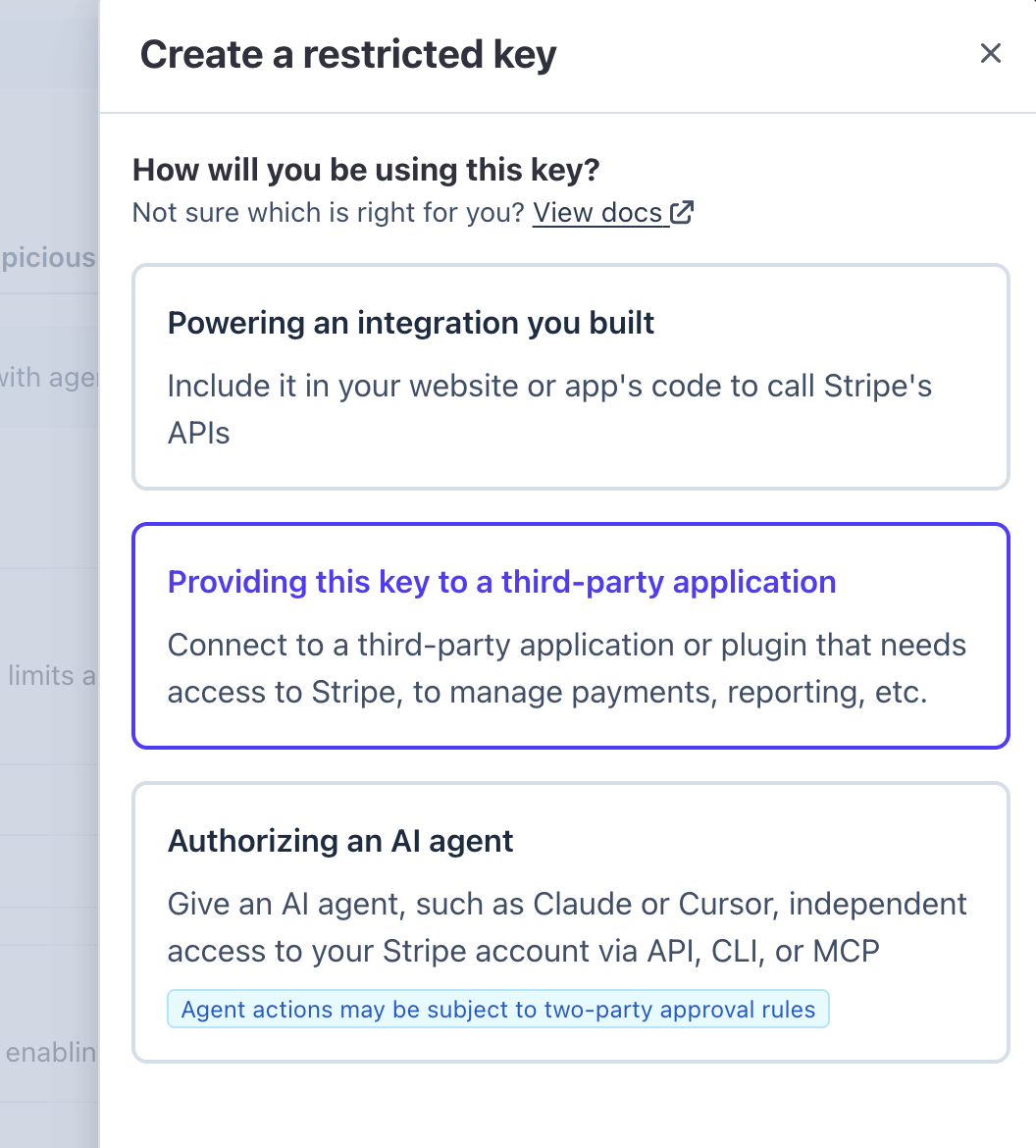
When Stripe asks you how you will be using the key, select Providing this key to a third party application.
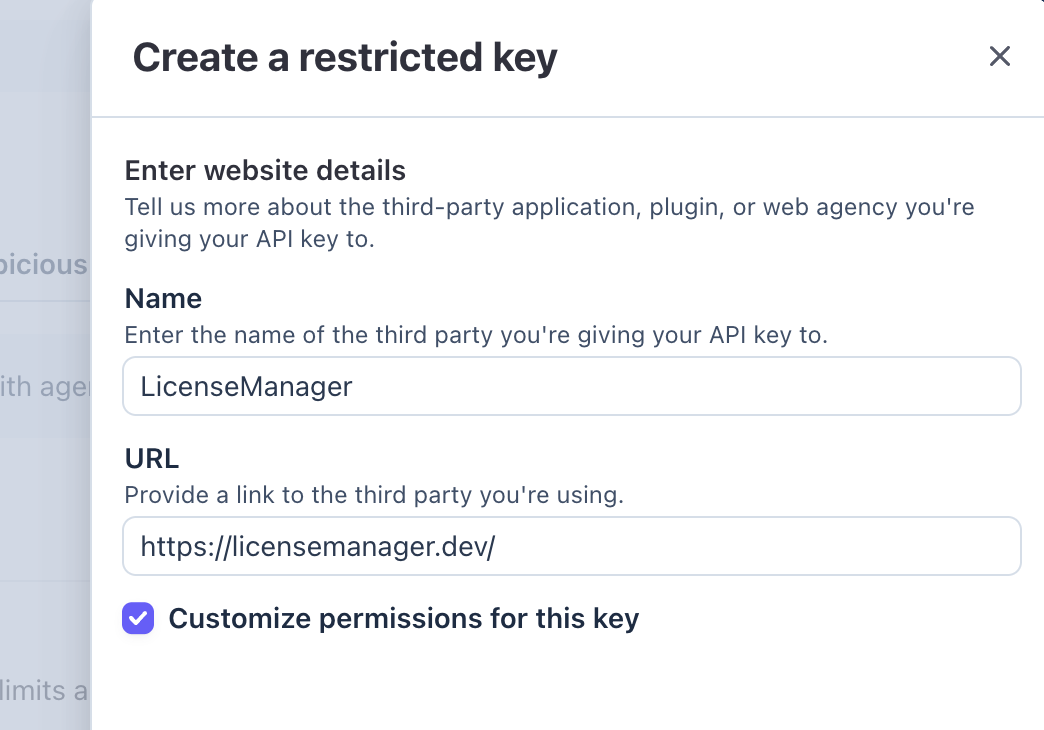
Give it a name and check Customize permissions for thi key.
Set its permissions
Set these four permissions, and leave every other one on None:
| Resource | Access |
|---|---|
| Checkout Sessions | Read |
| Prices | Read |
| Products | Read |
| Webhook Endpoints | Write |
Stripe groups the resources by category: Checkout Sessions is under Checkout, Prices and Products under Core or Products depending on your dashboard, and Webhook Endpoints under Webhook. Use the search box of the page to find them.
Copy the key
Click Create key. Stripe shows the key, starting with rk_live_ or rk_test_: copy it.
Depending on your account settings, Stripe shows the key only once. If you lose it, create a new one: you can replace the key at any time.
Paste it in LicenseManager
Back in the Connect Stripe dialog, paste the key and click Connect Stripe.
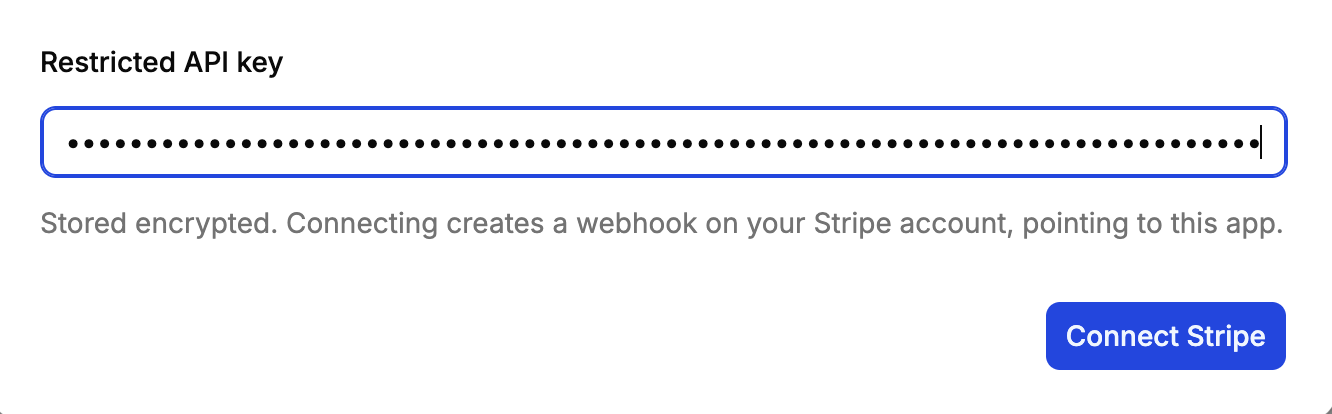
LicenseManager then:
- Checks the key is a Stripe key, of the right mode.
- Checks Stripe accepts it, and that it has every read permission. When some are missing, the error lists them all, so you fix them in one go.
- Creates the webhook on your Stripe account, which checks the Webhook Endpoints permission.
- Reads your account’s name, to show it.
- Stores the key, encrypted.
Stripe is connected. Next, map your prices to policies: until you do, payments don’t create anything.
Permissions
Here is exactly what LicenseManager does with each permission. It never uses any other part of the Stripe API.
Checkout Sessions: Read
When Stripe notifies LicenseManager that a checkout was paid, the notification doesn’t include what was bought. LicenseManager reads the checkout’s line items, the prices and quantities, to know which licenses to create and how many.
It only reads the checkouts Stripe notifies it of, never lists your past checkouts, and doesn’t read the payment details, like card numbers, which aren’t part of a checkout anyway. When connecting, it lists one checkout only to check the permission is there.
Prices: Read
LicenseManager lists your prices when you create a mapping, so you pick one instead of copying its id, and reads the price you picked to check it can be paid: active, one-time, of an active product. Without it, it couldn’t tell you a price was archived.
Products: Read
Shows the names of your Stripe products next to their prices, in the price picker and the mappings table. Prices only have an amount and an optional nickname: the product’s name is what tells them apart.
Webhook Endpoints: Write
The only write permission, and the only thing LicenseManager writes to your account. It’s used to:
- Create the webhook when you connect, pointing to LicenseManager, so Stripe notifies it of payments. It’s named LicenseManager: creates licenses from payments.
- Keep it working: the daily check points it at LicenseManager again with the right events, turns it back on if Stripe disabled it, and creates it again if it was deleted.
- Delete it when you disconnect, so Stripe stops sending events nobody listens to.
Write access to webhook endpoints lets the key change any webhook of your account, but LicenseManager only touches the one it created.
The webhook listens to these events only:
| Event | Why |
|---|---|
checkout.session.completed | A checkout was completed: creates the licenses, if it’s paid. |
checkout.session.async_payment_succeeded | A delayed payment of a checkout succeeded: creates the licenses. |
price.updated | Flags a mapping whose price was archived, and clears it when the price is active again. |
price.deleted | Flags a mapping whose price was deleted. |
product.updated | Flags the mappings of a product that was archived, and clears them when it’s active again. |
product.deleted | Flags the mappings of a product that was deleted. |
Why not a secret key?
A secret key (sk_live_…) works too, and LicenseManager accepts it, but it gives full access to your Stripe account: charging customers, refunding, reading everything. If it leaked, anyone could use it. A restricted key with these four permissions limits what anyone holding it can do, so we strongly recommend it.
The Stripe card
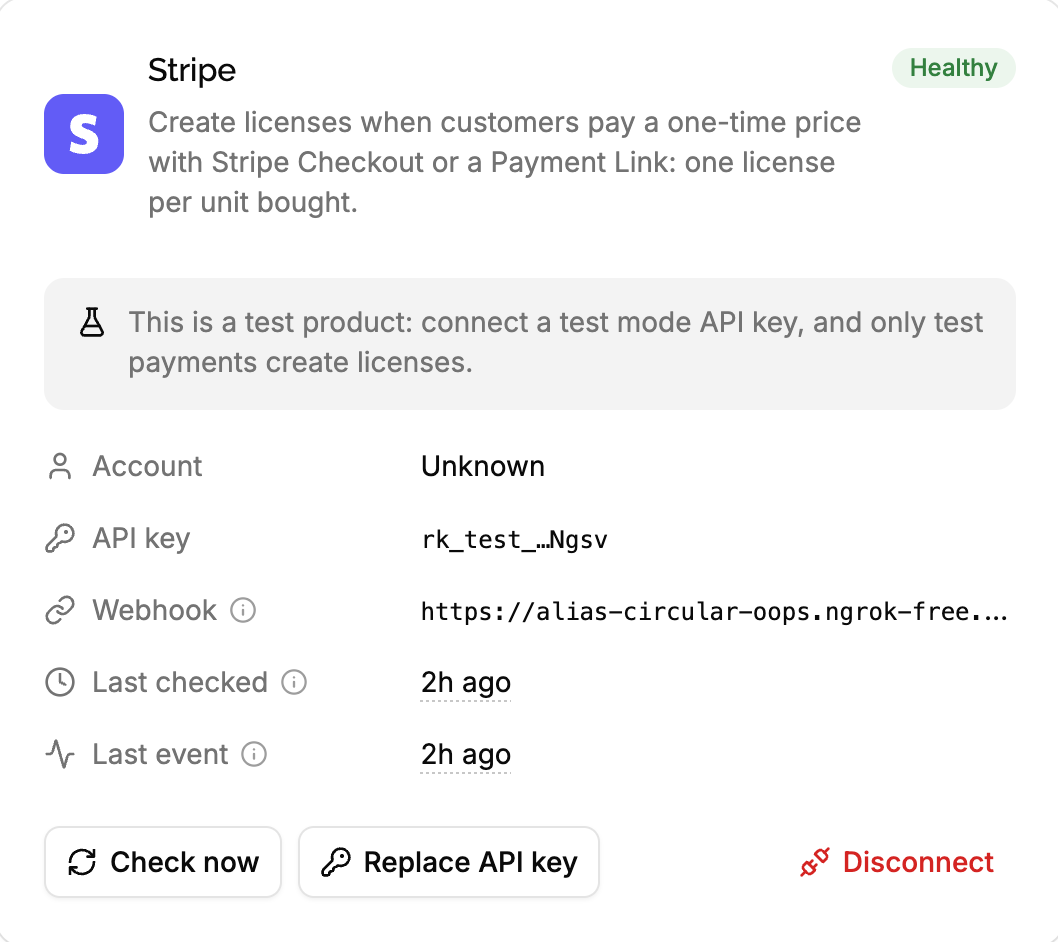
Once connected, the Stripe card of the Integrations page shows:
- Status: Active when everything works, Error when something needs fixing, Disconnected when Stripe rejects the key. See statuses.
- Account: the name of your Stripe account, or Unknown when the key can’t read it, which is expected for a restricted key without account permissions and changes nothing.
- API key: the start and end of the key, like
rk_live_…Ab3d, to recognize it in your Stripe dashboard. - Webhook: the URL Stripe sends the events to.
- Last checked: the last health check.
- Last event: the last time Stripe sent an event. None yet until the first one.
Health checks
Every day, LicenseManager checks each integration: that Stripe still accepts the key, and that it can still manage the webhook. The check also repairs the webhook: when it was deleted from the Stripe dashboard it’s created again, when it was disabled it’s turned back on, and its URL and events are set back.
Click Check now to run it right away, for example after fixing a permission.
When a check finds a new problem, the owners and admins of the organization are emailed what’s wrong and how to fix it. The same problem isn’t emailed again every day.
Statuses
| Status | Meaning | What to do |
|---|---|---|
| Active | Everything works. | Nothing. |
| Error | Something needs fixing, explained on the card. Usually a permission removed from the key, a mapped price archived in Stripe, or a payment that couldn’t be turned into licenses. | Read the reason, fix it, then click Check now. |
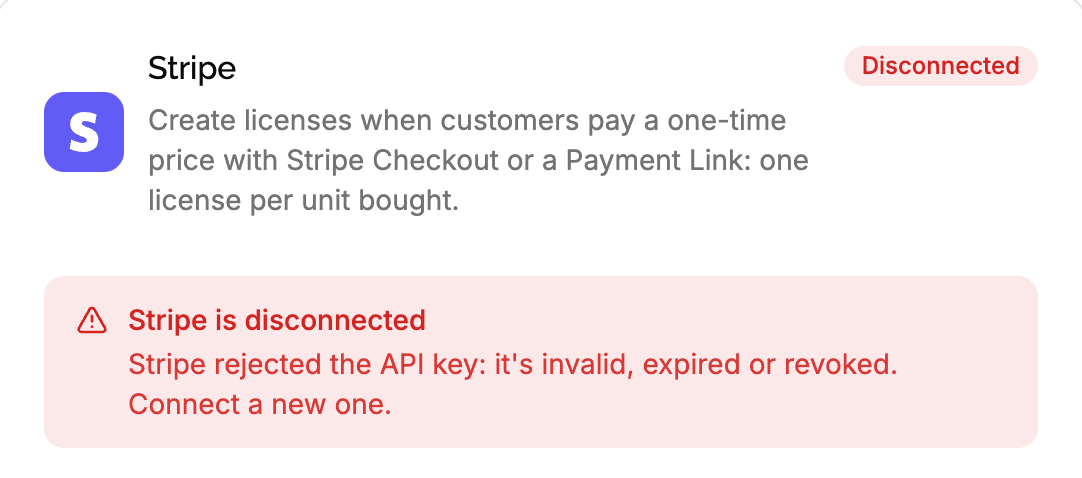
| Disconnected | Stripe rejects the key: it was revoked, expired or deleted. | Replace the API key. |
When a price mapping is flagged, the integration shows Error too, with the mapping’s reason. It goes back to Active once the mapping is fixed or deleted.
While the integration is in Error or Disconnected, customers can still pay in Stripe without getting a license. See when the integration breaks.
Replace the API key
To rotate the key, add a permission, or recover from a Disconnected status, click Replace API key on the Stripe card, and follow the same steps as connecting with a new key.
- With a key of the same Stripe account, the webhook and the mappings are kept: nothing else changes. Revoke the old key in Stripe afterwards.
- With a key of another Stripe account, a webhook is created on the new account and the old account’s one is deleted when its key still works. The mappings are kept, but they point to prices of the old account, which the new one doesn’t sell: delete them and map the new account’s prices. To switch accounts, disconnecting first is clearer.
Disconnect Stripe
Click Disconnect on the Stripe card. LicenseManager:
- Deletes the webhook from your Stripe account. When the key no longer works, or the webhook is already gone, this step is skipped. When the key works but lacks the Webhook Endpoints: Write permission, disconnecting fails: give it back the permission, or delete the webhook yourself in Stripe, then try again.
- Deletes the connection and all its price mappings, for every product of the organization in that mode.
The licenses it created stay, with their customers. Payments no longer create licenses.
Then revoke the API key in your Stripe dashboard: LicenseManager no longer has it, but it’s still valid in Stripe until you do.
Troubleshooting
“This isn’t a Stripe secret or restricted key”: you pasted something else, like a publishable key (pk_…). Copy the restricted key, starting with rk_.
“This is a test mode key: live products need a live mode key”, or the opposite: you’re connecting from a live product with a test key. Create the key in the other mode, or connect from a test product.
“Stripe rejected the API key: it’s invalid, expired or revoked”: the key was mistyped, revoked, or expired. Create a new one.
“The API key lacks these permissions: …”: edit the key in Stripe to give it the listed permissions, and try again. You can edit a restricted key’s permissions without creating a new one.
“The API key can’t manage webhook endpoints”: the key lacks Webhook Endpoints: Write. Give it the permission, and try again.
“Stripe couldn’t be reached”: Stripe was unreachable or answered with an error. Try again in a few minutes.