Handling validation errors
When a validation fails, LicenseManager answers with an HTTP status and an error code. Branch on the code, which never changes, not on the message, which may. Each code tells the customer something different, and has its own fix: a good error message turns a support ticket into a click.
// 403 Forbidden
{
  "error": {
    "code": "machine_limit_reached",
    "message": "The license is already active on its maximum number of machines"
  }
}
The errors
| Status | Code | What happened |
|---|---|---|
404 | not_found | The key doesn’t exist in this product, or the product doesn’t exist. |
403 | license_expired | The license’s expiration date has passed. |
403 | version_not_allowed | The license doesn’t include this version of your application. |
403 | machine_limit_reached | The license is active on its maximum number of machines, and this one isn’t one of them. |
402 | plan_limit_exceeded | Your organization stayed over its plan’s limits: it’s about your account, not the customer’s license. |
422 | validation_error | The request is invalid, like an empty key or a missing fingerprint. |
500 | internal_error | Something went wrong on LicenseManager’s side. |
The checks run in a fixed order, and only the first failure is answered: an expired license used on too many machines answers license_expired. See validation.
What to do
not_found
The key is wrong. Usually a typo, a key pasted with a missing character, or a key of another of your products.
- Tell the customer the key wasn’t recognized, and to copy it again from their email or the customer portal.
- Trim the key before sending it, and don’t change its case: keys are case sensitive.
- In development, check you’re calling the right product id: a test key doesn’t exist in the live product.
These failures aren’t recorded on any license: there’s no license to attach them to.
license_expired
The license is no longer valid. Lock the application, and offer to renew: a link to your pricing page, or to the customer portal where the customer sees the expiration date.
When you extend the license, the same key works again at the next validation: the customer has nothing to enter.
version_not_allowed
The license doesn’t include this version, usually because its updates ended before it was released. The error also holds the latestAllowedVersion:
{
  "error": {
    "code": "version_not_allowed",
    "message": "The license doesn't allow this version of the application",
    "latestAllowedVersion": "2.3.1"
  }
}- With a version, offer to install it, or to upgrade the license to get the new one. The customer bought 2.x, and 2.3.1 is the last version they own.
- With
null, the license allows none of your releases: offer to upgrade.
latestAllowedVersion is the latest stable release the license allows, among the ones already released: it’s only accurate if you record your releases as you ship them.
machine_limit_reached
The license is already active on as many machines as it allows. The customer is usually moving to a new computer, or reinstalled their system.
- Tell them how many machines the license allows, and how to free one: from the customer portal, by deactivating the machine they no longer use.
- Or offer a license with more machines.
Their active machines keep working: only this new one is refused.
plan_limit_exceeded
It’s about your LicenseManager plan, not your customer’s license: your organization went over its plan’s limits and didn’t upgrade during the grace period. See plans and billing.
Don’t lock the application. Handle it like a network error: keep the stored token until it expires.
Network errors, 500 and timeouts
LicenseManager couldn’t answer. Never lock out a customer because of it: keep using the stored token while it’s valid, and try again later. When there’s no token yet, ask the customer to check their connection and try again.
Only lock the application on not_found, license_expired, version_not_allowed and machine_limit_reached. Every other failure says nothing about the customer’s license.
Messages to show
| Code | Example message |
|---|---|
not_found | “This license key wasn’t recognized. Check you copied it entirely from your purchase email.” |
license_expired | “Your license expired on March 3, 2027. Renew it to keep using Acme Photo.” |
version_not_allowed | “Your license includes Acme Photo up to 2.3.1. Download it, or upgrade your license to use 3.0.” |
machine_limit_reached | “Your license is already used on 2 computers. Deactivate one in your account to use it here.” |
Investigating a customer’s problem
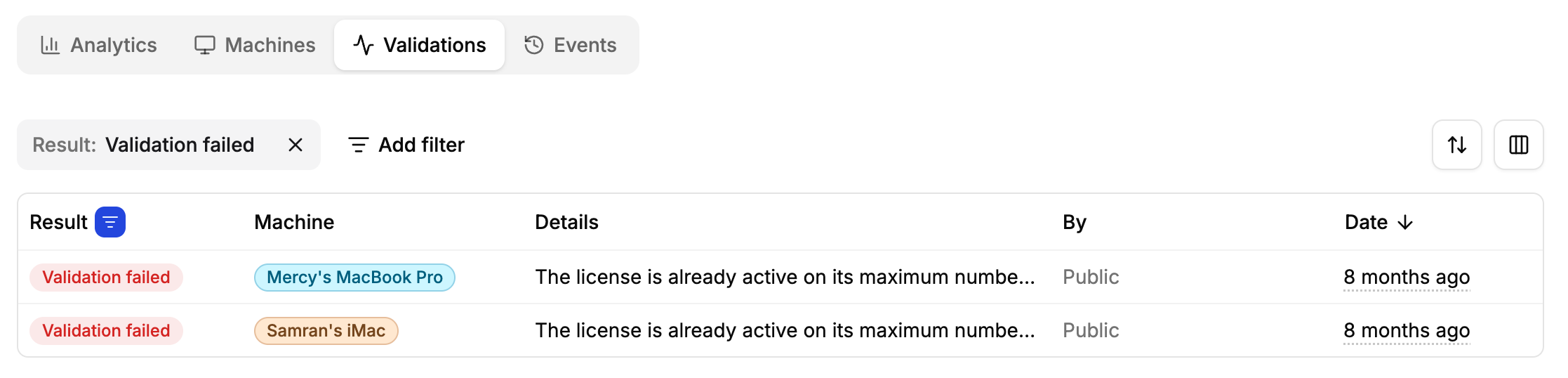
Open the license in the app, then its Validations tab: every validation is listed, refused ones with their error, the fingerprint, version and platform sent. Each one is a license.validation_failed event.