Machines
A machine is a device a license is used on: a laptop, a server, a phone, a virtual machine. Machines are what max machines counts, so a license sold for 2 computers is used on 2 computers, not 20.
In real life, machines work like the devices registered on a streaming or music account: the account allows up to 5 devices, each new device registers itself the first time you sign in on it, and to add a sixth one, you remove one you no longer use.
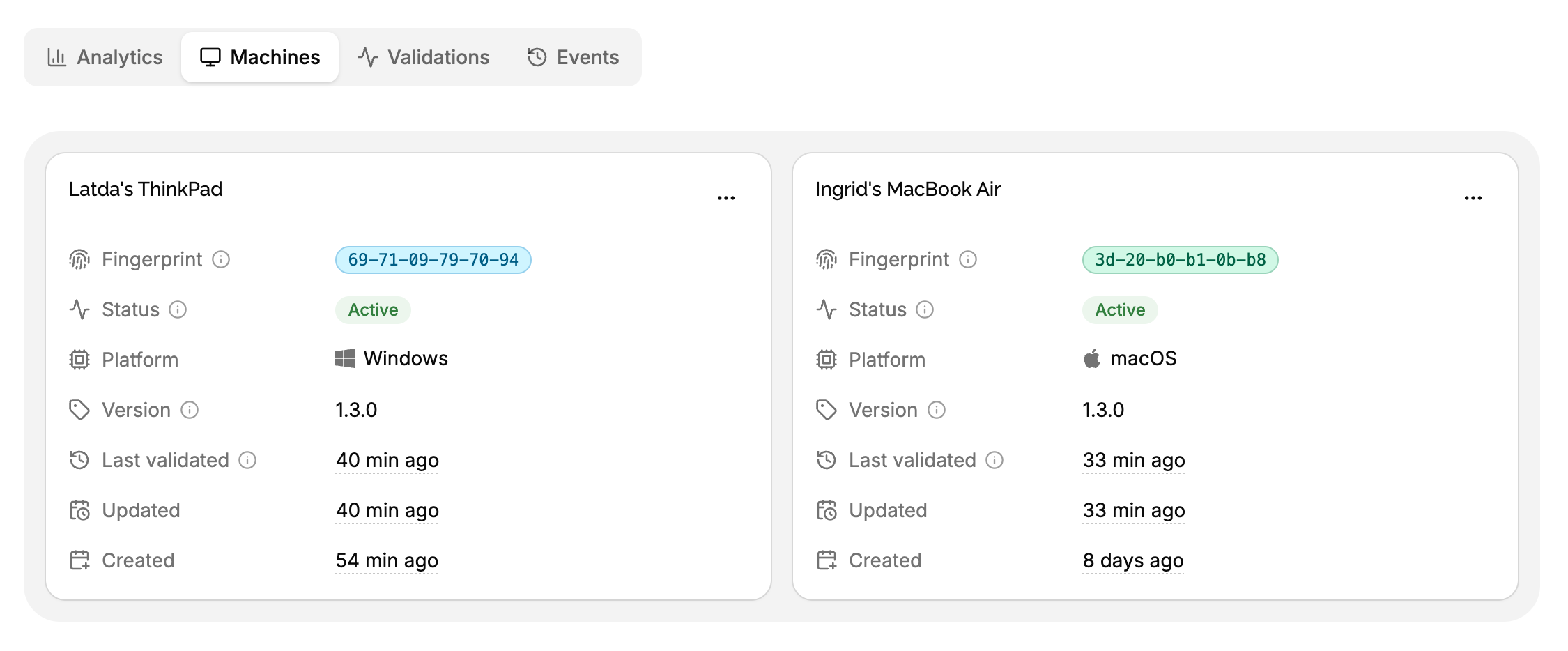
How machines are created
You never create machines yourself. When your application validates a license key, it sends a fingerprint identifying the device:
- A fingerprint the license has never seen creates a new, active machine, if the license has room for it.
- The fingerprint of a deactivated machine activates it again, if the license has room for it.
- The fingerprint of an active machine updates it, and is always accepted.
A machine is only created or activated when the validation succeeds: a validation refused because the license has expired, doesn’t allow the version, or has no room left changes no machine.
What a machine holds
Fingerprint
What identifies the device, computed by your application, like a hash of its hardware id. It’s unique within the license and compared exactly, case included: a different fingerprint is a different machine.
The fingerprint is the whole identity of a machine, so it must be stable: the same on every launch, after updates and reboots. See machine fingerprints for how to compute one.
Name and platform
A name, like Jane’s MacBook, and a platform, like macOS, sent by your application to help you and your customers recognize the machine. Both are optional, and replaced each time they’re sent. Validations without them keep the current ones: they can’t be cleared.
Version
The version of your application the machine last validated with, like 2.3.1. Updated on every successful validation. It’s what the Active machines by version chart of the product’s dashboard and the releases count.
Last validated
The last time the key was successfully validated on the machine.
Status
| Status | Counts toward max machines | When |
|---|---|---|
| Active | Yes | From its first successful validation, until it’s deactivated. |
| Deactivated | No | After it’s deactivated, until the key is validated on it again. |
An active machine stays active as long as nobody deactivates it, even when it hasn’t been used for months: activity alone never frees a place.
Machine limits
When a license has a max machines, validating its key on a new or deactivated machine fails with machine_limit_reached once the license has that many active machines.
- Active machines are never refused for the limit, even when it was lowered below their number. A license with 3 active machines and a max of 2 keeps working on those 3, and refuses a fourth until 2 are deactivated.
- Simultaneous validations on new machines are counted one after the other: a license with one place left can’t be activated on two machines at once.
- An unlimited license accepts any number of machines, and still records each one: you see where it’s used.
Deactivating a machine
Deactivating a machine frees its place: it no longer counts toward the license’s max machines. It’s what a customer does when they replace their laptop.
Machines are deactivated:
- By you, from the Machines tab of the license: click ⋯ on the machine, then Deactivate.
- By your customers, from the customer portal.
- By your application, through the API with a machine token your backend created for it, like a Sign out of this device button.
- By your own pages, like an account page of your website, with a customer or license token.
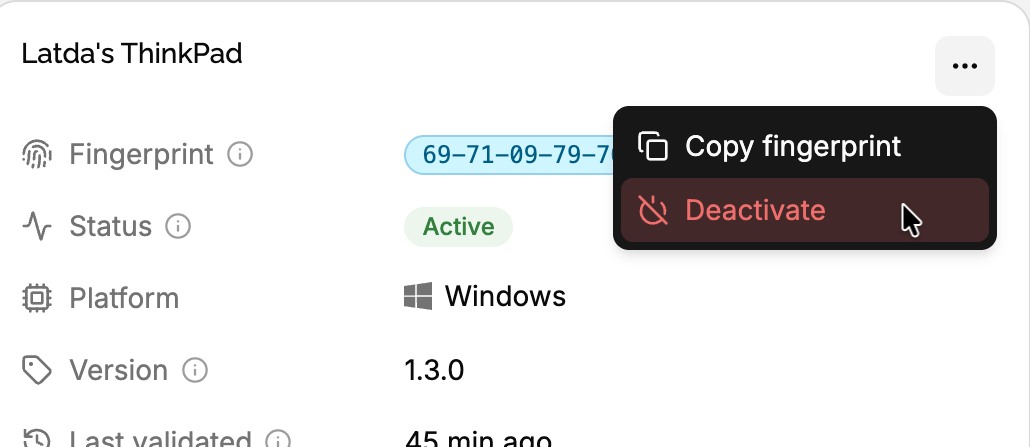
Deactivating doesn’t lock the machine out. Its license token stays valid until it expires, so the application keeps running offline up to the max offline duration. And validating the key on it again activates it again, if the license has room. To stop a license, expire it.
Machines can’t be deleted: they’re kept in the license’s history, and deleted with their license.
Use cases
A customer replaces their computer. They deactivate the old one from the customer portal, then enter their key on the new one.
A customer reinstalled their system, and the fingerprint changed. The new fingerprint is a new machine, and the old one still holds its place. Deactivate the old one, or let the customer do it from the portal.
Floating licenses. Have your application deactivate its machine when it quits, so the place goes to the next user. Use a short max offline duration, so a machine that quits without deactivating doesn’t run for long on its token.
Auditing usage. The Analytics tab of a license shows its activations per machine and per version: a license validated from 40 machines in a week is likely shared.
Edge cases
The same device on two licenses. It’s one machine in each license, counted by each.
Two devices with the same fingerprint, like cloned virtual machines. They’re the same machine for LicenseManager, and only take one place. Include something unique to each instance in your fingerprint if that matters to you.
A machine of an expired license. It stays active, but validations fail with license_expired. Extending the license makes it work again, without a new activation.
Deactivating a deactivated machine. Does nothing.
History. Each successful validation is recorded as a license.validated event, telling whether it created or activated the machine; each failure as license.validation_failed; each deactivation as machine.deactivated, with who did it.