 LicenseManager
If you sell software with license keys, you know the emails. “I lost my key.” “I bought a new laptop and the app says my license is used on too many computers.” “Can I get a refund?” “My card expired, how do I update it?” Each one takes you a few minutes, and each one leaves a paying customer waiting for your reply, sometimes over a weekend.
Self-service licensing removes those emails. Instead of asking you, customers sign in to a page where they find their keys, free their old computers, cancel within the refund window and update their payment details on their own.
This article covers what self-service licensing is, what a self-service license portal should include, where self-service should stop, and how to put it in front of customers at the moment they need it.
What is self-service licensing?
Self-service licensing means your customers manage their own software licenses, without contacting you: they retrieve their license keys, see which machines use them, deactivate the ones they no longer use, and manage their billing. It usually takes the form of a self-service license portal, a web page where customers sign in with the email they bought with.
The term has a second meaning in enterprise software. In tools like Microsoft 365, a “self-service license” is one that an employee buys or claims for themselves, without going through their IT admin. The idea is the same, removing a person from the loop, but the audience differs. This article is about the first meaning: you sell an app, and you want your customers to manage their licenses without you.
The support requests self-service licensing removes
Look at your support inbox and sort the licensing emails. For most apps sold with license keys, four requests make up almost all of them:
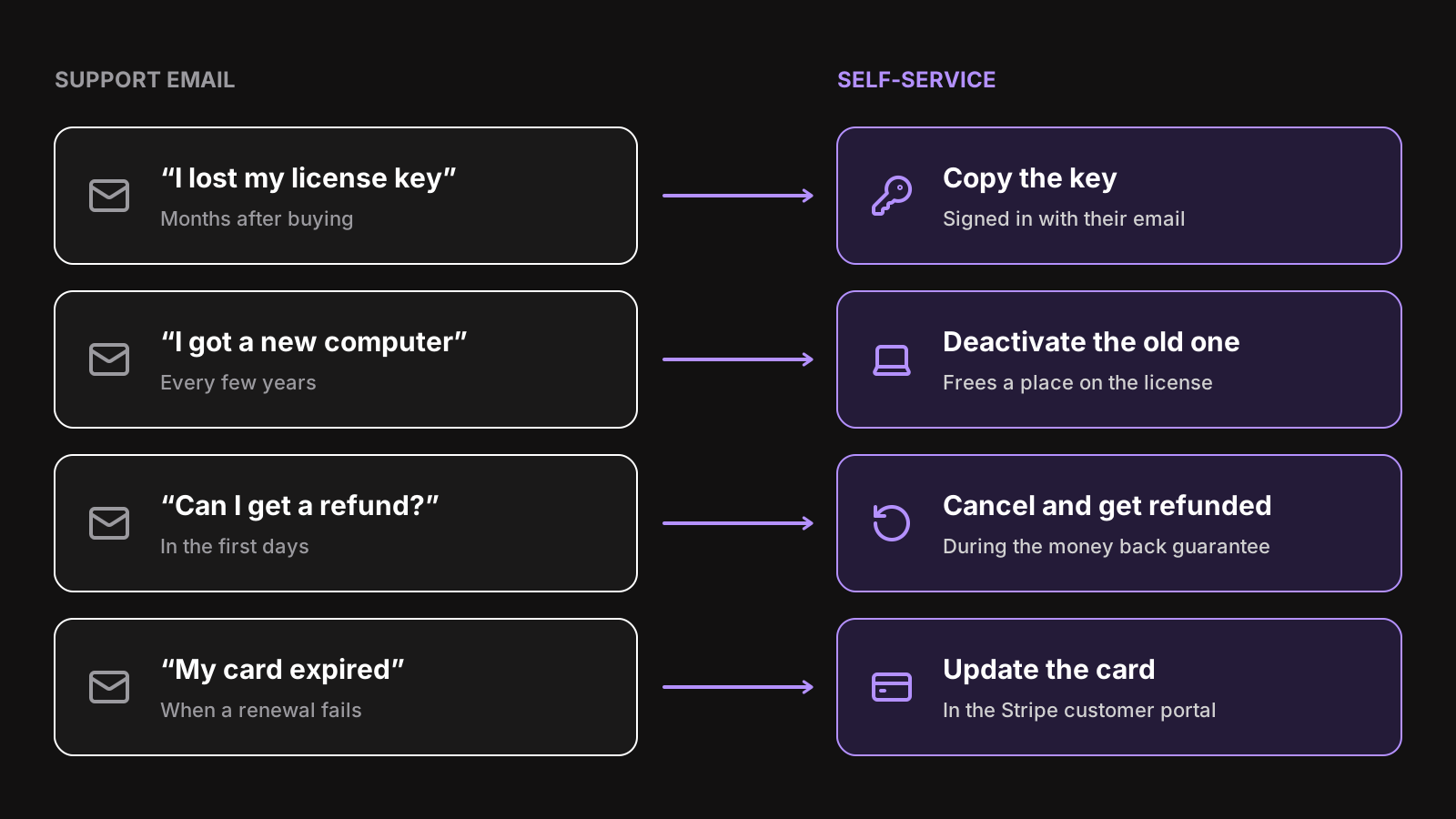
- “I lost my license key.” The purchase email is buried, deleted, or went to an old address. This is the most common one, and the easiest to automate: the key exists, the customer just needs to see it again.
- “I got a new computer.” If your licenses are tied to a number of machines, a customer who replaces their laptop hits the limit on the new one. Without self-service, only you can free the old seat. We explain how machines are counted in how to get a unique machine id in Electron.
- “Can I get a refund?” If you offer a money back guarantee, honoring it should be as easy as asking for it. A refund that takes three emails turns a lost sale into a bad review.
- “My card expired.” For subscriptions, a failed renewal locks out a customer who wants to keep paying. They need a place to update their card, and to find their invoices.
None of these needs your judgment. They need a page that knows who the customer is and what they bought.
What a self-service license portal should include
A good self-service license portal is small. It doesn’t sell anything and doesn’t replace your website. It shows customers what they own, and lets them do the few things they’d otherwise email you about.
Sign in with an email, not a password
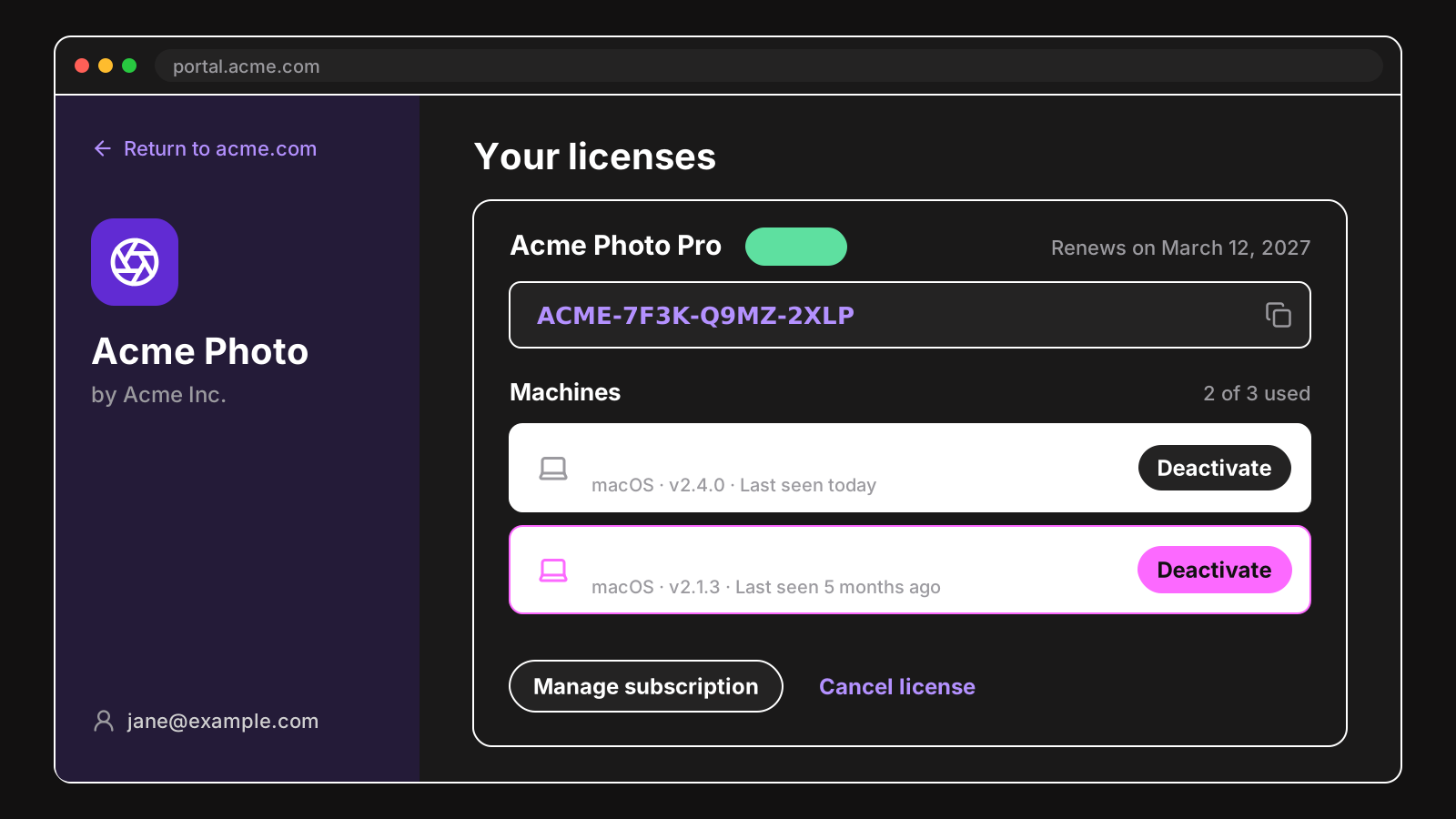
Your customers didn’t create an account when they bought your app, and they won’t remember a password for a page they open once a year. Let them sign in with their email: they type the address they bought with, and receive a link that signs them in. Whoever can read the inbox the key was sent to can already read the key, so this adds no risk.
When customers already have an account on your website, skip even that step: a Manage my licenses button on your site can open the portal already signed in, with a short-lived link created by your backend. See portal links for how that works with LicenseManager.
Show every license and its key
The main screen lists the customer’s licenses, each with:
- The license key, with a copy button. This alone answers the “I lost my key” emails.
- Its status: active, expired, canceled, or suspended for a failed payment, with a short explanation of what it means.
- Its expiration or renewal date, so nobody is surprised by a charge or a locked app.
- What it includes: the plan, the versions it unlocks, the number of machines. See entitlement management for what a license can carry.
Show only what the customer already has. Upgrades and new purchases belong on your website, where you can explain them properly. Link back to it from the portal.
Let customers deactivate their machines
This is the feature that saves the most frustration. For each license, list the machines that use it, with a recognizable name (“Jane’s MacBook Pro”, not a fingerprint hash), the platform, the app version, and when it was last seen. Next to each one, a Deactivate button frees its place for a new machine.
The last seen date matters more than it looks: it’s how a customer tells their current laptop from the one in a drawer. Your app collects it for free every time it validates the license.
Cancel and refund within the guarantee
If you offer a money back guarantee, let customers cancel their license from the portal during that window, and refund their payment automatically. Ask why in one optional question: the answers are the most honest product feedback you’ll get.
After the guarantee ends, the button disappears, and the customer has to contact you. That’s the right place for a human: a refund outside your policy is a decision, not a routine task. With LicenseManager, the guarantee is a setting of each policy, and the portal follows it.
Manage subscriptions and invoices
For subscription licenses, customers need to update their payment method, download invoices, switch plans, and cancel. Don’t rebuild that: Stripe has a hosted customer portal that does all of it. Your license portal only needs a Manage subscription button that opens a Stripe portal session for the customer, and to update the license when Stripe sends the resulting webhook. See subscriptions for how renewals, failed payments and plan changes flow back to the license.
Self-service inside your app
A portal only helps if customers find it at the moment they need it, and that moment is usually inside your app, looking at an error. Link to the portal from every place a license problem shows up:
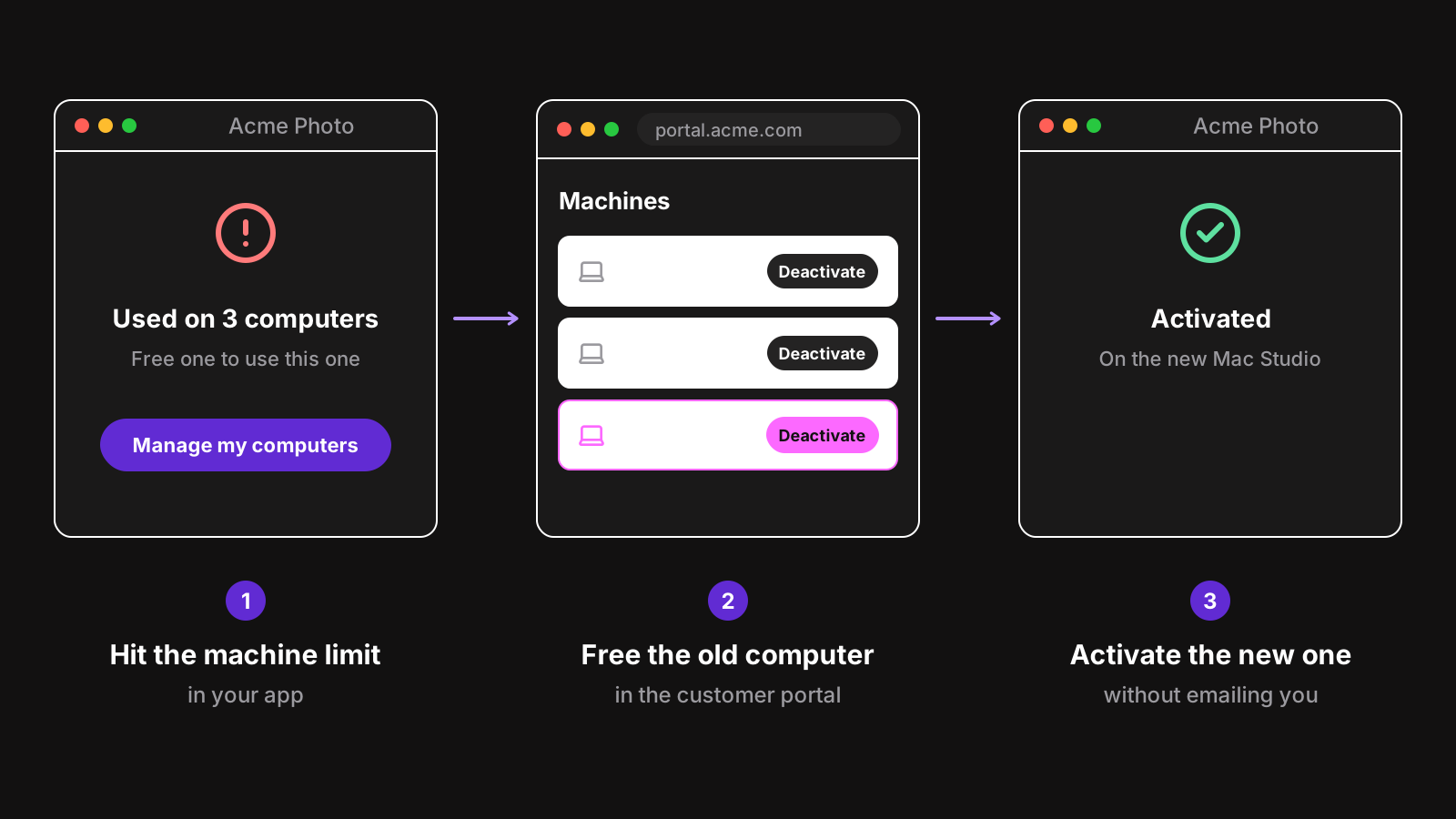
- The machine limit error. Instead of “This key is used on too many computers. Contact support.”, show a Manage my computers button that opens the portal. This one link turns the most annoying licensing email into a 30 second fix.
- The expired or suspended license screen, with a link to renew or to update the card.
- The Help menu, with a Manage my license item, always there.
- The activation window, with a “Lost your key?” link.
In an Electron app, opening the portal is one call to shell.openExternal, from the main process:
import { Menu, shell } from "electron";

const PORTAL_URL = "https://portal.acme.com";

const menu = Menu.buildFromTemplate([
  // …your other menus
  {
    role: "help",
    submenu: [
      {
        label: "Manage my license",
        click: () => shell.openExternal(PORTAL_URL),
      },
    ],
  },
]);
Menu.setApplicationMenu(menu);
The license states of the Electron SDK tell you which screen to show: on MACHINE_LIMIT_REACHED, show the button to the portal next to the error. See how to add license keys to an Electron app for the activation window and how it talks to the main process.
Outside the app, put the portal link in the purchase email, under the key, on your website’s account or support page, and in the auto-reply of your support address. That last one catches the customers who email you anyway: many of them will fix it themselves before you read the message.
Where self-service should stop
Self-service licensing isn’t about removing every human from the loop. A few things should stay with you.
Keep self-service deactivation from becoming free seats
If customers can deactivate machines freely, a key with a 3 machine limit could, in theory, be shared by deactivating one computer each morning and activating another. In practice it’s rare, and too annoying to be worth it, but two safeguards keep it in check:
- Make deactivation stick. A deactivated machine must stop working, not just stop counting. If your app works offline with a signed license token, the token’s expiration decides how long a deactivated machine keeps running. A few days to a few weeks is a good trade-off between honest customers on a plane and dishonest ones.
- Watch, then limit. Some vendors cap self-service resets, like three per year, and send the customer to support after that. Start without a cap, and look at your deactivation history: if one key deactivates a machine every day, deal with that customer, not with all of them.
For customers who change computers without thinking of the old one, you can go further: with automatic machine changes, a new computer takes the place of the one used the longest ago, and the customer never sees the limit at all.
Keep a human for the exceptions
Some requests need a decision, and should reach you:
- A refund after the guarantee.
- A customer who lost access to the email they bought with, and wants the license moved to a new address. Verify who they are first: the email address is what protects the key.
- A change to the license itself: more machines, a different plan outside of the subscription, a transfer to a coworker.
The goal is that every email you receive is one that needs you.
Build it or use one
You can build a self-service license portal yourself. It’s a small app, but its pieces add up:
- Passwordless sign-in, with sign-in links that expire, and rate limits so the page can’t be used to send emails to strangers.
- Scoped access, so a signed-in customer can only see and deactivate their own licenses and machines, never someone else’s. See scoped tokens for one way to model it.
- Refunds, through the Stripe API, with the license canceled in the same step, and the guarantee window enforced on the server.
- Stripe customer portal sessions, created on your server, and the webhooks that keep licenses in sync with subscriptions.
- Branding, so customers recognize your product, and a link back to your website.
It’s a few weeks of work, plus a server to keep running for a page that customers expect to work the day they need it.
LicenseManager includes a customer portal for each product, enabled when you create it. It does everything in this article: email sign-in, keys, machines with their last seen dates, cancellations with refunds during the guarantee, and the Stripe customer portal for subscriptions, with your logo and colors. You only link to it.
Wrapping up
Self-service licensing comes down to a simple rule: if answering a licensing email doesn’t need your judgment, your customer should be able to do it themselves. A self-service license portal answers the four big ones, lost keys, new computers, refunds and billing, and links from your app put it in front of customers exactly when something goes wrong.
Your customers get their answer in 30 seconds instead of a day, and you get your inbox back. If you’re setting up licensing from scratch, start with how to sell an Electron app for the full picture, or see pricing to get a license portal without building it.