 LicenseManager
You built an Electron app, and you want people to pay for it. The most common way to do that outside of an app store is a license key: the customer pays on your website, receives a key by email, and pastes it into your app to unlock it.
This guide walks through every piece of that flow in an Electron app: where the license check runs, how your windows talk to it, how to keep the app working offline, and where to store the key so it survives updates and reinstalls.
What a license key check has to do
Before writing code, it helps to list what “checking a license” really means. On every launch, your app has to answer a few questions:
- Is there a key? If not, show an activation window.
- Is the key real? It must exist, and not be a key someone made up.
- Is it still valid? Not expired, not refunded, not revoked.
- Is it used on too many machines? A key bought for one computer shouldn’t unlock fifty.
- What if the computer is offline? The app must keep working on a plane.
Questions 2 to 4 need a source of truth that your customer can’t edit, which means a server: an activation licensing service. Question 5 means your app has to remember the last answer from that server, in a way that can’t be forged. The rest of this article builds that up.
Run the check in the main process
An Electron app has two kinds of processes. The main process runs Node.js, creates the windows, and has access to the file system, the network and the system keychain. The renderer processes run your UI, in a sandboxed browser environment.
The license check belongs in the main process, for three reasons:
- It needs Node.js APIs to compute a machine fingerprint and to reach the keychain.
- The main process decides which window to open, so it can refuse to open the app window at all.
- Code in the renderer is easier to tamper with from the developer tools.
Here is the overall shape, using the @licenseman/electron SDK:
import { app, BrowserWindow } from "electron";
import { LicenseManager } from "@licenseman/electron";

const license = new LicenseManager({
  productId: "x7Kp2QaZ",
  publicKey: PUBLIC_KEY,
});

app.whenReady().then(async () => {
  // "ACTIVE", "MISSING_KEY", "EXPIRED", "MACHINE_LIMIT_REACHED"…
  const state = await license.ready();

  if (state === "ACTIVE") openMainWindow();
  else openActivationWindow(state);
});

app.on("will-quit", () => license.dispose());
ready() resolves with a single state that sums up the license. When the key was already activated and its stored token is still valid, it resolves right away and validates online in the background, so startup isn’t delayed by the network.
Build the activation window
The activation window is a regular BrowserWindow with a text field and a button. The customer pastes their key, and the window sends it to the main process.
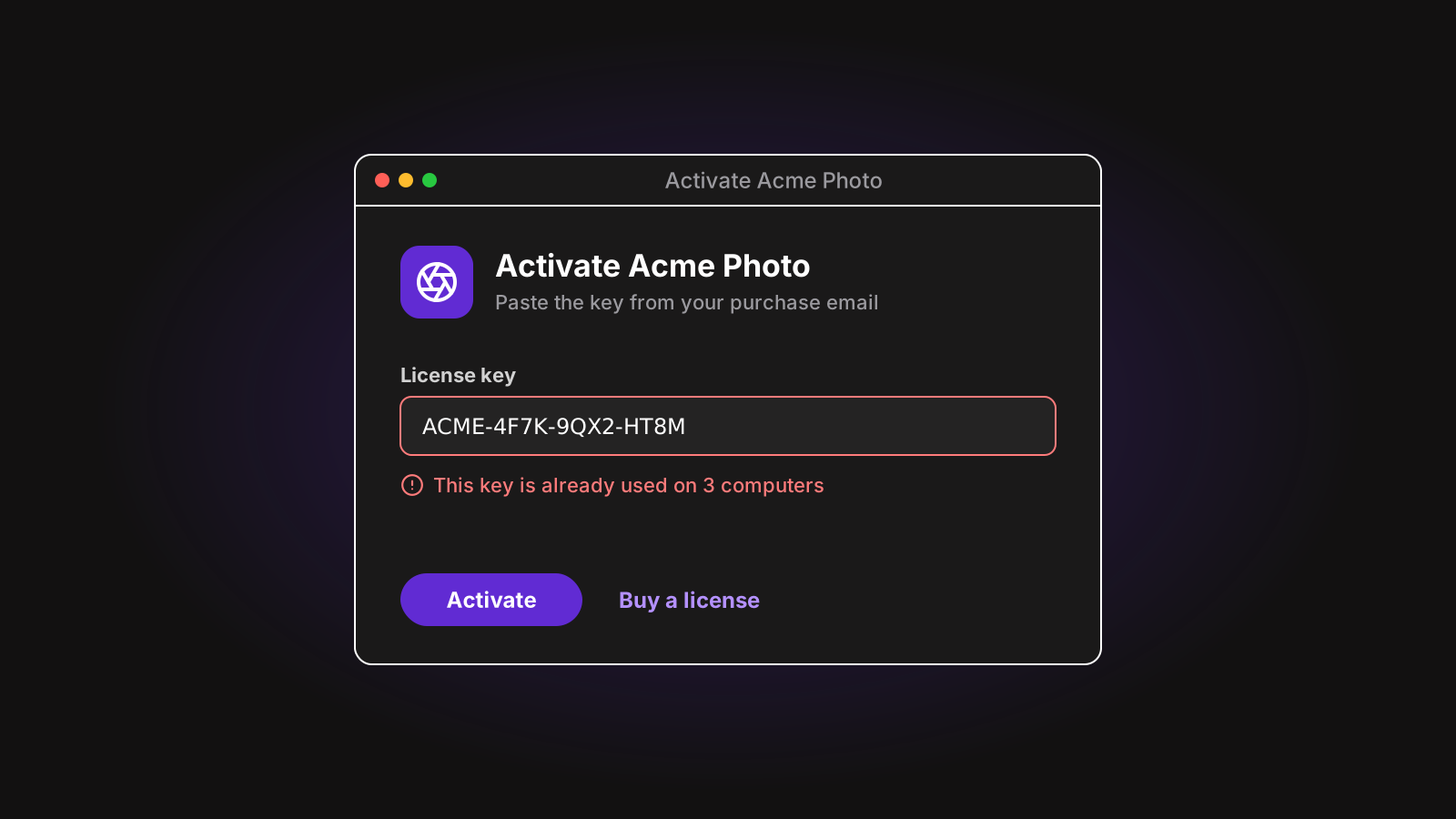
A few details make this window much less frustrating for your customers:
- Accept keys with spaces around them. People copy a key from an email and get a trailing space or line break. Trim it.
- Show a spinner and disable the button while the key is checked. A validation takes under a second most of the time, but can take longer on a bad connection.
- Show a specific message for each error. “This key has expired” and “This key is already used on 3 computers” call for different actions from the customer.
- Link to your pricing page, for people who opened the app before buying.
Connect the window to the main process with IPC
Your activation window can’t call the SDK directly: it lives in the main process. The safe way to bridge the two is a preload script that exposes a small API with contextBridge, and ipcMain.handle on the other side.
import { ipcMain } from "electron";
import { LicenseError } from "@licenseman/electron";

ipcMain.handle("license:activate", async (_event, key: string) => {
  try {
    return { ok: true, state: await license.setLicenseKey(key) };
  } catch (error) {
    if (error instanceof LicenseError) return { ok: false, code: error.code };
    return { ok: false, code: "unknown" };
  }
});
import { contextBridge, ipcRenderer } from "electron";
contextBridge.exposeInMainWorld("license", {
activate: (key: string) => ipcRenderer.invoke("license:activate", key),
});form.addEventListener("submit", async (event) => {
event.preventDefault();
button.disabled = true;
const result = await window.license.activate(input.value);
button.disabled = false;
if (result.ok) return; // The main process swaps the window
showError(messages[result.code]);
});Notice that the handler returns the error instead of throwing it. When an ipcMain.handle handler throws, Electron only passes the error message to the renderer, wrapped in Error invoking remote method…. Any code property you put on the error is lost. Returning a plain object keeps it.
Once the key is activated, the main process closes the activation window and opens the app:
license.onStateChange((state) => {
  if (state === "ACTIVE") {
    activationWindow?.close();
    openMainWindow();
  }
});
Tie the key to the machine
A key that works anywhere ends up in a forum post. To limit how many computers use the same key, the app sends a machine fingerprint with each validation, and the server counts the distinct fingerprints it sees per key.
A good fingerprint is stable across restarts and app updates, different on each computer, and doesn’t leak anything personal. The usual base is the operating system’s machine id: IOPlatformUUID on macOS, the MachineGuid registry value on Windows, /etc/machine-id on Linux. Hash it before sending it. We cover the details, and the edge cases like cloned virtual machines, in how to get a unique machine id in Electron.
When a customer replaces their laptop, they need a way to free the old seat. Either let them deactivate it from a self-service license portal, or let them do it from your app before they wipe the old computer.
Keep working offline
A license check that requires the internet will lock out a customer on a train, and that customer will ask for a refund. The fix is to keep a proof of the last successful validation on the computer, and to accept it for a while without a connection.
That proof must be something the customer can’t create themselves. A boolean isLicensed: true in a JSON file is edited in seconds. Instead, the server answers each validation with a signed token: a small JSON payload with the key, the fingerprint and an expiration date, signed with a private key that only the server has. Your app embeds the matching public key, and checks the signature on each launch.
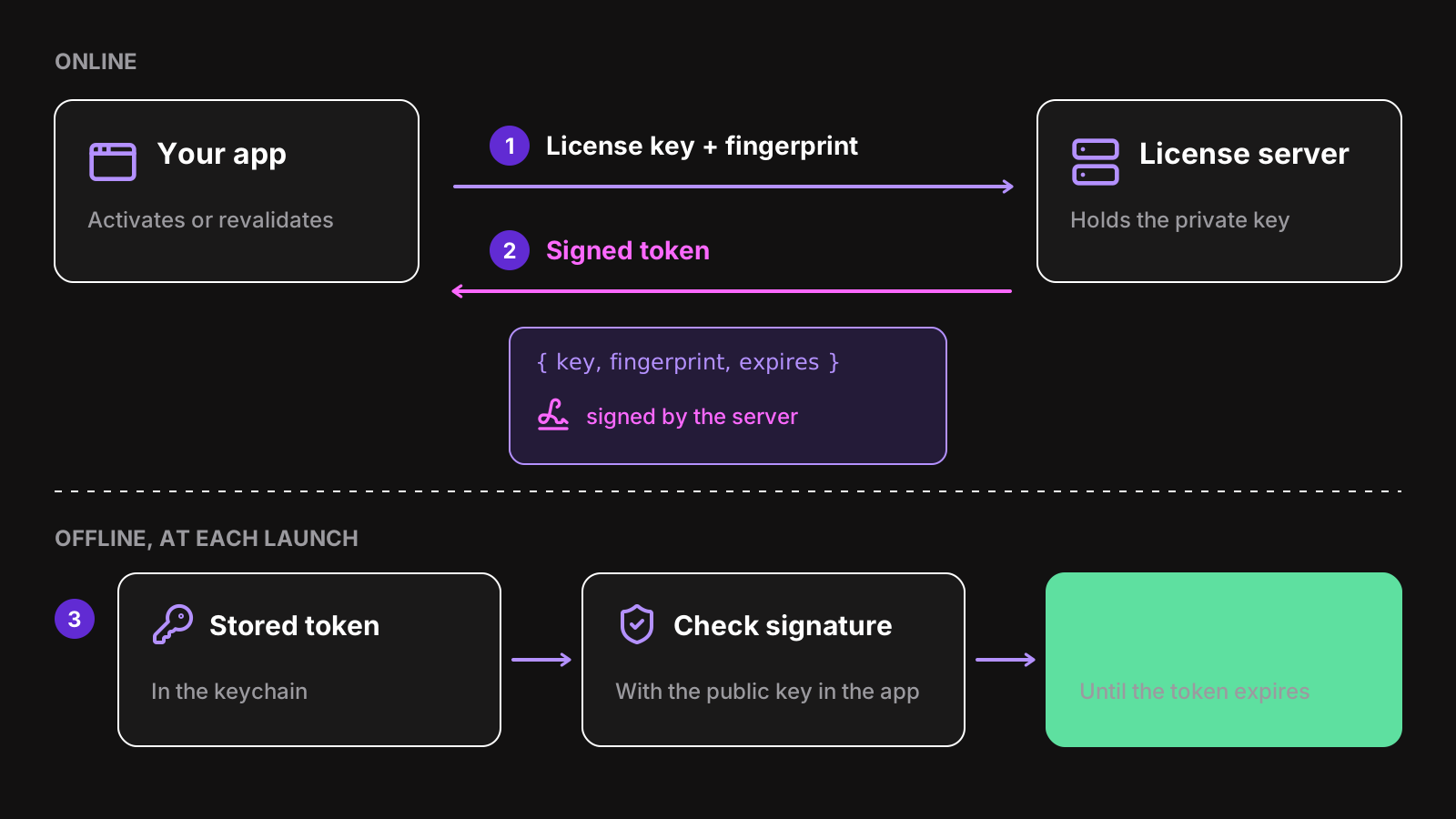
You choose how long a token stays valid offline: a few hours for a team tool that should notice revoked seats quickly, a few weeks for an app used in the field. The SDK renews the token in the background before it expires, so a customer who opens your app regularly never sees it.
Offline checks bring one more problem: the only clock the app can trust offline is the system clock, and the customer controls it. An app that accepts an expired token because the clock was set back a year isn’t protected at all. Store the latest time you saw, and refuse the token when the clock goes backwards.
Store the key in the keychain
Where you store the key decides whether your customers have to type it again after an update or a reinstall. A few options:
| Storage | Survives updates | Survives reinstalls | Readable by other apps |
|---|---|---|---|
localStorage in a window | Yes | Sometimes | No |
A file in app.getPath("userData") | Yes | Usually | Yes, in plain text |
safeStorage + a file | Yes | Usually | Encrypted |
| The system keychain | Yes | Yes | No, without the user’s consent |
The system keychain (macOS Keychain, Windows Credential Manager, Linux Secret Service) is the best home for a license key and its token. See safeStorage vs keytar for how to reach it from Electron now that keytar is no longer maintained.
Handle the locked states
Not every failed check is the same, and your UI should say what happened:
- Missing key: the activation window.
- Invalid key: “This key wasn’t recognized”, with a link to recover a lost key.
- Expired: a renew button, and a “I renewed” button that validates again.
- Machine limit reached: a link to deactivate another computer.
- Offline too long: “Connect to the internet to keep using the app”.
And one rule above the others: a network error must never lock the app. If your licensing server is down for an hour, your customers should not notice. Only an answer that says something about the license, like “expired”, should lock it.
Issue the keys when people pay
The last piece happens outside your app: creating a key when someone pays, and emailing it to them. With Stripe, a webhook on checkout.session.completed creates the key and sends the email. LicenseManager does that part for you once you connect your Stripe account, with no backend of your own. If you’d rather build it, plan for refunds, failed payments and lost keys too.
Wrapping up
Adding license keys to an Electron app comes down to a few pieces: a check in the main process, an activation window that talks to it through IPC, a fingerprint to limit machines, a signed token for offline use, and the keychain to store it all. Each one is small, but together they’re a few weeks of work and a server to run.
If you’d rather skip that part, the Electron SDK does all of it in a few lines, and the setup guide gets you from npm install to a working activation window. Building with Tauri instead? See how to add license keys to a Tauri app: the Tauri SDK does the same in Rust, and the macOS SDK in Swift, for native Mac apps.