 LicenseManager
You built a Tauri app, and you want people to pay for it. Outside of an app store, the usual way is a license key: the customer pays on your website, receives a key by email, and pastes it into your app to unlock it.
Adding license keys to a Tauri app means validating that key against a server you trust, checking it in the Rust core rather than in the webview, and keeping a signed proof of it so the app works offline. This guide walks through each piece: the plugin, the capability, the activation screen, gating paid commands in Rust, offline checks and the machine limit.
What a Tauri license key check has to do
On every launch, your app has to answer a few questions:
- Is there a key? If not, show the activation screen.
- Is the key real? It must exist, and not be something a customer made up.
- Is it still valid? Not expired, not refunded, not canceled.
- Is it used on too many machines? A key bought for one computer shouldn’t unlock twenty.
- What if the computer is offline? The app must keep working on a plane.
Questions 2 to 4 need a source of truth the customer can’t edit: a server, or an activation licensing service. Question 5 means the app must remember the server’s last answer in a way that can’t be forged. Tauri adds one more question, specific to its architecture: which side of the app asks, and which side decides?
Check the license in Rust, not in the webview
A Tauri app has two halves. The webview renders your UI with HTML, CSS and JavaScript, in the system’s web engine. The Rust core is compiled into your binary, owns the window, and runs your commands.
Anything in the webview can be read and changed by a curious customer: the JavaScript ships as text, the inspector can be opened in many builds, and a variable like isLicensed is one edit away from true. The Rust core is much harder to tamper with. That split is a gift for licensing, as long as you use it:
- The Rust core decides. It talks to the license server, verifies the signed token, stores the key, and refuses paid commands without a license.
- The webview displays. It renders the activation screen or the app, depending on a state it receives. It never holds the decision.
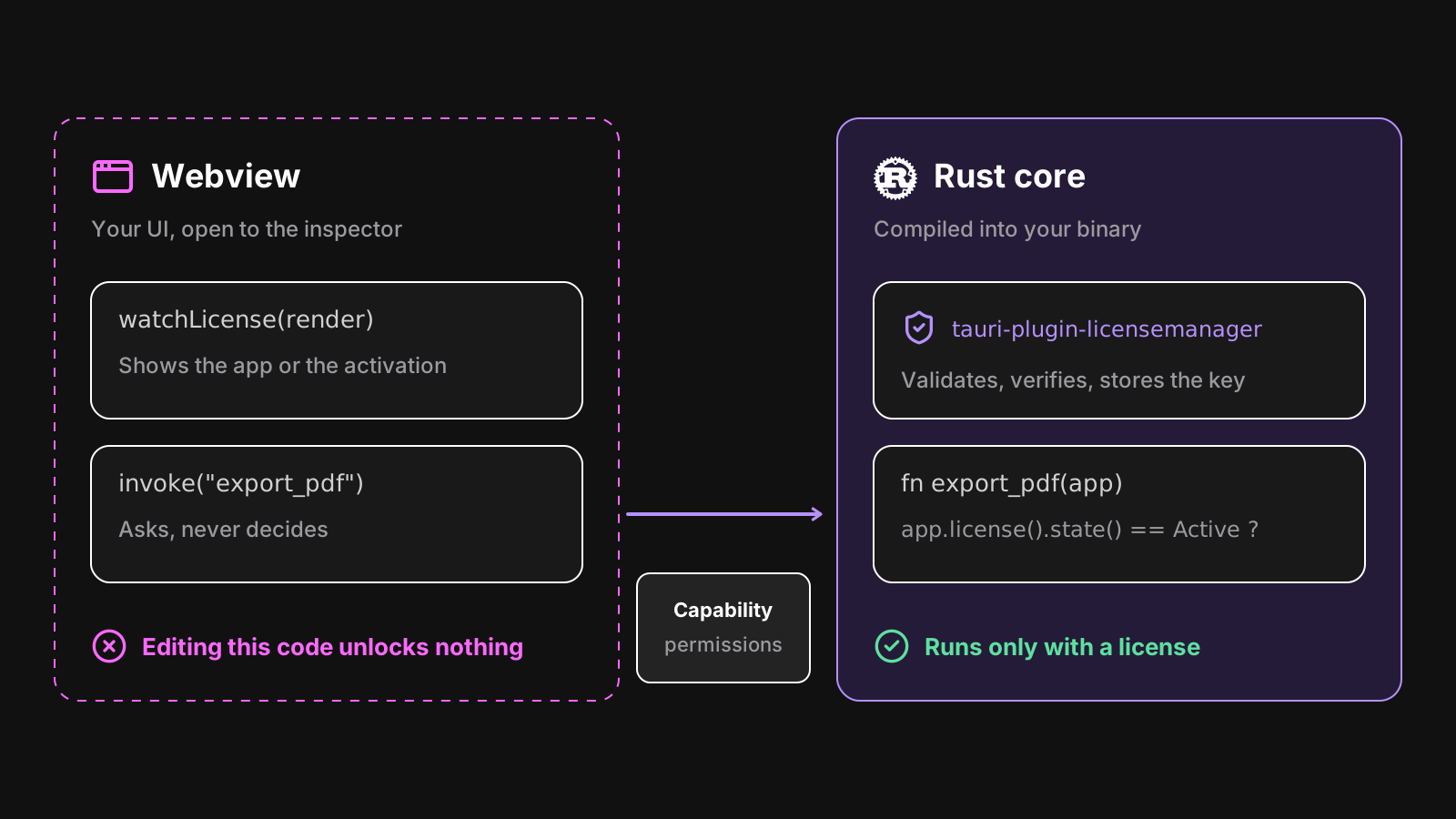
Many guides for licensing a Tauri app call a licensing REST API with fetch from the frontend, or verify the token in JavaScript. It works, but it hands the decision back to the half anyone can edit. If you’ve used Electron, it’s the same lesson as checking the license in the main process, never in the renderer, and the Electron vs Tauri comparison covers the rest of the differences.
Install the plugin and register it
The rest of this guide uses tauri-plugin-licensemanager, a Tauri 2 plugin that runs the licensing in Rust, with typed JavaScript bindings for your webview. Add both:
cargo add tauri-plugin-licensemanager
npm install @licenseman/tauri
Register the plugin with your product’s id and your public key, both from the dashboard:
const PRODUCT_ID: &str = "x7Kp2QaZ";
const PUBLIC_KEY: &str = "-----BEGIN PUBLIC KEY-----
MCowBQYDK2VwAyEA…
-----END PUBLIC KEY-----";

#[cfg_attr(mobile, tauri::mobile_entry_point)]
pub fn run() {
    tauri::Builder::default()
        .plugin(tauri_plugin_licensemanager::Builder::new(PRODUCT_ID, PUBLIC_KEY).build())
        .run(tauri::generate_context!())
        .expect("error while running tauri application");
}
Hard-code both values in your source. A public key loaded from a file next to your app could be swapped by anyone who wants to sign their own tokens. For development, point debug builds at a test product, so your test keys never unlock a release build.
When the app starts, the plugin reads the stored key. With a key and a valid stored token, the app is ACTIVE right away, and the online validation runs in the background: startup is never delayed by the network.
Allow the plugin in your capability
Tauri 2 only lets a window call a plugin when a capability allows it. Add the plugin’s default permission set:
{
  "identifier": "default",
  "windows": ["main"],
  "permissions": ["core:default", "opener:default", "licensemanager:default"]
}
licensemanager:default allows what an activation screen and locked screens need: reading the state, activating a key, refreshing, getting the customer portal link. It doesn’t expose the full key or the machine fingerprint to the webview: a window that needs them must be granted them explicitly. See frontend and permissions for the full list.
Build the activation screen
The activation screen is a regular page of your webview, with a text field and a button. The customer pastes their key from the purchase email.
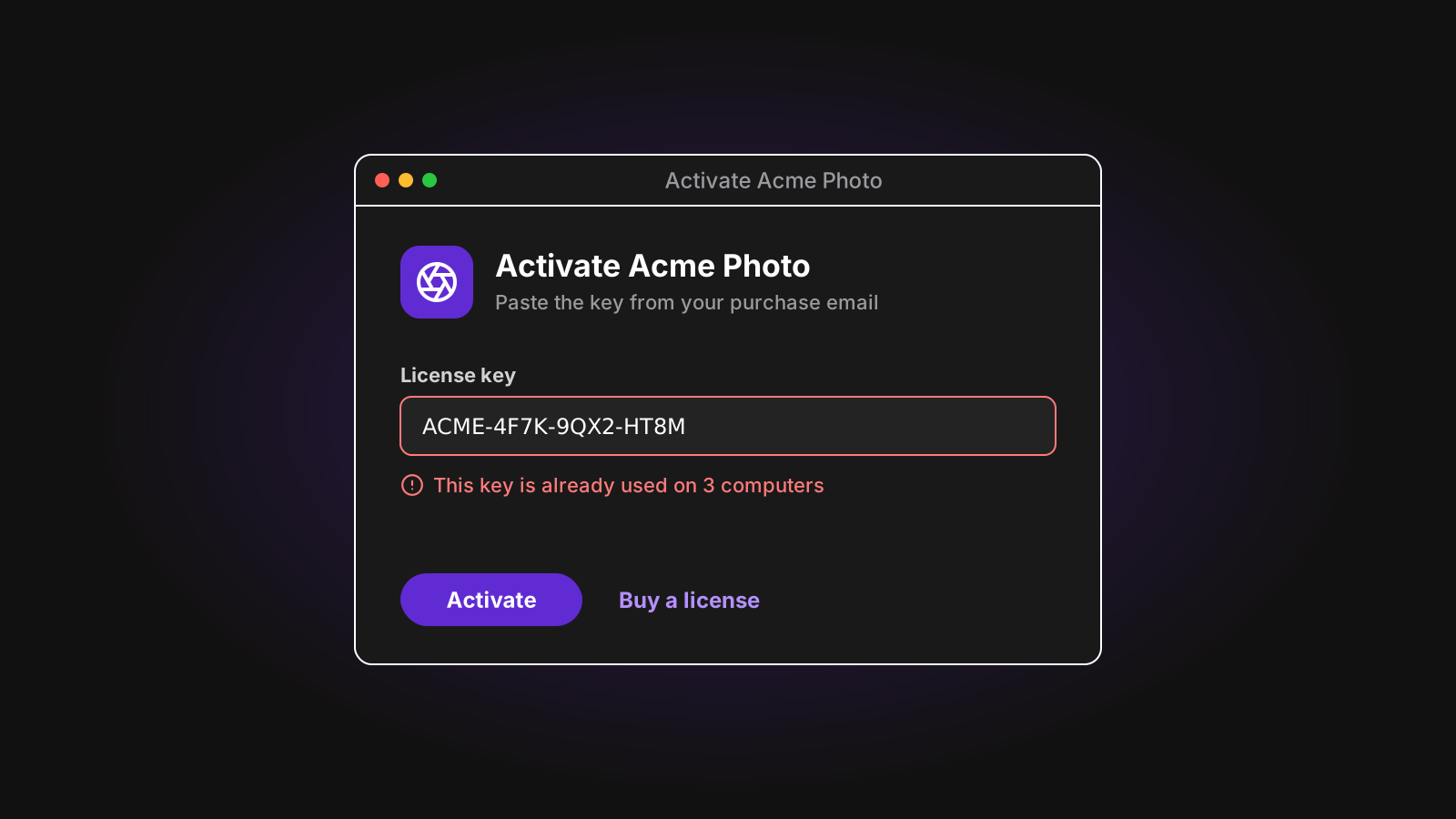
Render the right screen from the license state with watchLicense, which reads the current state first, then follows every change, so a window that loads late never misses one:
import { watchLicense } from "@licenseman/tauri";

await watchLicense(({ state, offline }) => {
  if (state === "LOADING") showSplash();
  else if (state === "ACTIVE") showApp(offline);
  else if (state === "MISSING_KEY") showActivation();
  else showLocked(state);
});
And pass the key the customer enters to setLicenseKey:
import { LicenseError, setLicenseKey } from "@licenseman/tauri";

form.addEventListener("submit", async (event) => {
  event.preventDefault();
  button.disabled = true;
  try {
    await setLicenseKey(input.value); // watchLicense then shows the app
  } catch (error) {
    if (error instanceof LicenseError) showError(messages[error.code]);
    else throw error;
  } finally {
    button.disabled = false;
  }
});
Unlike Electron’s IPC, Tauri keeps the error’s details between Rust and the webview: you get a real LicenseError with its code. Use it to show a message the customer can act on:
| Code | What to show |
|---|---|
not_found | “This key wasn’t recognized. Copy it again from your purchase email.” |
license_expired | “This license expired. Renew it to keep using Acme Photo.” |
machine_limit_reached | “This key is already used on 2 computers. Deactivate one in your account.” |
network_error | “Couldn’t reach the license server. Check your connection and try again.” |
The key is trimmed for you, so a trailing space copied from an email doesn’t fail. A failed activation changes nothing: a customer whose app already works and who types a wrong key keeps their working license. The other codes are in the activation errors.
Gate paid commands in Rust
Your webview decides what to show. What must stay locked, like exporting, saving or syncing, belongs in your Rust commands. Check the state at the start of each one:
use tauri_plugin_licensemanager::{LicenseState, LicensemanagerExt};

#[tauri::command]
fn export_pdf(app: tauri::AppHandle, path: String) -> Result<(), String> {
    if app.license().state() != LicenseState::Active {
        return Err("This feature needs an active license.".into());
    }
    // …
    Ok(())
}
state() reads the state in memory, without a request: call it on every command instead of caching it, so a license refused in the background locks the feature right away. A customer who edits your webview to show the export button gets an error from Rust anyway.
You can also react to changes from Rust, to update a menu or a tray icon, with subscribe(), or wait for the startup state with ready() to pick the first window. See using it from Rust.
Limit the number of machines
A key that works on any computer ends up shared in a team chat. To enforce a machine limit, the app sends a fingerprint of the computer with each validation, and the server counts the distinct fingerprints it sees per license.
A good fingerprint is stable across restarts and updates, different on each computer, and doesn’t leak anything personal. The plugin builds it from the hashed system machine id (IOPlatformUUID on macOS, MachineGuid on Windows, /etc/machine-id on Linux), plus a random install id kept in the keychain, so copying a machine id to another computer isn’t enough. How those ids behave, and when they change, is covered in how to get a unique machine id: it applies to Tauri as well.
When a customer replaces their laptop, they free the old machine themselves from the customer portal, and activate the new one. Link to it from your Help menu with getPortalUrl().
Keep working offline
A license check that needs the internet locks out a customer on a train. The fix is a signed token: at each successful validation, the server answers with a small payload (the key, the fingerprint, an expiration date), signed with a private key only the server has. The plugin stores it, and on each launch verifies its Ed25519 signature with the public key compiled into your app. Without a connection, the app stays ACTIVE until the token expires.
You choose how long that is in the license’s policy: a few hours for a team tool that should notice revoked seats quickly, weeks for an app used in the field. The plugin renews the token in the background before it expires, so a customer who opens the app regularly never notices.
To warn customers before they run out, read the offline state, which watchLicense already gives you:
await watchLicense(({ offline }) => {
  if (offline.mode === "offline" && offline.validUntil) {
    const days = Math.floor(offline.remainingMs / 86_400_000);
    if (days < 3) showBanner(`Connect to the internet within ${days} days.`);
  }
});
Offline checks have one weak spot: the system clock, which the customer controls. Set it back a year, and an expired token looks valid. The plugin remembers the latest time it saw, and moves to CLOCK_TAMPERED when the clock goes backwards. See working offline.
Store the key where it survives reinstalls
Where the key lives decides whether customers type it again after an update. localStorage in the webview is the worst place: it’s tied to the webview’s data folder, readable, and easy to edit. A plain file in the app’s data folder is editable too.
The plugin stores the key and the token in the system keychain: the macOS Keychain, the Windows Credential Manager, or the Linux Secret Service, with files as a fallback. The keychain access is compiled into the plugin, with no native module to package. Values survive updates and reinstalls. See stored data.
Handle the locked states
Not every failed check is the same, and your UI should say what happened:
MISSING_KEY: the activation screen.INVALID_KEY: “This key wasn’t recognized”, with a link to find a lost key.EXPIRED: a renew button, and an “I renewed” button that callsrefresh().MACHINE_LIMIT_REACHED: a link to the customer portal, to free a machine.VERSION_NOT_ALLOWED: the license doesn’t include this version, for instance after its year of updates. Offer the latest version it allows, or an upgrade.OFFLINE_EXPIRED: “Connect to the internet to keep using the app.”
And one rule above the others: a network error must never lock the app. If the license server is down for an hour, your customers should not notice. Only an answer that says something about the license should lock it, and that’s how the plugin behaves. The full list is in license states.
Create the keys when people pay
The last piece is outside your app: creating a key when someone pays, and emailing it to them. With Stripe, that’s a webhook on checkout.session.completed that creates the key, sends the email, and later handles refunds, renewals and failed payments. To sell from your website, see Stripe Checkout for a desktop app: the flow is the same for Tauri.
Build it or use a service
Everything above is buildable: a server with a database of keys, a Stripe webhook, signed tokens and key rotation, a machine count, a Rust crate to verify tokens and talk to the keychain on three systems, clock checks, and a way for customers to free a machine. Each piece is small. Together, they’re a few weeks of work, and a server every paying customer depends on.
LicenseManager does that part. Connect your Stripe account, and each purchase creates a license key and emails it to the customer, with no backend of your own. The Tauri SDK is the plugin used in this guide: validation, offline tokens, renewals, machine limits and clock checks, in Rust. Customers manage their keys and machines in the portal, and you can offer free trials with the same code. Moving from Electron? The plugin reads what our Electron SDK stored, so your customers stay activated: see migrating from Electron.
Wrapping up
Adding license keys to a Tauri app comes down to one rule and a few pieces. The rule: the Rust core decides, the webview displays. The pieces: a plugin registered with your public key, a capability that limits what the webview may call, an activation screen, paid commands gated in Rust, a fingerprint for the machine limit, and a signed token in the keychain for offline use.
The setup guide gets you from cargo add to a working activation screen, and the Tauri licensing page shows how it fits with Stripe and the customer portal. Building a native Mac app instead? The macOS SDK does the same in Swift.