 LicenseManager
A license key on its own proves nothing. Anyone can share it on a forum, type it on ten computers, or keep using it after asking for a refund. To know whether a key is real, still valid, and used on a reasonable number of computers, your app has to ask someone who knows: a server.
An activation licensing service is that server. When a customer enters their key, your app sends it to the service, which checks the license, registers the computer, and answers with a signed proof that the app can trust, even offline.
This article explains what happens during activation, how it differs from validation, how activation limits and deactivation work, what to do about offline computers, and what to look for when choosing an activation licensing service.
What is an activation licensing service?
An activation licensing service is a hosted server that software checks license keys against. When the software is activated, the service verifies the key, ties the license to the device with a machine fingerprint, enforces limits like the number of computers, and returns a signed answer the software stores. The software then checks with the service again regularly, to pick up renewals, cancellations and deactivations.
The term also comes up in IT administration, for the activation services of large vendors: Microsoft’s Key Management Service (KMS) activates Windows and Office across a company network, and Citrix’s License Activation Service activates its products on customers’ servers. Those are tools for admins activating software they bought. This article is about the other side: you sell an app, and you need a service your app activates against.
What happens when a customer activates a key
Activation takes less than a second, but four things happen in it.
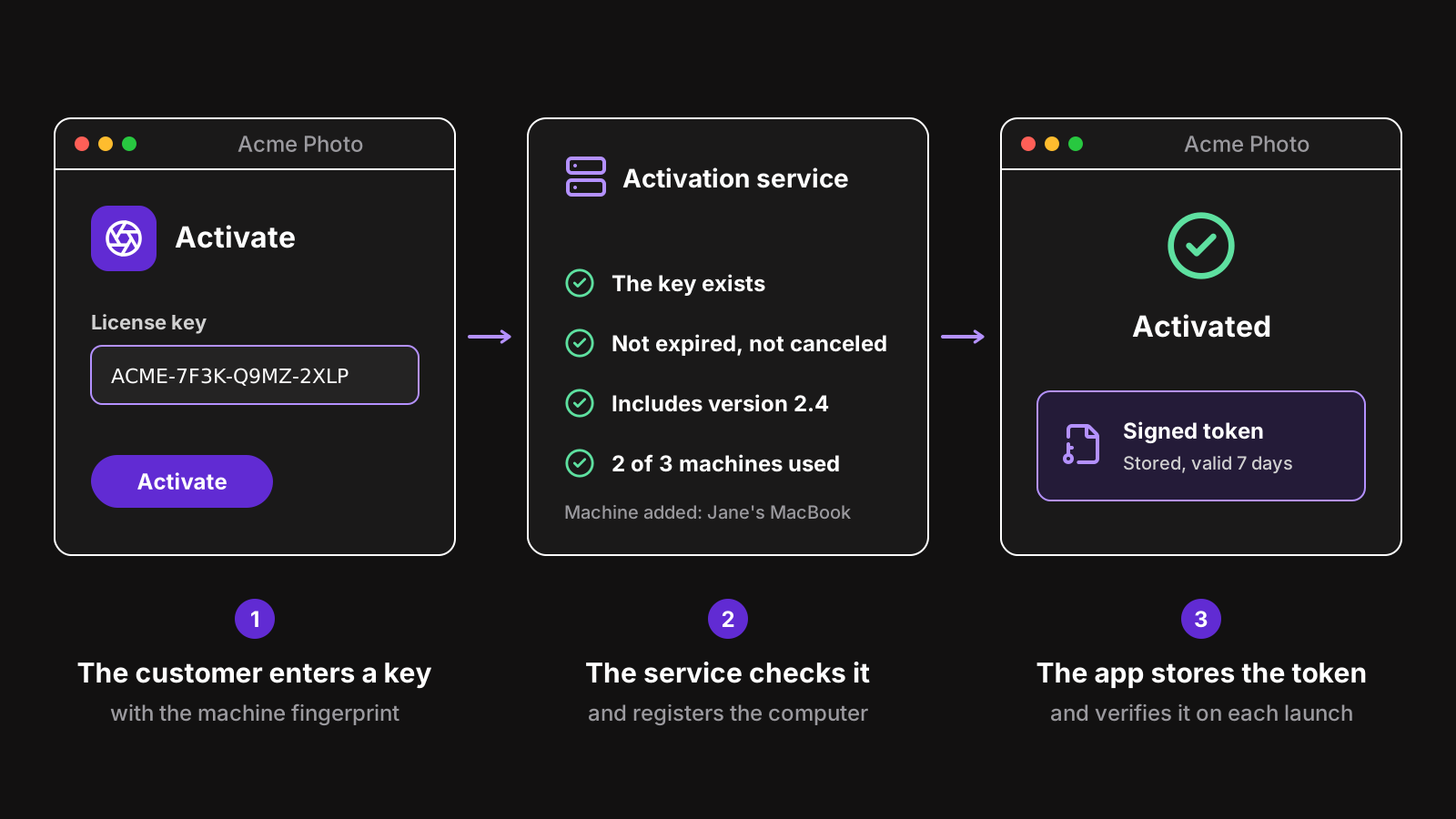
1. The app sends the key and the machine
The customer pastes their key, like ACME-7F3K-Q9MZ-2XLP, into your app’s activation window. The app sends it with:
- A machine fingerprint: an id computed from the computer, stable across launches and updates, so the service knows whether this is a new computer or one it has seen. See how to get a unique machine id in Electron.
- The app’s version, to check the license includes it.
- A machine name and platform, like Jane’s MacBook on macOS, so the customer can recognize the computer later.
2. The service checks the license
The service looks the key up, then checks, in order: that the license exists for this product, that it hasn’t expired or been canceled, that it includes this version, and that the computer is either already registered or that there’s room for one more. Any failure comes back with a precise reason, so your app can tell the customer what to do.
3. The computer is registered
If the license has room, the computer becomes one of its activations, also called machines or seats. It now counts toward the license’s limit, until it’s deactivated.
4. The service answers with a signed token
The answer isn’t a simple “yes”. It’s a token that holds the license key, the machine fingerprint and an expiration date, signed with a private key that only the service has. Your app ships with the matching public key, verifies the signature, and stores the token.
The signature is what makes the answer trustworthy. Without it, someone could point your app to a fake server that always says “yes”, or edit a stored file. With it, only the real service can produce a token your app accepts, and a token copied to another computer fails because its fingerprint doesn’t match. See offline validation for what such a token holds and how to check it.
Activation vs validation
The two words are often mixed up. They’re different moments:
- Activation happens once per computer: the customer enters their key, and the computer is registered on the license.
- Validation happens again and again afterwards: the app checks with the service that the license is still valid on this computer, and gets a fresh token.
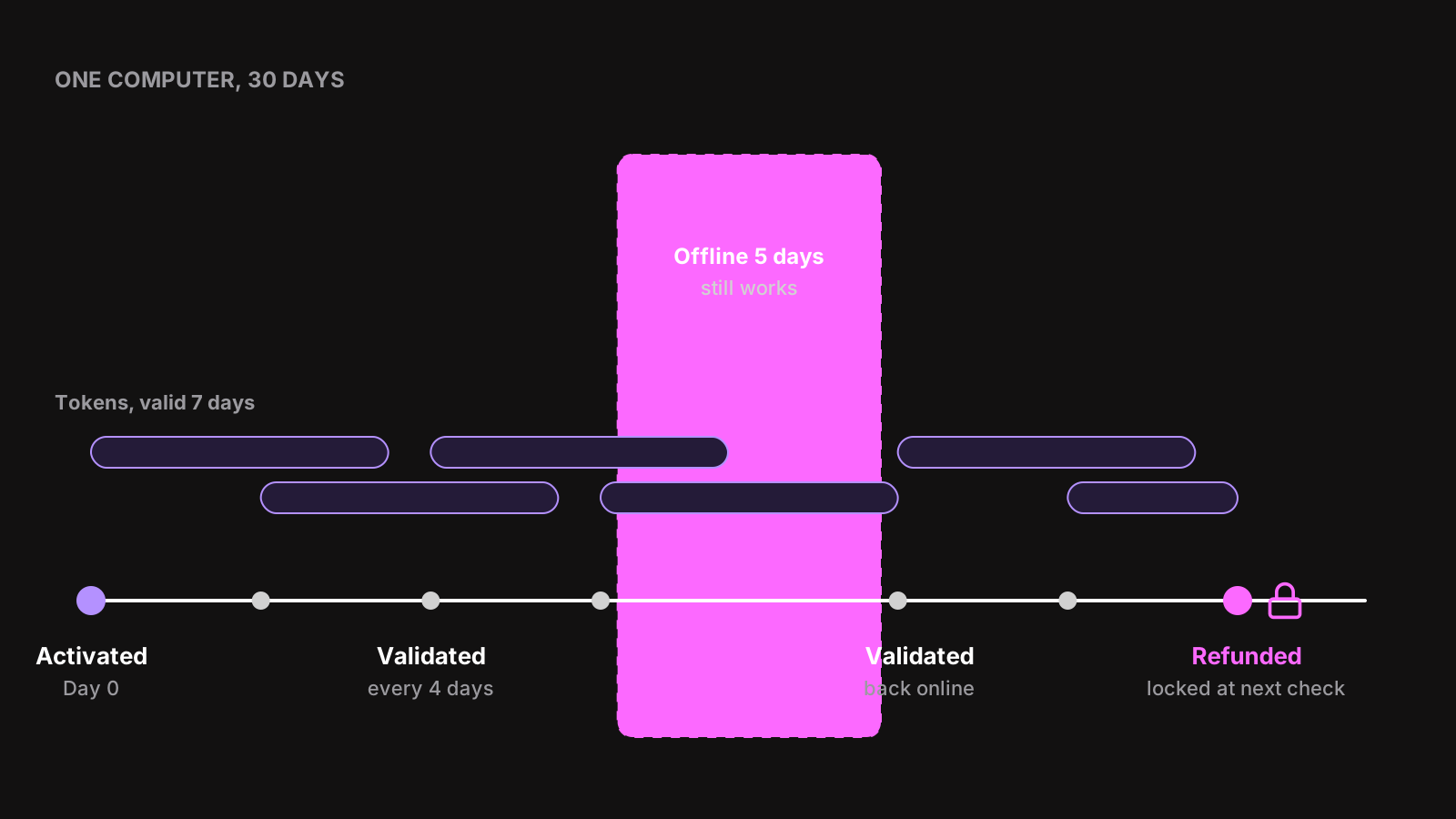
Why validate at all, once a computer is activated? Because a license changes after activation. It renews, or doesn’t. It’s refunded. The customer deactivates this computer to use another one. If your app only activated once, none of this would ever reach it, and a refunded customer would keep using your app forever.
How often to validate is a trade-off. The token’s lifetime decides how long the app keeps working without the network, and how long a change takes to reach the app. A week is a good default for a desktop app: a refund reaches the app within a week, and a customer on a long flight isn’t locked out. See max offline duration for values by kind of app.
Activation limits and deactivation
Most licenses limit the number of computers they can be activated on: 1 for a single-user license, 2 or 3 for a personal one, one per seat for a team. That’s what stops a key from being shared with a whole forum.
The limit also creates the most common licensing complaint: “activation limit reached”. The customer replaced their laptop, reinstalled their system, or their fingerprint changed after a hardware upgrade, and the service counts a computer that no longer exists. Adobe’s community forums are full of these threads. Three ways to keep them rare:
- Let customers deactivate computers themselves. A web page listing the computers on their license, with a Deactivate button next to each, and a link to it from the error in your app. See self-service licensing.
- Let the app deactivate itself, from a Sign out of this computer menu item, for customers who think of it before wiping their laptop.
- Replace old computers automatically. When the limit is reached, the new computer takes the place of the one that checked in the longest ago. A shared key used on 10 computers keeps bouncing between them, but a customer with a new laptop never sees an error. LicenseManager does this by default: see automatic machine change.
Offline activation
Validation handles computers that are offline for a while: they keep working on their stored token until it expires. Activation is different, because there’s no token yet: the first time, the computer must reach the service.
For the rare customers whose computers never reach the internet, like labs, factories or secure government networks, there are two common approaches:
- A request file. The app writes an activation request to a file, the customer carries it to a connected computer, uploads it to the vendor’s website, and carries the signed response back. It works, but it’s a support burden for you and a chore for them.
- A long-lived token, issued once. Activate the computer once while it’s connected, or on a connected computer of the same network, with a token valid for months or for the license’s whole duration. Simpler, and enough for most offline customers.
If offline customers are a large part of your market, choose a service that supports the first. Otherwise, the second is usually enough.
What to look for in an activation licensing service
Every activation service claims to “protect your software”. These are the questions that separate them:
- Signed answers with asymmetric keys. The app must verify the service’s answers with a public key. A service that answers plain JSON, or signs with a shared secret embedded in your app, can be faked.
- Offline support. The app should keep working when the service can’t be reached, with a stored token and a limit you choose. Your customers shouldn’t be locked out because a server is down.
- Machine limits and deactivation. Per-license limits, deactivation from your dashboard, from your app and by the customer, and ideally automatic replacement of old computers.
- Version entitlements, if you sell perpetual licenses with a period of updates: the service should know which versions each license includes. See version locks.
- Payments. Licenses should be created by a payment and updated by renewals, refunds and cancellations, without your code in the middle.
- An SDK for your stack, that does the fingerprint, storage, verification and renewal for you, and leaves you the screens.
- Clear pricing. Some services charge per activation, which is cheap at first and grows with every reinstall. Others charge per active license or per API request.
Errors your app must handle
An activation can fail for several reasons, and each one needs a different message:
- The key doesn’t exist. Usually a typo, or a truncated paste. Ask the customer to copy it again from their purchase email.
- The license expired or was canceled. Link to the renewal page.
- This version isn’t included. Tell the customer which version their license includes, with a download link, or an upgrade link.
- The activation limit is reached. Link to the page where they deactivate a computer.
- The service couldn’t be reached. Unlike the others, this says nothing about the license. Retry, and ask the customer to check their connection.
That last distinction matters for validations too: a network error must never lock an activated app. Only an answer from the service, like “expired”, should. See handling validation errors for each case and the message to show.
In an Electron app, the LicenseManager SDK handles the request, the verification and the storage, and throws an error with a code you show a message for:
import { LicenseError } from "@licenseman/electron";

try {
  await license.setLicenseKey(input);
  // The state is now ACTIVE: unlock the app.
} catch (error) {
  if (error instanceof LicenseError) showError(error.code);
  else throw error;
}
See activating a license for the full list of codes and the message to show for each.
Build it or use one
You can build an activation licensing service yourself. You need:
- An API that checks keys, counts machines, resolves versions, and signs tokens with a private key you keep safe and can rotate.
- A database of licenses and machines, and a way to deactivate them from an admin screen and a customer page.
- Payment webhooks that create and update licenses.
- Client code to compute a fingerprint, store the key and token securely, verify the token on each launch, renew it in time, and survive network errors.
- Uptime. Every activation of every customer depends on this server. If it’s down on the day you’re featured somewhere, every new customer gets an error.
LicenseManager is an activation licensing service for apps sold with license keys. Your app validates keys with one request that needs no API key, and gets an Ed25519-signed token it can verify offline. Each policy sets the machine limit, the offline duration and the versions, Stripe payments create the licenses, and customers deactivate their own computers in the customer portal. For Electron, the SDK does the client side, from the fingerprint to the renewals.
Wrapping up
An activation licensing service does one job: tell your app, reliably, whether this key may run on this computer right now. Activation registers the computer once, validations keep the answer current, and signed tokens let the app trust the answer and keep working offline.
When you choose one, look past “protection”: signed answers, offline support, self-service deactivation and payments integration are what decide how your customers experience it. To see it in a real app, read how to add license keys to an Electron app, or see pricing.